
Is there a Samsung TV remote app? Yes, there are Samsung remote app options, and you can use them to control many Samsung Smart TVs from your phone. In most homes, setup takes a few minutes if your TV and phone are on the same Wi-Fi network and you approve the pairing prompt on the TV.
This guide explains how these apps work, what you need before setup, how to connect on iPhone and Android, and what to do when pairing fails. I also include one practical workaround path if your physical remote is missing and you need control right now.
How Samsung Phone Remote Tools Work
A Samsung phone remote tool like SmartThings or a third-party tool sends commands over your local network instead of infrared. That means your phone does not need to point at the TV like a classic remote. The phone and TV communicate through Wi-Fi, and the TV accepts commands after you approve the connection.
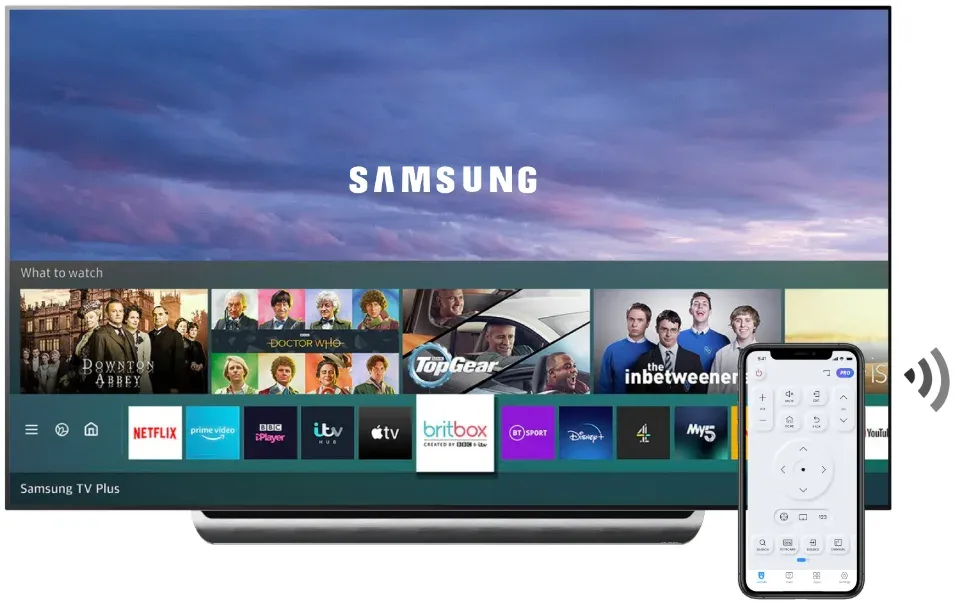
Typically, a Samsung remote app for iPhone and Android can handle core actions:
In real use, Samsung remote app for Android or iPhone setup is most reliable on Samsung Smart TVs with current firmware and home network access enabled. Older non-smart Samsung TVs usually cannot be controlled through Wi-Fi apps alone.
Before setup, check these requirements:
If these conditions are met, phone control is usually straightforward.
How to Set Up a Samsung TV Remote App on Phone
The exact screens vary by product, but the connection flow is similar across most Samsung-compatible phone controllers.
Step 1: Put both devices on the same Wi-Fi network
1. On your phone, open Wi-Fi settings and confirm the network name.
2. On the TV, open Settings > Network and check the same SSID.
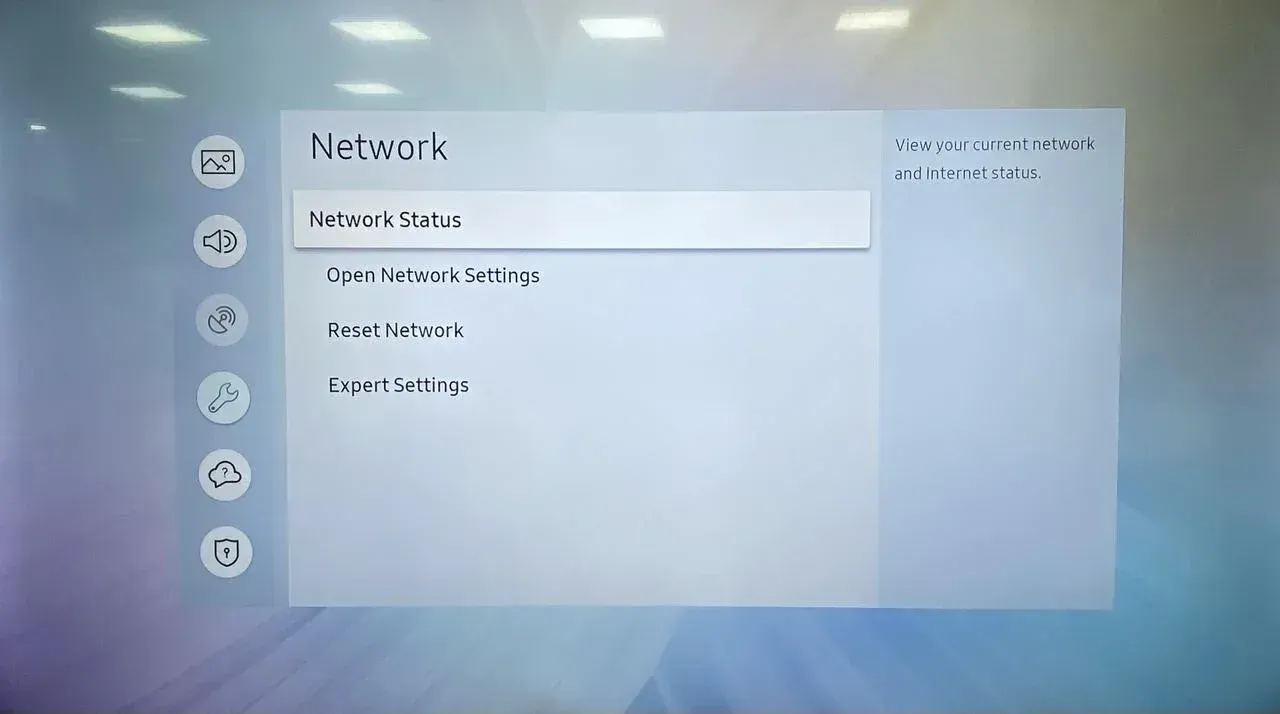
If one device is on a guest network or isolated band, discovery may fail.
Step 2: Keep the TV awake on the home screen
Turn on the TV and stay on the main dashboard. First-time connection prompts are easier to catch here, and some TVs hide prompts while deep inside streaming apps.
Step 3: Open the controller and allow local network permission
Launch the app and accept local network access when prompted. Without this permission, scan results are often empty even when the TV is online.
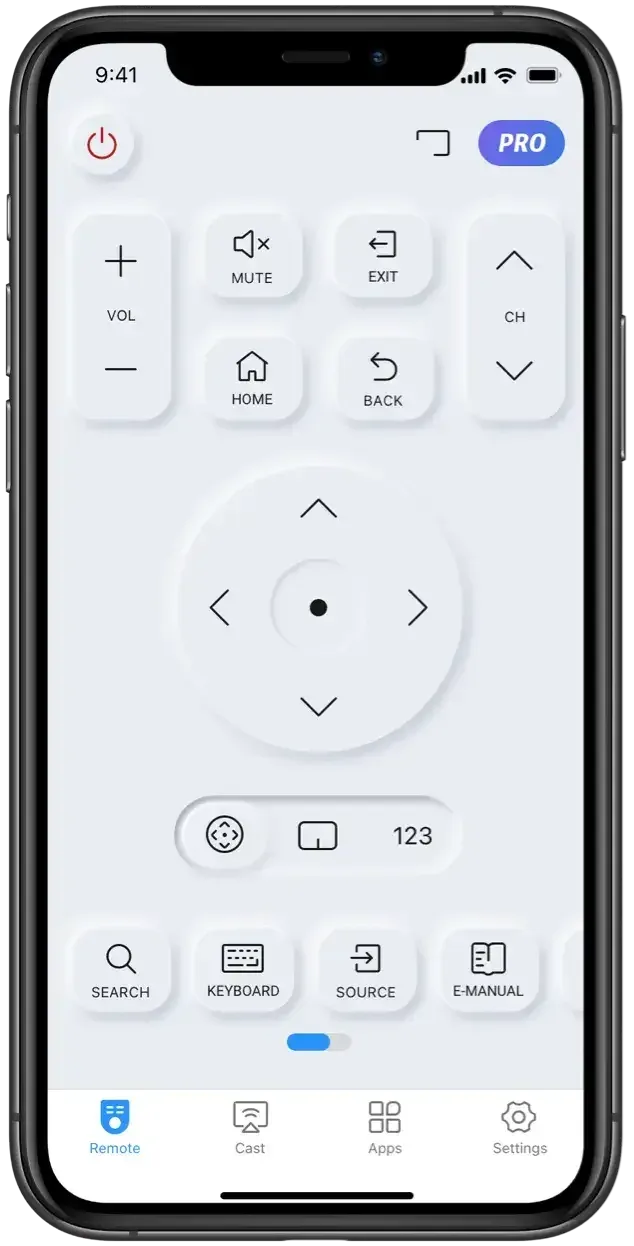
Step 4: Scan and select your Samsung TV
Start discovery, then pick your TV from the device list. If you see multiple Samsung TVs, verify by model name, room label, or last digits shown in the app.
Step 5: Approve the pairing request on the TV
When the TV asks for permission, choose Allow or Trust. If the prompt disappears, run scan again and keep your eyes on the TV for 30 seconds.
Step 6: Test controls in this order
Test power, volume, navigation, home/back, then keyboard input. This sequence quickly confirms both command control and text entry.
Step 7: Save the TV for quick reconnect
Mark the TV as a favorite in the app so the next session is one tap. This helps when family members need backup control.
Note: For Android users, the same sequence applies. The main difference is permission wording and where local network access appears in system settings.
Common Samsung TV Remote App Setup Issues and Fast Fixes
Most connection failures come from a small set of problems. Start with simple checks before reinstalling or changing advanced router settings.
| Problem | Most Likely Cause | Fast Fix |
|---|---|---|
| TV not found during scan | Phone and TV are on different networks | Move both to the same SSID, then rescan |
| Pairing prompt never appears | TV prompt timed out or was hidden | Keep TV on home screen and rescan immediately |
| App connects but no response | Temporary session conflict | Remove saved device in app and pair again |
| Navigation works but power does not | Model-specific power control limits | Use navigation fallback and check TV power settings |
| Controls lag or disconnect | Weak Wi-Fi signal or network congestion | Move closer to router and pause heavy downloads |
| Keyboard input fails | Field not focused on TV app | Reopen text field and reconnect once |
Use this recovery sequence in order:
1. Confirm same Wi-Fi network on both devices.
2. Restart the TV and phone.
3. Reopen app and run scan again.
4. Reapprove pairing on TV.
5. Remove the saved device and pair from scratch.
6. Check TV firmware update if issue continues.
I recommend following this exact order because it solves the highest percentage of pairing problems with the least effort.
Recommendation: A Practical Workaround If You Need Control Now
If your Samsung remote is lost and you need immediate access, this section gives two workable paths. Use the first option when you want the fastest everyday setup, then switch to the second option if discovery repeatedly fails.
Option 1: Use a Samsung-compatible phone controller
This option is best for users who want full navigation and typing from phone with minimal setup.
Step 1. Install one Samsung-compatible controller and open it on your phone.
Step 2. Confirm phone and TV are on the same home network, then scan for devices.
Step 3. Select your Samsung TV and approve the trust prompt on the TV.
Step 4. Test power, navigation, and keyboard input to confirm daily usability.
This route is usually the quickest way to restore control without waiting for new hardware.
Option 2: Use TV manual controls, then switch to replacement remote hardware
If your app pairing fails repeatedly or your TV model lacks stable network control, try this option.
Step 1. Use physical buttons on the TV panel to open network settings and basic inputs.
Step 2. Keep TV usable with minimal on-device controls while confirming your model capabilities.
Step 3. Buy a compatible replacement Samsung remote for long-term reliability.
Step 4. Keep phone control as backup only after hardware remote is restored.
This path takes more effort up front, but it is often the most stable fallback for unsupported or older models.
If you use mesh Wi-Fi, keep both devices on the same node during first pairing. Some mesh systems move the phone between nodes and delay local discovery. After the first successful connection, reconnect behavior usually becomes more stable.
Final Thoughts
Yes, there is a Samsung TV phone-control path for you, and it works well when your TV and phone share the same network and pairing is approved on screen. The fastest first action is to complete the standard setup sequence and test core controls in order.
If that does not work, move through the recovery checklist before changing advanced settings. Start with network alignment, restart both devices, and re-pair from scratch. If your model still does not support reliable app control, use manual TV buttons as a short-term bridge and move to a compatible replacement remote for daily use.
Is there a Samsung TV Remote App FAQ
Is there an official Samsung TV phone controller?
Yes. Samsung provides an official mobile app called SmartThings, which allows users to control compatible Samsung TVs from their phones. The app connects to the TV over the same Wi-Fi network and supports features like power control, navigation, input switching, and smart home integration.
Can I use phone control for Samsung TV without Wi-Fi?
In most cases, phone remote apps control Samsung TVs through a shared Wi-Fi network, which allows the phone to discover the TV and send commands.
However, if your Android phone includes an IR blaster, you may still be able to control the TV without Wi-Fi using a remote control app that supports infrared (IR). This works similarly to a traditional physical remote and does not require a network connection.
If your phone does not support IR and there is no shared network available, using a physical replacement remote is usually the most reliable option.
Why does my app find the TV but buttons do not work?
This often points to a partial session failure. Remove the TV from saved devices, reconnect, and test controls again in order. Also check whether power control is restricted on your specific model while navigation still works.
Do Samsung TV phone controllers work on Android and iPhone?
Yes, both platforms generally work if permissions are granted and both devices share one network. Setup steps are similar across iOS and Android, but menu names differ. Always allow local network access when prompted during first launch.
What is the best first fix if pairing keeps failing?
Start with the simplest high-impact fix: verify both devices are on the exact same SSID and reboot both devices. Then rescan while the TV is on the home screen and ready for trust approval. This approach resolves most first-time setup failures without deeper router changes.
Is there a free remote app for Samsung TV?
Yes. Samsung's SmartThings app is free and provides basic remote control functions for many Samsung smart TVs. There are also free third-party remote apps available for Android and iOS. Some offer additional features such as touchpad navigation, keyboard input, or IR control on supported phones. Free versions may include ads or limited features compared to premium versions.
What to do if I lost my Samsung TV remote?
If you lose your physical remote, you can still control the TV in several ways:
Using a phone remote app is often the quickest temporary solution.
Can I control a Samsung TV without the remote?
Yes. Most Samsung TVs can be controlled without the original remote. You can use a phone remote app, connect a USB keyboard or mouse, or use the physical control button on the TV itself to access basic functions. For long-term use, a replacement remote or phone controller usually provides a better experience.
How do I use my iPhone as a remote for my Samsung TV?
To use your iPhone as a Samsung TV remote:
1. Install the SmartThings app or a trusted third-party remote app from the App Store.
2. Make sure your iPhone and TV are connected to the same Wi-Fi network.
3. Open the app and tap Add Device.
4. Select your Samsung TV from the list.
5. Confirm the connection on the TV screen.
Once paired, you can use your iPhone for navigation, volume control, input switching, and other remote functions.

 Mar 26, 2025