
Los televisores Onn son populares por su asequibilidad, pero como cualquier tecnología, pueden experimentar problemas. Desde fallos en la pantalla hasta problemas de audio, esta guía explora los problemas de Onn TV más comunes y proporciona pasos para solucionarlos rápidamente.
Señales de problemas de Onn TV
Es fácil notar cuando algo anda mal con tu Onn TV, pero identificar el problema específico puede ayudarte a solucionarlo más rápido. A continuación se muestran algunos signos comunes que pueden ayudar a identificar el problema y hacer que su televisor vuelva a funcionar rápidamente.
| Señales de problemas | Significado |
|---|---|
| La luz parpadea 2 veces | Problema de emparejamiento remoto |
| La luz parpadea 3 veces | |
Problemas de imagen en TV
Si tiene problemas con la pantalla de Onn TV, el problema podría ser tan simple como una fuente de entrada incorrecta, un cable suelto o un problema con su dispositivo conectado. Comience verificando la fuente de entrada para ver si eso resuelve el problema antes de pasar a otras causas potenciales.
Comprobar fuente de entrada
Presione el botón Entrada en su control remoto para asegurarse de que su Onn TV esté configurado en la fuente de entrada correcta. Si el problema persiste, siga leyendo para conocer más pasos para solucionarlo.
Verifique los cables
Verifique todos los cables conectados para asegurarse de que estén en buenas condiciones y no dañados. Si los cables son viejos o han estado expuestos a señales infrarrojas, es una buena idea reemplazarlos por otros nuevos. Además, intente desconectar y volver a conectar los cables, asegurándose de que estén conectados de forma segura y adecuada.
Reinicie Onn TV
No importa el problema que enfrente su Onn TV, puede intentar apagar y encender el televisor. Simplemente apágalo, desconéctalo durante unos minutos, luego vuelve a enchufarlo y enciéndelo. Esto ayuda a borrar el caché temporal y puede resolver el problema.
Verifique el dispositivo conectadoSi bien los problemas de imagen de Onn Roku TV aún existen, centrémonos en el dispositivo externo. Comience desconectando el dispositivo de la fuente de alimentación, espere unos minutos y luego vuelva a enchufarlo. Alternativamente, puede restablecer el dispositivo siguiendo las instrucciones del manual del usuario o presionando el botón Restablecer disponible.
Problemas de volumen de Onn TV
Una vez que tenga problemas con el sonido de Onn TV, primero verifique si el televisor está silenciado. Luego, confirme la configuración de salida de audio, inspeccione los cables o pruebe con una fuente de entrada diferente.
Verifique la configuración de salida de audio
Después de asegurarse de que el televisor no esté silenciado, vaya a la configuración de audio del Onn TV para verificar si está seleccionada la salida de audio correcta. Si está utilizando un dispositivo de audio externo, asegúrese de que los cables estén bien conectados.
Pruebe con una fuente de audio diferente
Además, pruebe el sonido con un dispositivo fuente diferente para determinar si el problema está en el televisor o en el dispositivo conectado. Independientemente de la causa, puede restablecer el dispositivo problemático para restaurarlo a su configuración original y resolver los problemas de sonido de Onn TV.
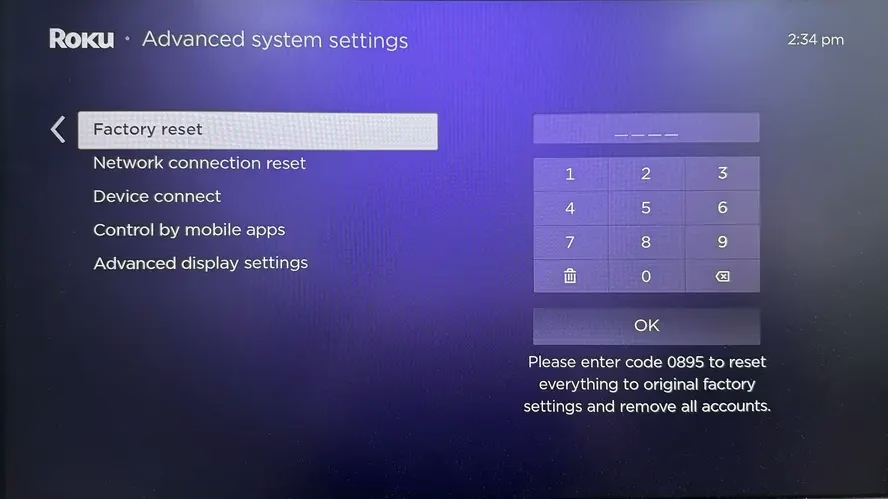
Para restablecer su Onn TV, puede presionar el botón Restablecer en el propio televisor o acceder a la opción Restablecimiento de fábrica presionando el botón Inicio > Configuración > Sistema > Configuración avanzada del sistema.
Problemas de conexión Wi-Fi de Onn TV
Si su Onn [los problemas de Roku TV vienen con la conexión Wi-Fi] (https://www.boostvision.tv/blog/roku-tv-not-connecting-to-wifi), el problema podría estar relacionado con el enrutador, la configuración de red del televisor o el software desactualizado.
Reinicie el enrutadorApague y encienda su enrutador Wi-Fi desconectándolo durante 30 segundos y luego volviéndolo a enchufar para ver si eso resuelve los problemas de la red inalámbrica.
Verifique la configuración de red
A continuación, asegúrese de que su televisor esté conectado a la red Wi-Fi correcta y de que la contraseña esté ingresada correctamente. Mientras tanto, puedes navegar hasta la configuración de red del televisor, olvidar la red Wi-Fi actual y luego volver a conectarte ingresando la contraseña correcta.
Verificar valores de conexión
Puede inspeccionar los valores de conexión presionando el botón Inicio y seleccionando Configuración > Red > Acerca de para verificar la red inalámbrica conectada Intensidad de la señal y Velocidad de descarga de Internet.
Luego elimine la interferencia inalámbrica, reduzca el uso de la red por parte de otros dispositivos, mueva su dispositivo Roku o enrutador, compre un nuevo enrutador o use un cable Ethernet para mejorar la potencia de Internet.
Actualiza el televisor
A veces, los sistemas operativos obsoletos causarán problemas de red inalámbrica con Onn Roku TV. Para solucionar este problema, busque actualizaciones de firmware yendo a Configuración > Sistema > Actualización.
Problemas remotos con Onn TV
Si su [control remoto de Onn TV no funciona] (https://www.boostvision.tv/blog/onn-roku-tv-remote-not-working), las razones detrás de esto incluyen baterías bajas, obstrucción, problema de emparejamiento o el sensor remoto. Aquí están las resoluciones:
Verifique las baterías y el sensor remoto
En primer lugar, verifica que las baterías del mando estén correctamente insertadas y tengan suficiente energía. Si las baterías están viejas, es recomendable reemplazarlas.
Además, use una cámara o una aplicación de cámara en su teléfono inteligente para verificar si el sensor de infrarrojos del control remoto está funcionando. Si el sensor de infrarrojos continúa parpadeando, el control remoto está funcionando correctamente y puede proceder a solucionar otros posibles problemas con el televisor.### Limpiar las obstrucciones
Puede eliminar cualquier objeto que pueda estar bloqueando la señal entre el control remoto y el televisor. Las obstrucciones físicas y otros dispositivos Bluetooth pueden interferir con la señal y hacer que su Onn TV no responda al control remoto.
Vuelva a emparejar el control remoto
Los problemas de conexión pueden provocar problemas con el control remoto; debe desemparejar el control remoto de su Onn TV y luego volver a conectarlo al televisor. Para hacer esto, primero debe restablecer el control remoto y estos son los pasos detallados:
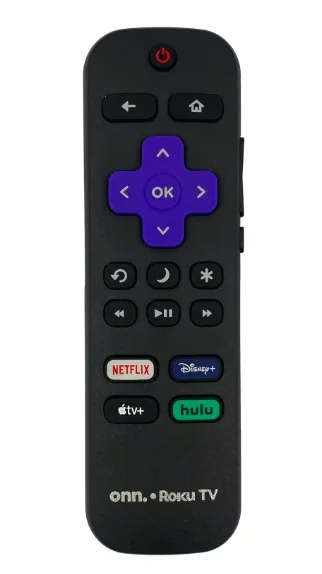
Paso 1. Presionar los botones Atrás y Inicio simultáneamente durante unos 20 segundos. (O puede quitar ambas baterías del control remoto y desenchufar el televisor del tomacorriente de pared para esperar 60 segundos completos. Luego vuelva a enchufar el televisor. Una vez que su televisor vuelva a la pantalla principal, vuelva a colocar las baterías en el control remoto).
Paso 2. Conecte el control remoto de Onn TV al televisor nuevamente e intente adoptar el control remoto para controlar su televisor.
Utilice un control remoto de TV Onn Roku virtual
Si aún no ha utilizado un control remoto virtual, ahora podría ser un buen momento para probarlo. Asegúrese de que su dispositivo móvil esté conectado a la misma red Wi-Fi que su televisor, luego instale la [aplicación remota de Roku TV] (https://www.boostvision.tv/app/roku-tv-remote). Siga el sencillo proceso de emparejamiento para controlar su Onn Roku TV directamente desde su teléfono.
Descargar control remoto para Roku TV
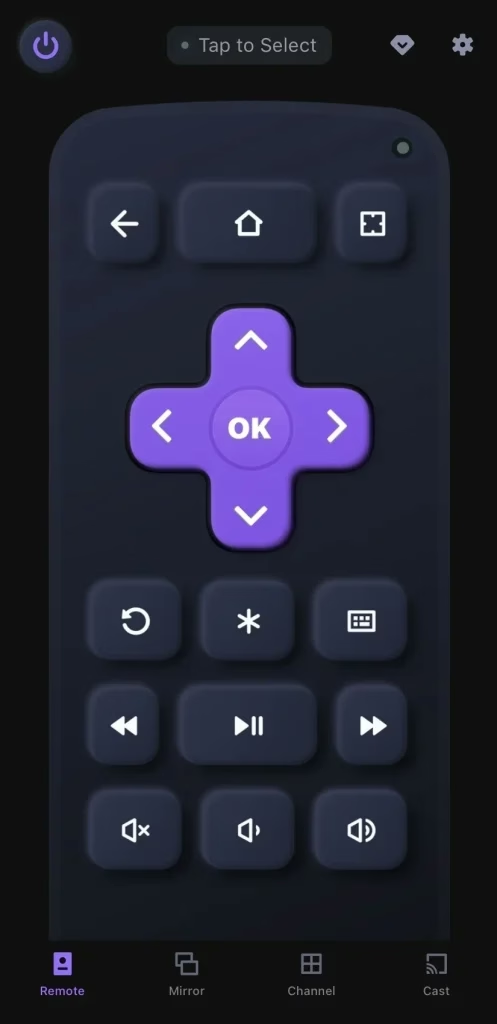
Paso 1. Inicie la aplicación remota y toque "Toque para seleccionar" para elegir su televisor de la lista de dispositivos.Paso 2. Si se le solicita, ingrese el código PIN para finalizar el proceso de emparejamiento. Luego puede tocar los botones en pantalla para controlar su televisor inteligente.
Problemas de aplicaciones con Onn TV
Supongamos que tiene problemas con la aplicación en su Onn TV, comience reiniciando la aplicación. Luego, busque actualizaciones, borre el caché y los datos, o puede reinstalar la aplicación para solucionar el problema. Para reiniciar la aplicación, simplemente cierre la aplicación problemática y reiníciela. Si el problema persiste, intente reiniciar su televisor para ayudar a resolver el problema.
Buscar actualizaciones
Puede buscar una actualización del sistema en su televisor o visitar la tienda de aplicaciones para ver si hay una opción de actualización disponible para la aplicación. Después de completar el proceso de actualización, es posible que los problemas de la aplicación se resuelvan.
Navegue hasta la sección Configuración > Acerca de/Soporte general > Actualización de software > Buscar actualizaciones/Actualizar ahora , luego haga clic en la opción de actualización disponible.
Borrar caché y datos
A veces, el exceso de memoria puede afectar el funcionamiento normal del software. Para resolver esto, puedes borrar la memoria para ayudar a restaurar el rendimiento de la aplicación o del televisor. Normalmente puedes encontrar esta opción en la configuración de la aplicación o en la configuración del sistema del televisor.
Seleccione el menú Inicio, luego presione estas teclas en su control remoto: Inicio (5 veces), Arriba (una vez), Rebobinar (2 veces) y Avance rápido (2 veces).
Reinstale la aplicación
Una vez que todos los métodos mencionados hayan fallado, intente eliminar la aplicación y reinstalarla en su Onn TV. Simplemente vaya a la configuración de la aplicación, seleccione la opción de eliminación de la aplicación y luego vuelva a instalarla desde la tienda de aplicaciones.
ConcluyendoSi su Onn TV comienza a tener problemas, no se preocupe: tome nota de cualquier mensaje de error o comportamiento inusual para ayudar a identificar el problema. Una vez que tenga una comprensión clara de lo que está mal, podrá tomar las medidas adecuadas para resolverlo. Además, los métodos generales de solución de problemas, como reiniciar, actualizar o restablecer su televisor, pueden ayudar a solucionar problemas comunes. Si encuentra útil esta guía, no dude en marcar la página como favorita y compartirla con otras personas que puedan tener el mismo problema.
Preguntas frecuentes sobre problemas de Onn TV
P: ¿Cómo reparo mi Onn TV cuando la pantalla se vuelve negra?
Puede verificar el suministro del televisor, verificar su control remoto y verificar problemas de software y hardware para solucionar el problema de la pantalla negra. Para conocer pasos más detallados para la solución de problemas, consulte Hisense/Onn/TCL Roku TV no enciende [Razones y soluciones].
P: ¿Cuánto duran los televisores Onn Roku?
Por lo general, dura entre 3 y 5 años y esta vida útil puede variar según factores como el uso y el mantenimiento. Por ejemplo, un televisor Roku que se usa moderadamente en un entorno doméstico puede durar más que un dispositivo Roku que se usa mucho en un entorno de mucho tráfico. El cuidado adecuado y las actualizaciones periódicas también pueden ayudar a prolongar la longevidad del dispositivo.

