
Wenn ein Fernseher die WLAN-Verbindung verliert und die Fernbedienung fehlt, leer oder nicht gekoppelt ist, ist die Netzwerkeinrichtung nur ein Teil des Problems. Sie benötigen außerdem eine Möglichkeit, den Fernseher einzuschalten, die Einstellungen zu öffnen, ein Netzwerk auszuwählen und die Verbindung ohne den üblichen Ablauf mit der Fernbedienung zu bestätigen.
Die folgenden Schritte konzentrieren sich auf praktische Möglichkeiten, den Fernseher zu steuern, die WLAN-Verbindung wiederherzustellen und den Bildschirm nutzbar zu halten, wenn die Originalfernbedienung nicht verfügbar ist.
Kurze Antwort: Kann man einen Fernseher ohne Fernbedienung mit dem WLAN verbinden?
Ja, die Methode hängt jedoch davon ab, welche Bedienmöglichkeiten Ihr Fernseher noch bietet:
Beginnen Sie mit dem schnellsten Weg
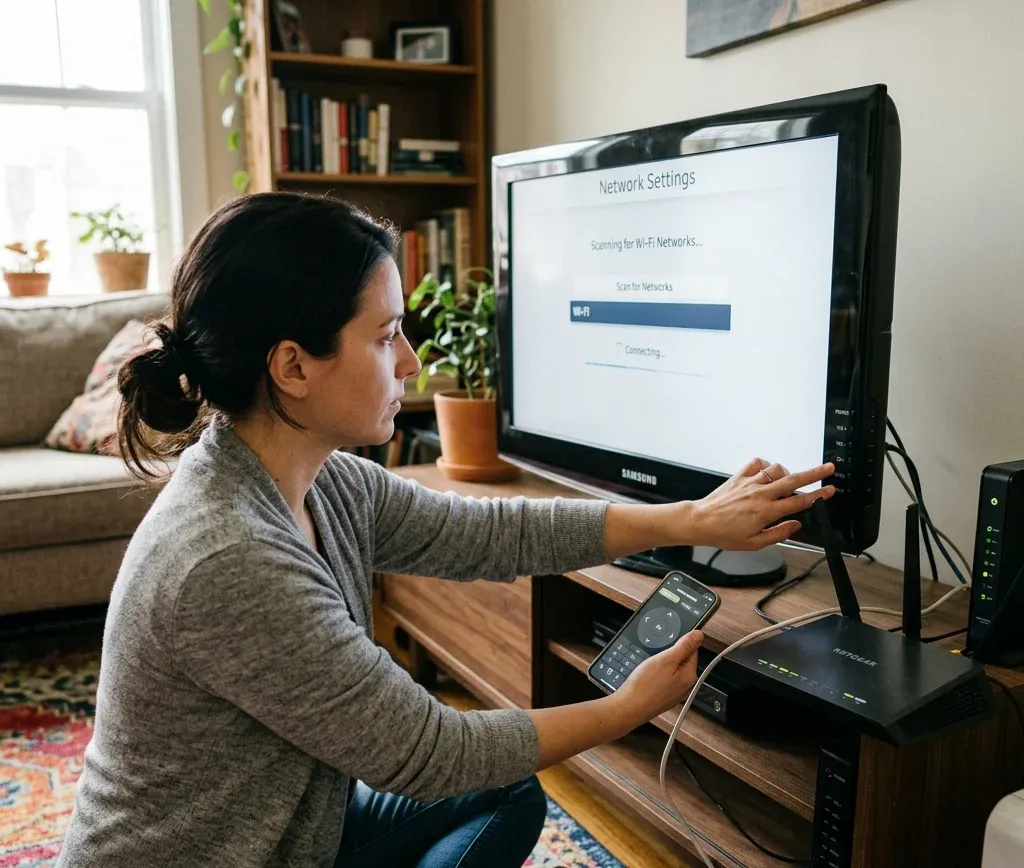
1. Probieren Sie die physischen Tasten des Fernsehers aus
Viele Smart-TVs verbergen einen Joystick, ein Touchpad oder eine Ein/Aus-/Menütaste unter dem Rahmen oder in der Nähe der Seitenblende. Das reicht häufig aus, um die Einstellungen zu öffnen und das Netzwerk erneut zu verbinden.
Diese Methode eignet sich am besten, wenn:
Wenn das größere Problem darin besteht, den Fernseher einzuschalten, sollten Sie zuerst klären, wie Sie einen Fernseher ohne Fernbedienung einschalten.
2. Probieren Sie eine USB-Tastatur oder -Maus aus
Dies ist eine der zuverlässigsten Ausweichmethoden für Smart-TVs, die beim Start weiterhin USB-Eingaben akzeptieren. Mit einer Tastatur, einer Maus oder beiden Geräten können Sie möglicherweise die Einstellungen öffnen, das WLAN-Passwort eingeben und die Einrichtung abschließen.
Diese Methode eignet sich am besten, wenn:
3. Verwenden Sie Ihr Smartphone als Ersatzfernbedienung
Wenn sich Fernseher und Smartphone noch gegenseitig erkennen oder der Fernseher automatisch wieder eine Verbindung herstellt, nachdem er demselben Netzwerk beigetreten ist, ist die Steuerung per Smartphone meist die einfachste langfristige Lösung.
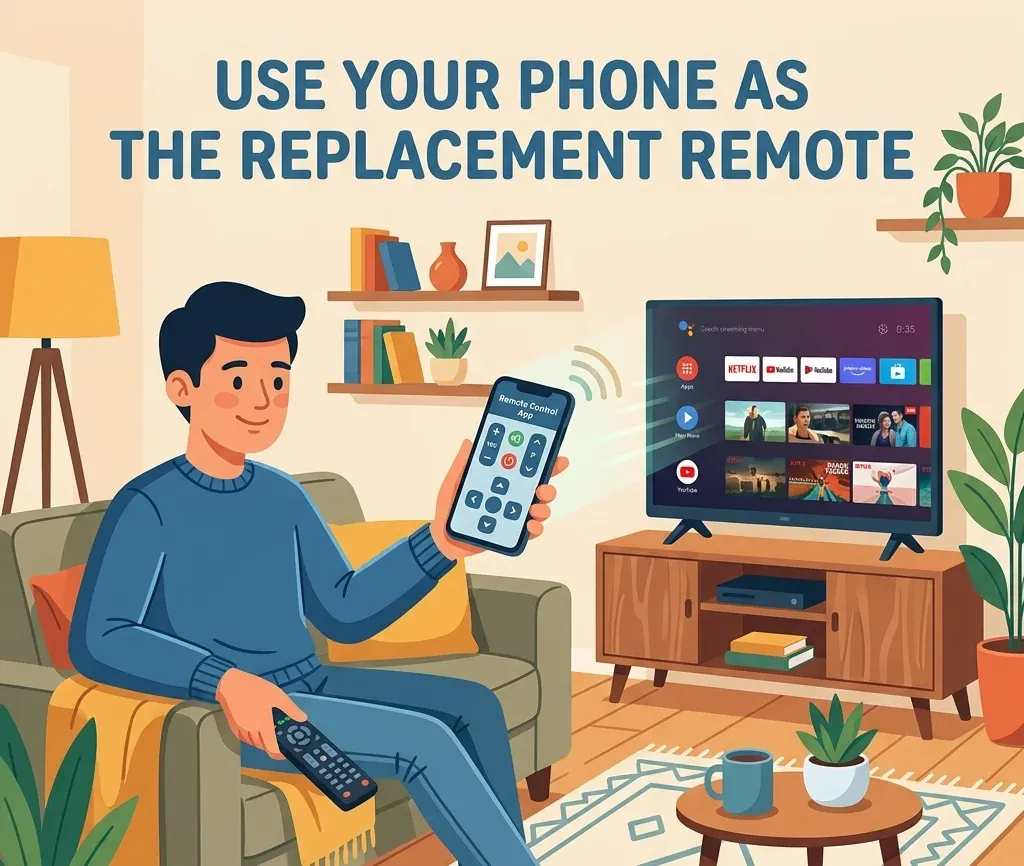
Die beiden wichtigsten Optionen sind:
Sobald der Fernseher erreichbar ist, erklärt So steuern Sie einen Fernseher mit dem Smartphone ohne Fernbedienung die app-basierte Einrichtung ausführlicher.
4. Benennen Sie Ihr WLAN nach den alten Zugangsdaten um
Wenn Ihr Fernseher zuvor mit einer alten SSID verbunden war, ändern Sie den Namen und das Passwort des aktuellen WLANs Ihres Routers so, dass sie exakt den früheren Daten entsprechen. Viele Fernseher stellen automatisch wieder eine Verbindung her, sobald sie die vertrauten Zugangsdaten erkennen.
Diese Methode eignet sich am besten, wenn:
5. Verwenden Sie Ethernet, wenn der Fernseher es unterstützt
Wenn der Fernseher sofort wieder online sein soll, ist Ethernet häufig die unkomplizierteste Option. Sobald der Fernseher online ist, können Sie möglicherweise eine App oder cloudbasierte Funktionen des TV-Kontos verwenden, um die Wiederherstellung der Fernbedienung abzuschließen.
So steuern Sie den Fernseher, bevor das WLAN wiederhergestellt ist
An dieser Stelle bleibt der Vorgang häufig hängen: Sie kennen möglicherweise die Netzwerklösung, haben aber weiterhin keine Möglichkeit, den Fernseher zu bedienen.
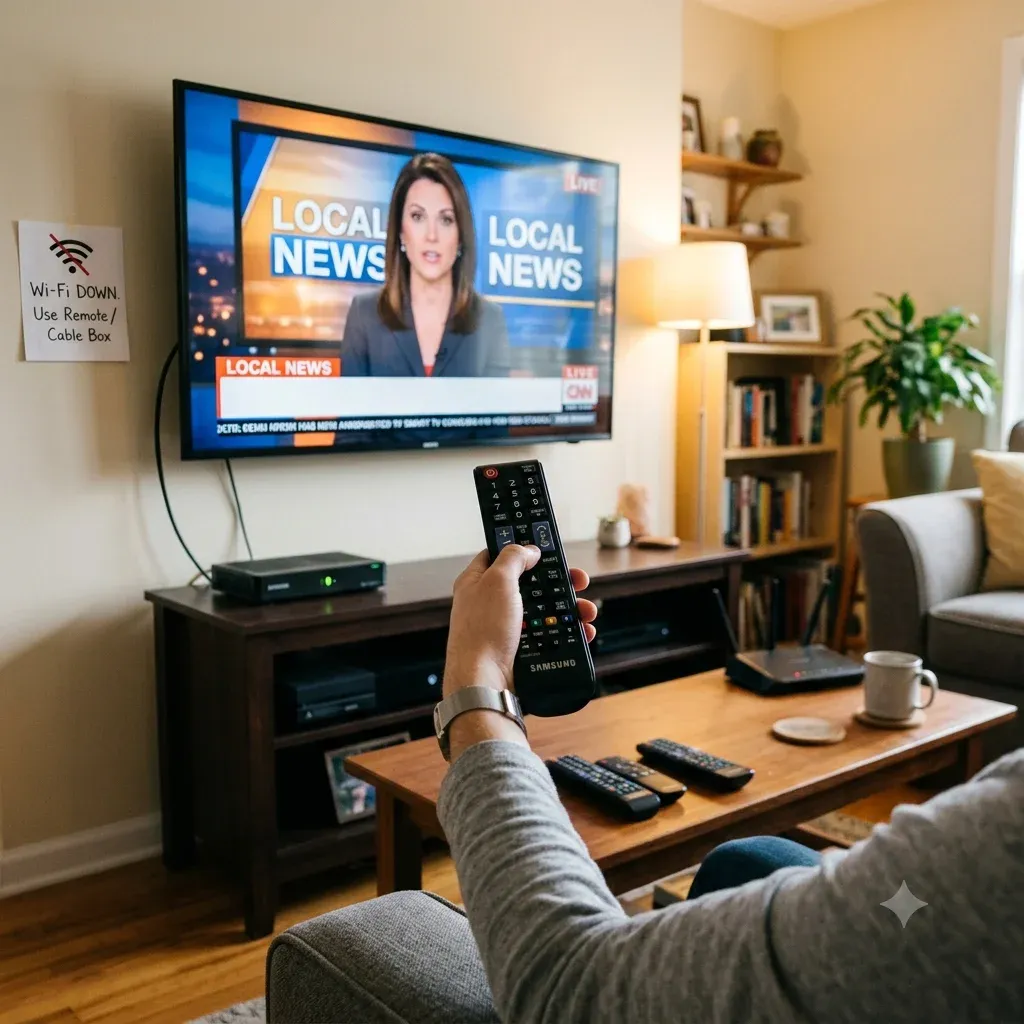
Ein Smartphone mit IR-Sender verwenden
Ein Smartphone mit IR-Sender kann ohne WLAN wie eine physische Fernbedienung funktionieren. Das hilft, solange der Fernseher noch nicht wieder mit dem Netzwerk verbunden ist.
Wenn Ihr Smartphone Infrarot unterstützt, kann eine Universal-Fernbedienungs-App ohne WLAN einige Fernseher steuern, bevor der Fernseher die Netzwerkverbindung wiederherstellt.
Eine WLAN-Fernbedienungs-App verwenden
Wenn der Fernseher wieder demselben Netzwerk beitreten kann, ist eine App meist der einfachste langfristige Ersatz.
Das funktioniert, wenn:
Wenn der Fernseher online, die physische Fernbedienung jedoch nicht mehr vorhanden ist, ist die Steuerung des Fernsehers mit dem Smartphone meist die bessere langfristige Lösung.


Markenspezifische Situationen ohne Fernbedienung
Samsung
Bei Samsung TVs können zusätzliche Schritte erforderlich sein, wenn Berechtigungsabfragen oder die Stromsteuerung die Einrichtung blockieren:
Roku TV
Bei Roku TVs kann eine Umgehungslösung erforderlich sein, um den Fernseher einzuschalten, HDMI-CEC zu verwenden oder die fehlende Fernbedienung vollständig zu umgehen.
Wenn Ihr Roku TV weder eine funktionierende Fernbedienung noch eine Ein/Aus-Taste hat, ist diese Roku-spezifische Umgehungslösung geeigneter:
LG
Probleme mit einem LG TV ohne Fernbedienung lassen sich häufig in drei Aufgaben unterteilen: den Fernseher einschalten, den Eingang wechseln und den Fernseher wieder online bringen.
Die Wiederherstellung eines LG TVs ohne Fernbedienung hängt häufig davon ab, ob Sie die Stromversorgung, den Eingang oder die Steuerung ohne WLAN benötigen:
Sony und Fire TV
Sony und Fire TV haben eigene Wege zur Stromsteuerung:
Sonderfälle bei Hisense, Onn und Vizio
Bei weniger häufigen Fällen ohne Fernbedienung hängt die genaue Umgehungslösung von der Marke ab:
Was ist, wenn keine der Methoden ohne Fernbedienung funktioniert?
Wenn sich der Fernseher weiterhin nicht steuern lässt, wechseln Sie zur nächsten verfügbaren Bedienmethode:
Für die allgemeine Wiederherstellung hilft das Einschalten des Fernsehers ohne Fernbedienung dabei, das Zugriffsproblem zu lösen, bevor Sie sich dem Netzwerkproblem widmen.
Fazit
Um einen Fernseher ohne Fernbedienung mit dem WLAN zu verbinden, müssen Sie in der Regel zuerst die Kontrolle über den Fernseher erlangen. Probieren Sie physische Tasten, USB-Eingabegeräte, alte WLAN-Zugangsdaten, Ethernet oder eine Fernbedienungs-App auf dem Smartphone aus und wechseln Sie anschließend zum passenden Markenabschnitt, wenn Ihr Fernseher eine speziellere Umgehungslösung benötigt.