

LG TV-Probleme fallen meist in fünf Bereiche: Fernbedienung, Wiederherstellung ohne Fernbedienung, WLAN- und App-Verbindung, AirPlay oder Casting sowie hardwarebezogene Symptome wie kein Signal oder Stromausfall. Dieses Hilfezentrum hilft Nutzern, zuerst den richtigen Bereich zu erkennen, den schnellsten sicheren Schritt zu lösen und dann die eine tiefere Seite zu öffnen, die zum genauen Symptom passt.
Speziell bei LG ist die wichtigste Unterscheidung, ob das Problem zur Fernbedienung, zum Netzwerk, zum Eingangspfad oder zum TV selbst gehört. Diese Trennung ist wichtig, weil ein LG Magic Remote-Problem, ein webOS- oder AirPlay-Problem und ein TV, der sich nicht einschalten lässt, nicht mit demselben Fehlerbehebungsablauf behandelt werden sollten.
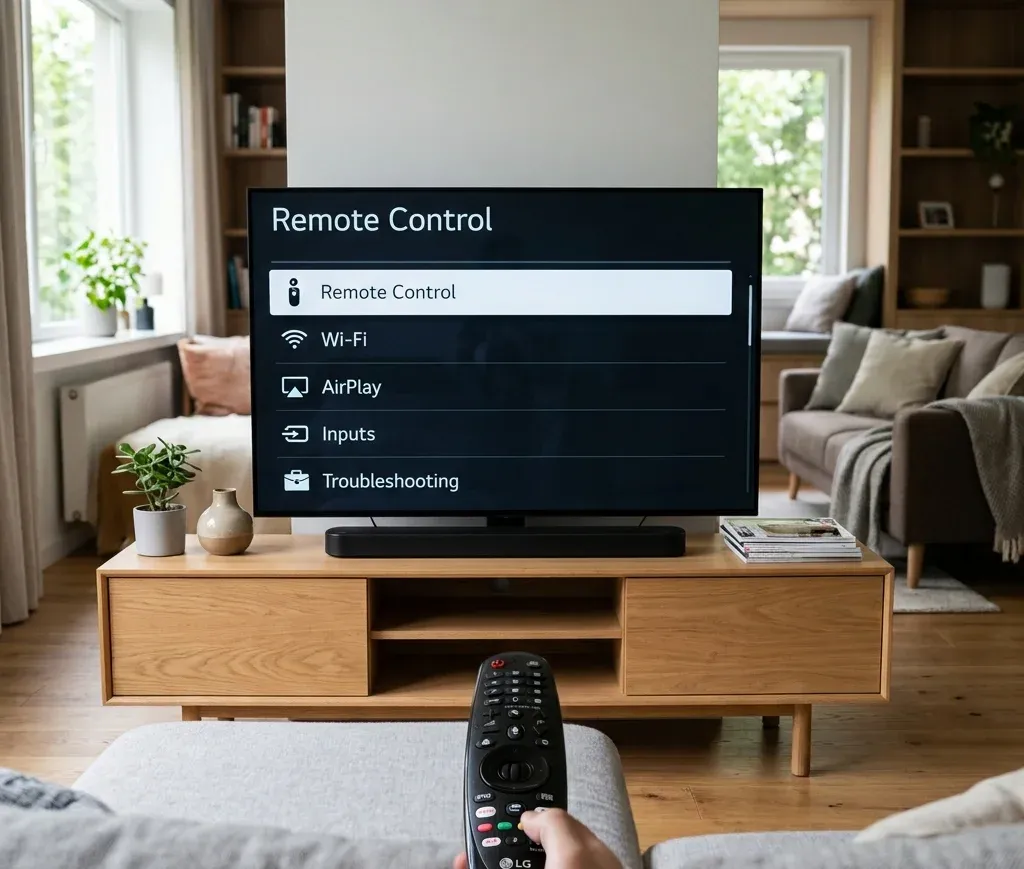
Schnelle Antwort: welche Art von LG TV-Problem haben Sie?
Nutzen Sie diese Tabelle, bevor Sie zufällig in Einstellungen springen:
| Situation | Bester erster Schritt | Nächste zu öffnende Seite |
|---|---|---|
| LG TV-Fernbedienung reagiert nicht | Batterien ersetzen und prüfen, ob es um Kopplung, Zeiger oder IR-Steuerung geht | [LG TV-Fernbedienung funktioniert nicht](https://www.boostvision.tv/blog/lg-tv-remote-not-working) |
| Magic Remote-Zeiger fehlt oder ist instabil | Magic Remote erneut registrieren, bevor Sie Ersatz kaufen | [LG Magic Remote-Zeiger funktioniert nicht](https://www.boostvision.tv/blog/lg-magic-remote-pointer-not-working) |
| Sie haben keine Fernbedienung und müssen den TV nutzen | Mit TV-Taste, Eingangspfad oder App-Ausweichlösung beginnen | [LG TV ohne Fernbedienung einschalten](https://www.boostvision.tv/blog/turn-on-lg-tv-without-remote) |
| LG TV ist offline | WLAN-Verbindungsfehler von ausgeschaltetem WLAN trennen | [LG TV verbindet sich nicht mit WLAN](https://www.boostvision.tv/blog/lg-tv-not-connecting-to-wifi) |
| iPhone verbindet sich nicht mit LG TV | AirPlay-Unterstützung, Einstellungen und gleichen Netzwerkstatus prüfen | [AirPlay auf LG TV](https://www.boostvision.tv/blog/airplay-lg-tv) |
| LG TV meldet kein Signal oder bleibt schwarz | Eingangsquelle und HDMI-Pfad vor Reset bestätigen | [LG TV kein Signal](https://www.boostvision.tv/blog/lg-tv-no-signal) |
Häufigste LG TV-Hilfeaufgaben
Die meisten LG TV-Nutzer, die auf einem Hilfezentrum landen, versuchen eine dieser Aufgaben zu erledigen:
Mit dem LG-Steuerungspfad beginnen
LG-Fehlerbehebung wird deutlich einfacher, wenn Sie wissen, welcher Steuerungspfad fehlschlägt:
Deshalb kann eine Suche wie LG TV-Fernbedienung funktioniert nicht sehr unterschiedliche reale Probleme beschreiben.
Wenn der TV noch auf Ein/Aus reagiert, aber nicht auf Navigation, kann das Problem fernbedienungsspezifisch sein. Wenn der TV für Smartphone-Steuerung unsichtbar ist, lösen Sie zuerst WLAN. Wenn der Bildschirm keinen Eingang oder kein Bild zeigt, beheben Sie den HDMI- oder Hardwarepfad vor der Fernbedienungswiederherstellung.
Hilfe zu Fernbedienung und Magic Remote
Wenn die LG TV-Fernbedienung nicht funktioniert
Nutzen Sie LG TV-Fernbedienung funktioniert nicht, wenn:
Dies ist die wichtigste LG-Fernbedienungsabsicht und sollte als primäres Cluster-Ziel vom Hilfezentrum erhalten bleiben.
Wenn der Magic Remote-Zeiger das eigentliche Problem ist
LG-Nutzer suchen oft nach einem Fernbedienungsproblem, obwohl es eigentlich nur um Cursor, Rad oder Bewegungssteuerung geht. Das ist ein anderer Fehlermodus und braucht eine präzisere Route.
Nutzen Sie LG Magic Remote-Zeiger funktioniert nicht, wenn:
Wenn die Fernbedienung nach der erneuten Registrierung weiterhin unzuverlässig ist, fahren Sie mit LG TV-Fernbedienung zurücksetzen fort oder vergleichen Sie Optionen in LG TV-Fernbedienung ersetzen.
Wenn Sie Ersatzfernbedienung oder App-Ausweichlösung brauchen
Wenn die Originalfernbedienung verloren, physisch beschädigt oder unzuverlässig ist, sind die schnelleren Pfade:
Diese sind nützlicher als ein Reset-Artikel, wenn die eigentliche Absicht einfach darin besteht, Kontrolle zurückzugewinnen.


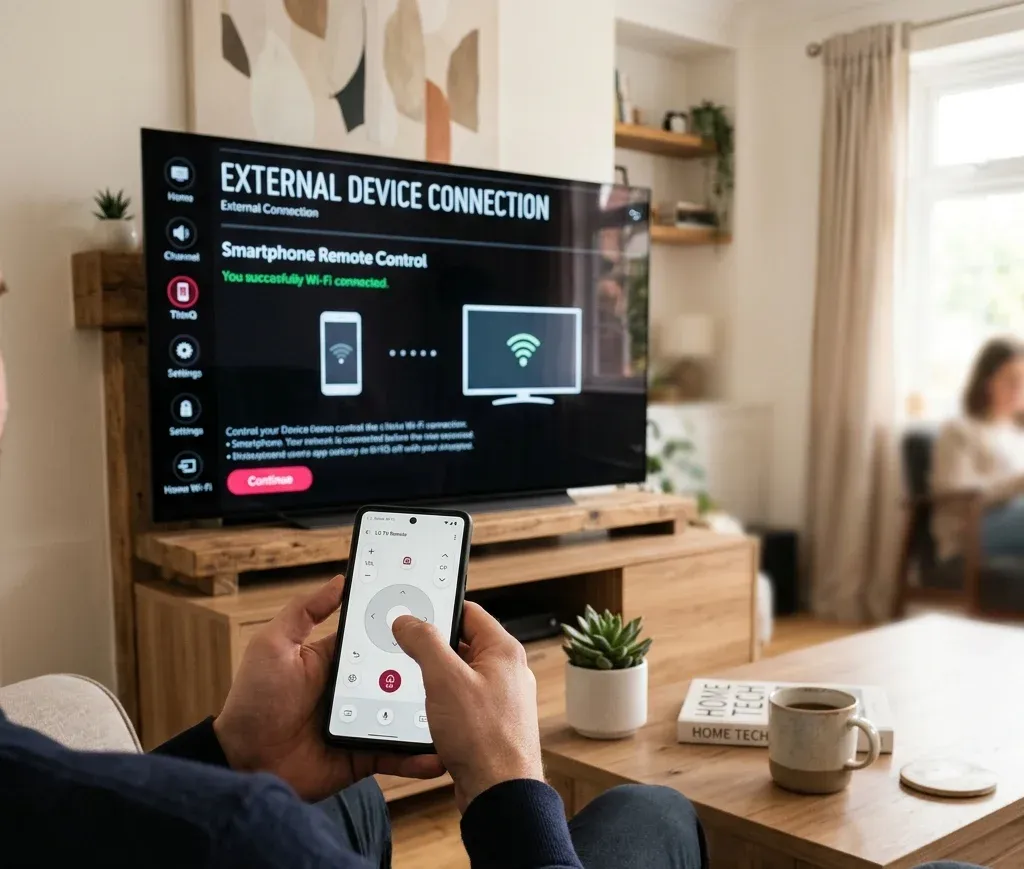
Wiederherstellung ohne Fernbedienung: Strom, Eingang und Einstellungen
LG hat einen starken Suchcluster ohne Fernbedienung, daher sollte dieses Hilfezentrum diese Aufgaben klar weiterleiten, statt sie zu verstecken.
Wenn Sie LG TV ohne Fernbedienung einschalten müssen
Nutzen Sie LG TV ohne Fernbedienung einschalten, wenn:
Dies ist das richtige Ziel für Nutzer, die noch nicht versuchen, den ganzen TV zu reparieren. Sie brauchen nur Zugriff.
Wenn das eigentliche Hindernis das Umschalten des Eingangs ist
Viele Nutzer glauben, der TV sei kaputt, obwohl er nur auf der falschen Quelle steht. Wenn das Ziel HDMI, eine Konsole oder ein Streaming-Gerät ist, leiten Sie direkt zu Eingang auf LG TV ohne Fernbedienung wechseln.
Nutzen Sie diese Seite, wenn:
Wenn Sie Menüs oder Einstellungen ohne Fernbedienung brauchen
Wenn der Nutzer speziell Einstellungen braucht, nicht nur Strom oder Eingang, ist die präzisere Route LG TV-Einstellungsmenü ohne Fernbedienung.
Wenn das größere Problem darin besteht, den TV zu steuern, während er auch offline ist, wechseln Sie zu LG TV ohne Fernbedienung und ohne WLAN verwenden.
WLAN- und Verbindungshilfe
LG TV-Netzwerkprobleme trennen sich meist in drei Absichten: Der TV kann WLAN nicht beitreten, die Verbindung bricht wiederholt ab oder der TV meldet, dass WLAN ausgeschaltet ist.
Wenn der LG TV sich nicht mit WLAN verbindet
Nutzen Sie LG TV verbindet sich nicht mit WLAN, wenn:
Dies ist einer der stärksten LG-Problemcluster in Suche und Nutzerwert, daher verdient er eine prominente Position im Hilfezentrum.
Wenn die Verbindung immer wieder abbricht
Wenn der TV WLAN beitritt, sich aber erneut trennt, ist die bessere Route LG TV trennt sich immer wieder vom WLAN. Diese Seite ist spezifischer als ein allgemeiner Kein-Netzwerk-Artikel und passt besser zur Absicht instabiler Verbindung.
Wenn LG meldet, dass WLAN ausgeschaltet ist
Dies ist ein engeres, aber häufiges LG-spezifisches Symptom. Nutzen Sie:
Diese Seiten sind die richtigen Ziele, wenn der Nutzer Menüs erreichen kann, die Drahtlosoption aber deaktiviert, fehlend oder ausgegraut erscheint.
AirPlay, iPhone und Casting auf LG TV
LG-Hilfezentren sollten nicht bei Fernbedienungsfehlern stoppen, weil LG-Suchnachfrage auch iPhone-zu-TV-Verbindung, AirPlay und Bildschirmfreigabe umfasst.
Wenn der Nutzer AirPlay auf LG TV möchte
Nutzen Sie AirPlay auf LG TV, wenn die Absicht Einrichtung oder Kompatibilität ist:
AirPlay-Verfügbarkeit und Menübezeichnungen können je nach Modell und webOS-Version variieren, daher ist die sicherste Regel, die Unterstützung am tatsächlichen TV zu prüfen, bevor Sie annehmen, dass die Option existieren sollte.
Wenn AirPlay bereits aktiviert ist, aber trotzdem fehlschlägt
Nutzen Sie LG TV AirPlay funktioniert nicht, wenn:
Wenn der Nutzer eigentlich einen breiteren Smartphone-zu-TV-Pfad will
Nicht jedes LG TV-Verbindungsproblem sollte allein mit AirPlay gelöst werden. Diese engeren Seiten passen besser, wenn sich die Nutzerabsicht ändert:
Dieser Linkpfad ist natürlich, weil er Apple-Spiegelung, breitere Bildschirmfreigabe und App-basiertes Casting trennt, statt jeden Nutzer in dasselbe Protokoll zu zwingen.
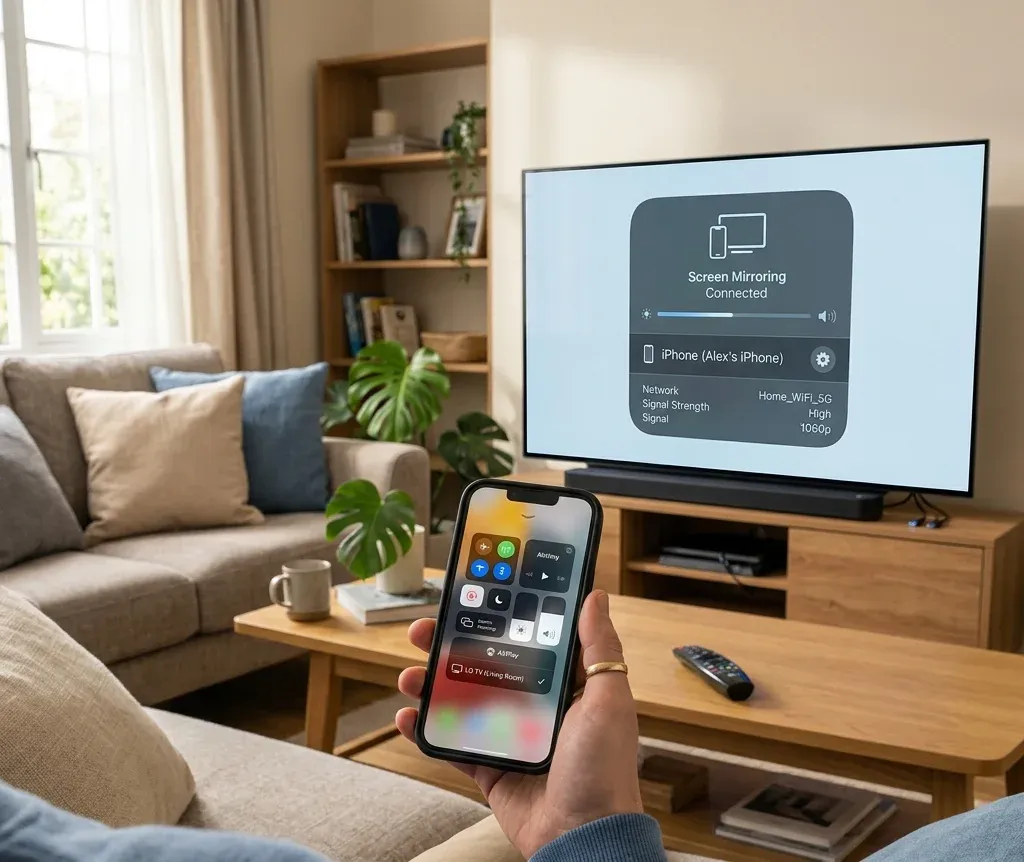
Eingang, kein Signal und Stromprobleme
Einige LG-Symptome haben nichts mit Fernbedienungen oder WLAN zu tun. Es sind Quellenpfad- oder Hardwarepfadprobleme.
Wenn der LG TV kein Signal meldet
Nutzen Sie LG TV kein Signal, wenn:
Dies sollte normalerweise vor einem Werksreset kommen.
Wenn die Eingangstaste der Fernbedienung selbst der Blocker ist, ist die gezieltere Route LG Fernbedienungs-Eingangstaste.
Wenn der LG TV sich nicht einschalten lässt
Nutzen Sie LG TV lässt sich nicht einschalten, wenn:
Dies ist eine andere Absicht als kein Signal und sollte im Hilfezentrum getrennt bleiben.
Weitere nützliche LG-Wiederherstellungsseiten
Einige LG-Absichten sind nicht breit genug, um das Hilfezentrum anzuführen, aber sie sind dennoch natürliche unterstützende Links:
Diese Links gehören später in das Hilfezentrum, weil sie engere Nutzerprobleme lösen, nachdem der Hauptdiagnosepfad klar ist.
Nützliche LG TV-Seiten nach Aufgabe
Öffnen Sie diese Seiten je nachdem, was Sie genau tun möchten:
Empfohlene LG-Fehlerbehebungsreihenfolge
Wenn Sie einen sauberen LG-Ablauf möchten, nutzen Sie diese Reihenfolge:
1. Entscheiden, ob das Problem Fernbedienung, Netzwerk, Eingang, AirPlay oder Strom betrifft.
2. Grundlegende Kontrolle wiederherstellen, bevor Sie tiefer beheben.
3. WLAN beheben, bevor Sie erwarten, dass Smartphone-Steuerung oder AirPlay funktionieren.
4. Quellen- und HDMI-Probleme vor Reset beheben.
5. Reset oder Ersatz nur verwenden, nachdem die engere Symptomseite fehlschlägt.
Fazit
Das beste LG TV-Hilfezentrum behandelt nicht jedes Problem als generisches Reset-Problem. Die meisten Nutzer brauchen einen von wenigen starken Pfaden: Fernbedienung wiederherstellen, TV ohne Fernbedienung nutzen, WLAN wieder zum Laufen bringen, iPhone oder AirPlay verbinden oder Kein-Signal- und Stromprobleme lösen. Dieses Hilfezentrum sollte diese Absichten früh erfassen und Nutzer natürlich zur richtigen LG-Cluster-Seite verteilen.
LG TV Hilfezentrum FAQ
F: Was ist der schnellste Weg, einen LG TV zu nutzen, wenn die Fernbedienung weg ist?
Beginnen Sie mit der TV-Taste für Strom, wechseln Sie dann je nach tatsächlichem Blocker zu LG TV ohne Fernbedienung einschalten oder Eingang auf LG TV ohne Fernbedienung wechseln.
F: Warum funktioniert meine LG TV-Fernbedienung teilweise, aber der Zeiger ist weg?
Das deutet normalerweise eher auf ein Magic Remote-Registrierungs- oder zeigerspezifisches Problem hin als auf eine tote Fernbedienung. Nutzen Sie LG Magic Remote-Zeiger funktioniert nicht.
F: Sollte ich meinen LG TV zurücksetzen, wenn AirPlay oder App-Steuerung nicht funktioniert?
Nicht zuerst. Bestätigen Sie, dass der TV im selben Netzwerk ist, prüfen Sie, ob die Funktion auf dem Modell unterstützt wird, und nutzen Sie vor einem vollständigen Reset die LG-spezifische AirPlay- oder WLAN-Fehlerbehebungsseite.

 May 12, 2026