
In today's world, our smartphones are packed with so many useful features that it can sometimes be difficult to navigate all of them. One feature that many Android users may find themselves searching for is "screen mirroring". Whether you want to share your latest photos, play a mobile game, or stream your favorite videos to a larger display, screen mirroring is a simple yet powerful tool.
But where is screen mirroring on Android? Let's dive in and explore where to find it, the common Android brands, and why using a TV Cast app might just be the easiest solution.
What Is Android Screen Mirroring?
iPhone has AirPlay, while does Android have screen mirroring? Yes!Screen mirroring Android is a feature that allows you to share your Android device's display with another screen, such as a TV, projector, or computer monitor. This can be useful for various tasks, such as presentations, gaming, watching videos, or simply displaying photos and videos for a larger audience. The process typically involves connecting your device wirelessly to the target display, eliminating the need for physical cables.
Where Is Screen Mirroring on Android?
On most Android devices, screen mirroring can be accessed through the Quick Settings menu or through a feature like Cast or Smart View. Here's a general guide on where to find screen mirroring on Android:
Find Android Screen Mirroring in the Quick Settings Menu
Most Android phones include screen mirroring options within the Quick Settings menu, which is accessible by swiping down from the top of the screen.
Step 1. Swipe down from the top of your screen to open the Quick Settings menu.
Step 2. Look for an option like "Cast", "Screen Cast", or "Smart View".
Step 3. Tap on this option, and you should see a list of available devices that you can cast your screen to.
Step 4. Select your TV or compatible device, and the mirroring should start.
Find Android Screen Mirroring in the Settings App
If you can't find the mirroring option in the Quick Settings, you can usually locate it through the main Settings app. Here's how:
Step 1. Open the Settings app on your Android device.
Step 2. Navigate to the Connected Devices section or Display (the exact menu may vary based on your device).
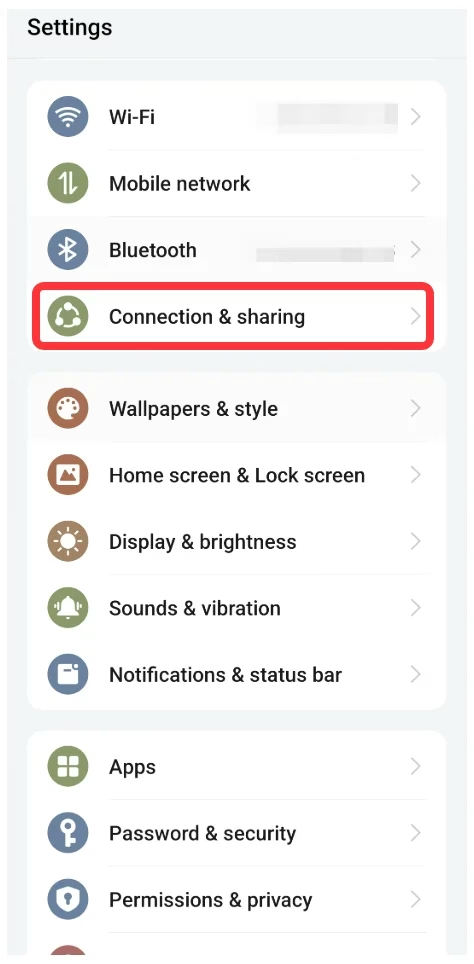
Step 3. Tap on Cast or Screen Mirroring.
Step 4. Follow the on-screen prompts to connect to your TV or display.
Common Android Brands and Screen Mirroring
Where is screen mirroring on my Android phone? While the steps for screen mirroring are similar across most Android devices, some Android brands have their own customizations. Here's a quick overview of how different manufacturers implement screen mirroring:
Samsung:Samsung phones and tablets use a feature calledSmart View. As described earlier, you can find it in the Quick Settings menu. Samsung devices also support Samsung DeX, which provides an extended desktop-like experience when connected to compatible displays, including monitors and smart TVs.Google (Pixel):Pixel devices use theCastfeature to wirelessly connect to other devices. It's often one of the simplest setups, especially for users familiar with Google's ecosystem, including Chromecast and Google TV.OnePlus:OnePlus phones also use theCastfeature, and it can be found in the Quick Settings or Display settings. The process is quite similar to stock Android devices.Xiaomi:Xiaomi devices useMi ShareorCastin their Quick Settings menu. Xiaomi also includes other features like Mi TV for easy connectivity with their smart TVs.
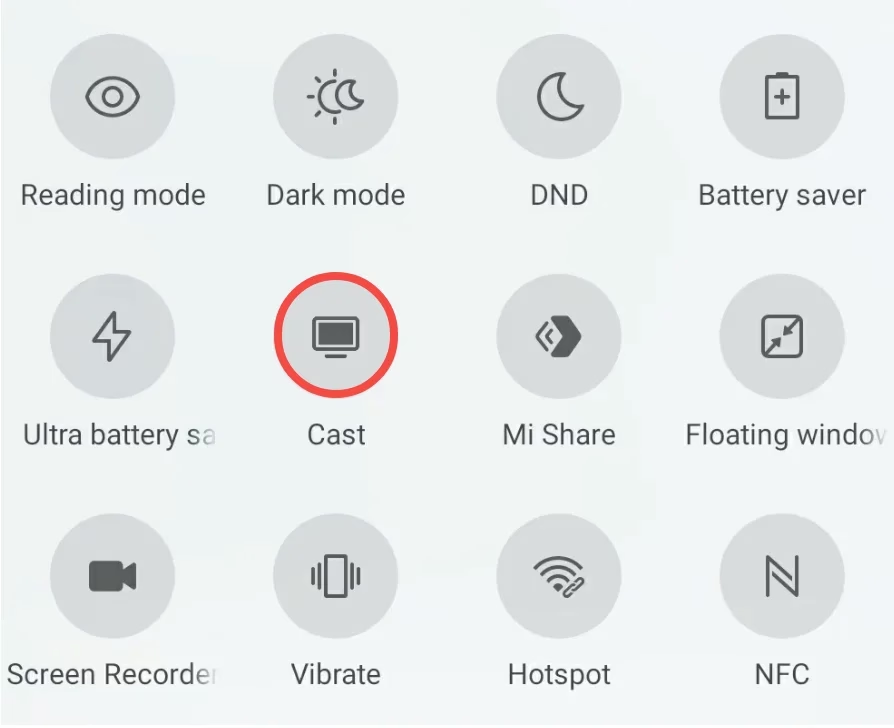
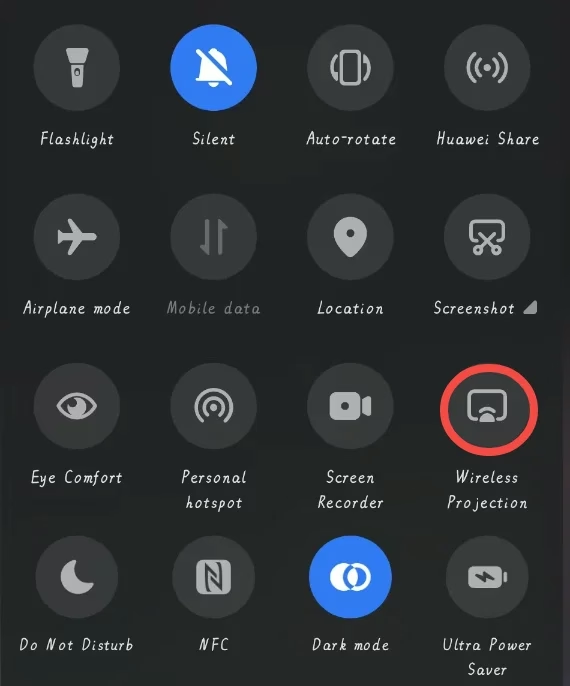
Motorola:Motorola uses the termCastfor screen mirroring, and it's available through the Quick Settings menu. Some Motorola devices also support wireless projection to smart TVs.Huawei:Huawei devices supportWireless Projection, which is essentially Huawei's version of screen mirroring. It can be accessed through the Quick Settings menu or Settings app.
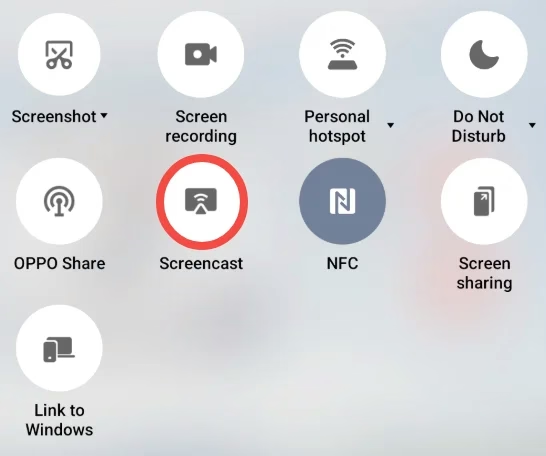
Oppo: Oppo devices use Screencast. For many Oppo devices, the screen mirroring option can be found in the Quick Settings menu, but it may also appear in the Display or Connected Devices section of the Settings app. Oppo's integration of screen mirroring is generally compatible with most smart TVs and streaming devices like Chromecast.
Why Use a TV Cast App for Screen Mirroring?
While finding the screen mirroring feature on your Android phone may be straightforward for some, it can be confusing for others, especially with different phone models and manufacturers adding custom features. That's where a TV Cast app comes in handy.
TV Cast apps provide a user-friendly solution for screen mirroring from Android to Chromecast, Samsung TV, LG TV, Vizio TV, or Roku TV, eliminating the need to manually search for the option in your device's settings. These apps often offer a seamless experience, where you can cast content with a few taps, whether it's a video, photo, or game.
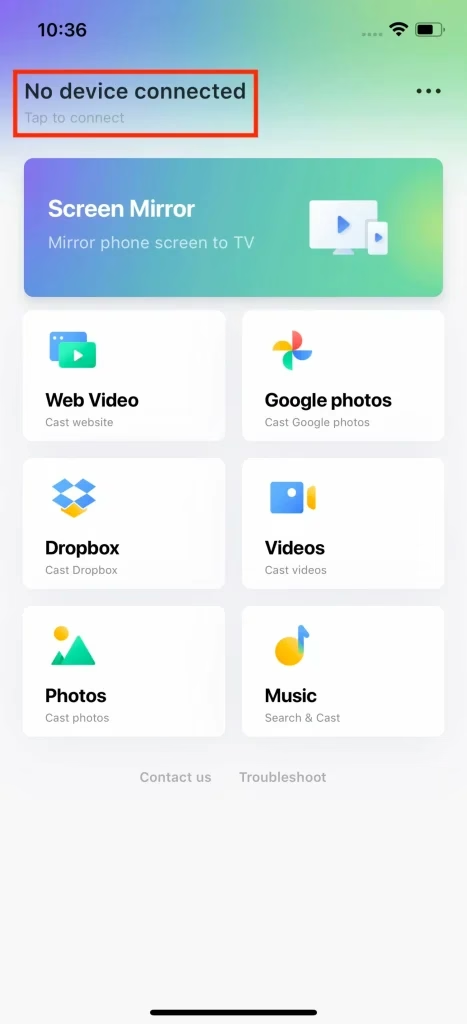
Here's how to use:
Step 1. Install the app on your Android device and launch it.



Step 2. Connect your Android device to your TV by choosing your TV from the available devices.
Step 3. Once connected, follow the on-screen instructions to start screen mirroring.
Conclusion
Finding screen mirroring on Android can vary depending on the brand and model of your device, but generally, you can access it via the Quick Settings menu or the Settings app. However, for those who prefer a more streamlined experience, using a TV Cast app like AllCast, Google Home, or AirScreen is an excellent alternative. These apps offer user-friendly solutions that let you cast content from your Android device with just a few taps, making screen mirroring effortless and convenient.
Where Is Screen Mirroring on Android FAQ
Q: How do I cast my Android phone screen to my TV?
To cast your Android phone screen to your TV, swipe down from the top of your phone to open the Quick Settings menu. Tap on Cast or Screen Mirroring, then select your TV or compatible device from the list. Ensure that both devices are connected to the same Wi-Fi network. Alternatively, use a third-party screen mirroring app.
Q: Why can't I cast to my TV from my Android phone?
If you can't cast, make sure both your Android phone and TV are on the same Wi-Fi network. Check that your TV supports screen mirroring or casting (like Google Cast or Miracast). Restart both devices, update their software, or ensure your TV's casting feature is enabled.

 Oct 24, 2024