
When you enjoy Roku streaming media services, do you want to expand more wonderful visual or auditory experience? Then do you know how to add channels to Roku? Well, you come to the right guide and here you will know a quick way to do so, let's read on!
This article will introduce three different methods for you to address how to add a channel on Roku.
How to Add Channels on Roku TV
Here are three easy ways to add channels on Roku—using the Roku device, the Roku mobile app, or the Roku website. You can choose the method that best fits the tools you have on hand. All three options are simple to follow, just pay attention to the steps provided and you'll be ready to stream in no time.
How to Add Roku Channels Trough Roku
All streaming services or channels can be installed as apps on your Roku TV or Roku streaming player. Apart from movies and TV shows such as Netflix and Disney Plus, you can find music channels like Spotify and channels for education, shopping, games, and so on.
If you have a working Roku device next to you, the easiest way to add or remove Roku channels is by using the Roku remote. Follow this step-by-step guide to get it done quickly.
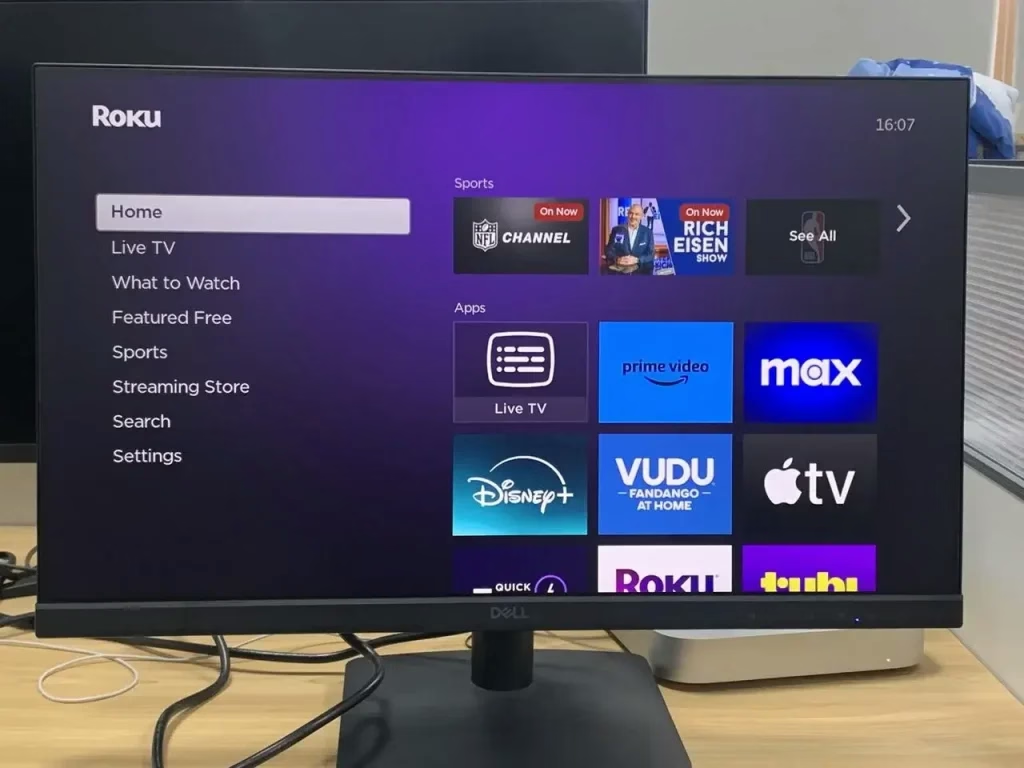
Step 1. Open your Roku device and press the Home button on your Roku remote to tap Streaming Channels or Streaming Store.
Step 2. Find the corresponding channels you want to add to Roku, and there is a list of genres of channels provided for you.
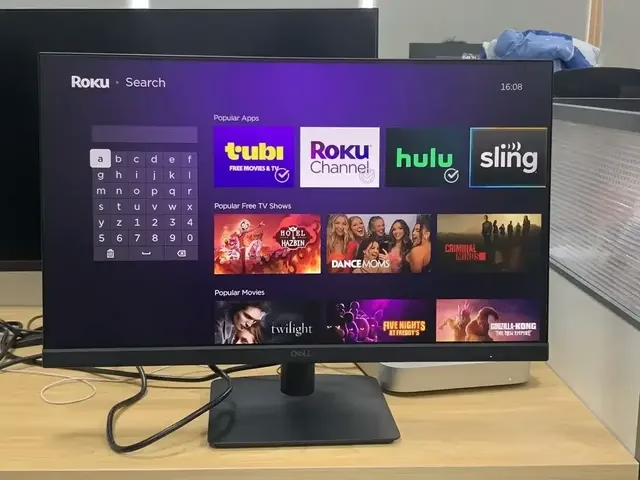
Step 3. Or you can go to the Search interface and type in the channels you want to add to from the virtual keyboard in the Roku Channel Store.
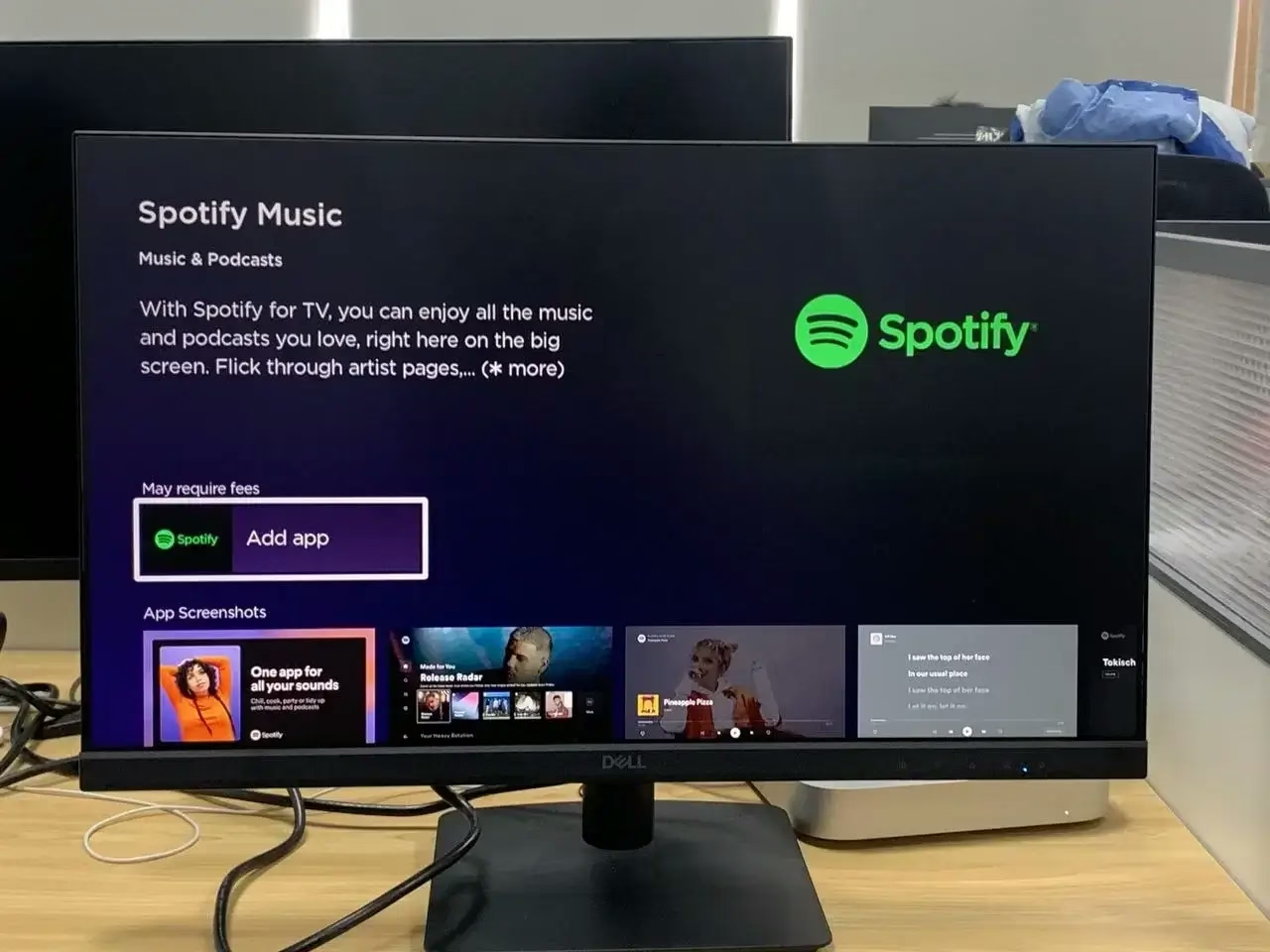
Step 4. After finding the targeted channel, click Add app or Add Channel and OK to see more details about adding this channel.
Step 5. Then you will receive a confirmation message that the chosen channel has been added to your Roku, then Click OK to move on.
After finishing the channel add process, you can find the new channel placed on the home page on Roku by default.
Bonus: If your Roku remote is unavailable—whether it's misplaced or the battery is depleted—how to add channel on Roku without remote? Here's a free universal Roku remote app offers a virtual remote feature that gives you full control of your Roku device.
How do I add channels to my Roku TV? Besides using Roku TV itself, you can also add channels using Roku's official mobile app, The Roku App. It's a convenient tool that lets you browse, add, and manage channels right from your phone.
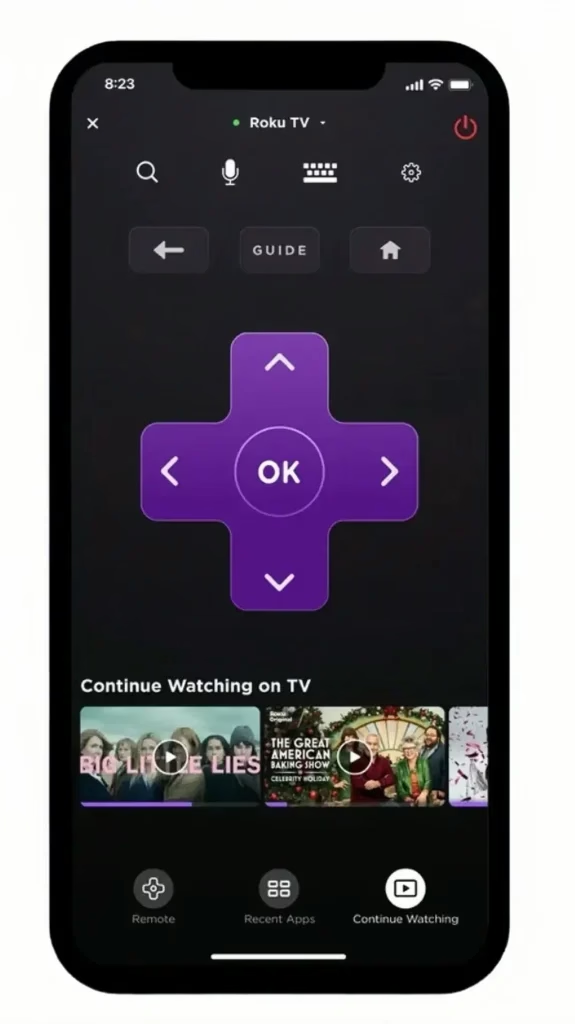
Step 1. Download and install this app from the app store on your mobile device.
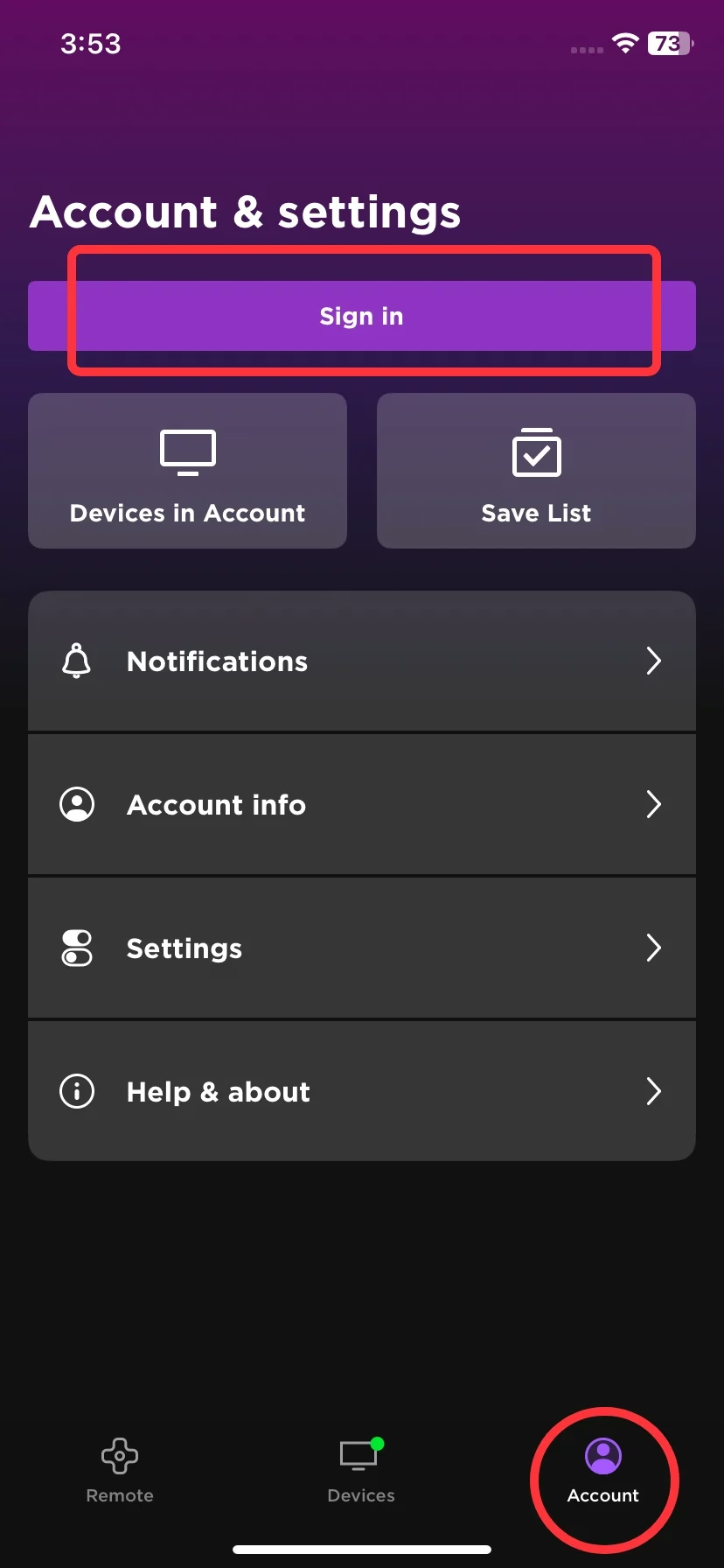
Step 2. Go to the account interface to sign in to your Roku account, and go back to the Home interface by clicking < icon on the top-left corner.
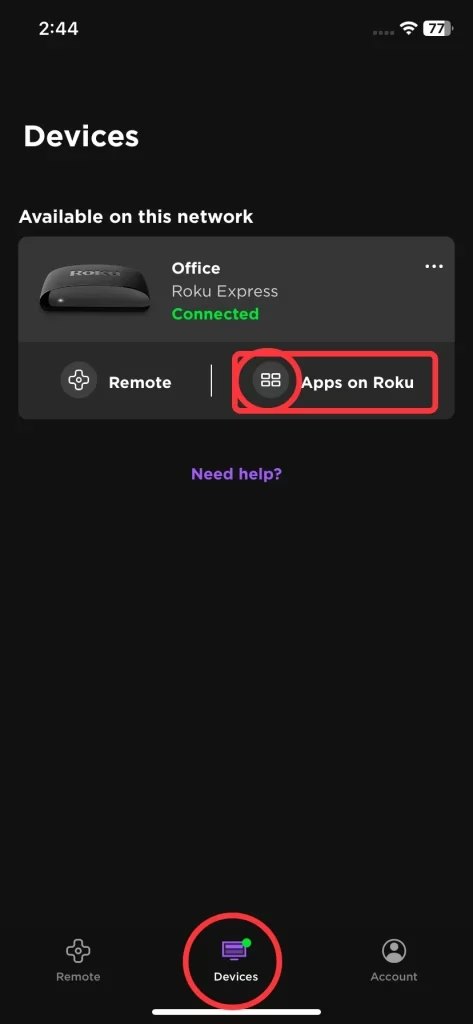
Step 3. Tap Devices on the bottom and then click the Channels or Apps icon to access the list of channels.
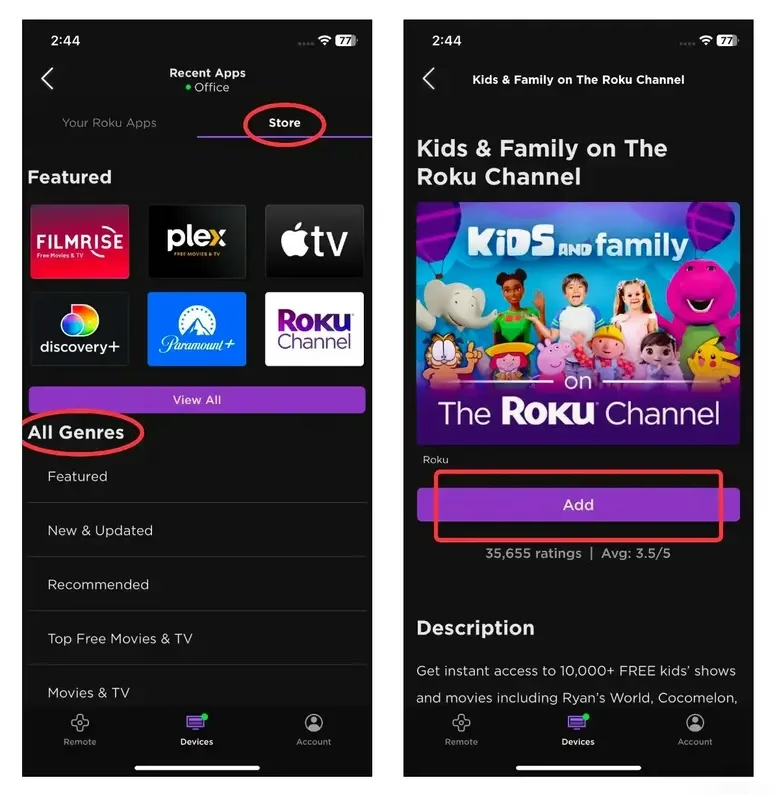
Step 4. Tap Store to find new channels you want to add and click Add option. Plus, if you have added this channel, you can launch it or remove it from the app as you like.
How to Add Roku Channels Trough Roku Website
How to add a channel on Roku TV? If you don't have your Roku remote handy or prefer using a computer, you can also add channels to your Roku TV through the official Roku website. This method is especially convenient if you're already logged into your Roku account on a laptop or desktop.
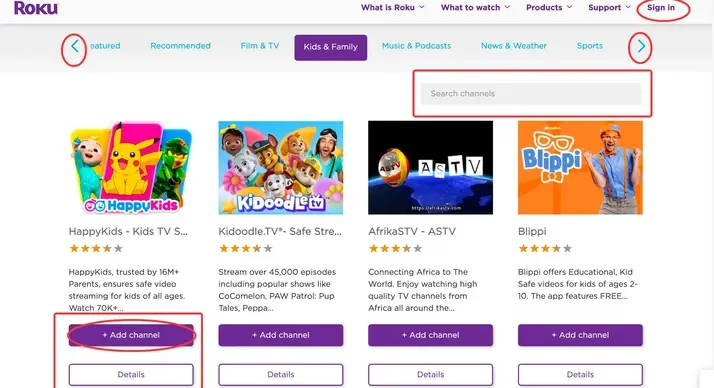
Step 1. Go to the Roku Channel Store page and log in to your Roku account. Then you can search channels and select different genres via the on-page arrow buttons. Click the +Add channel button to add your needed channels.
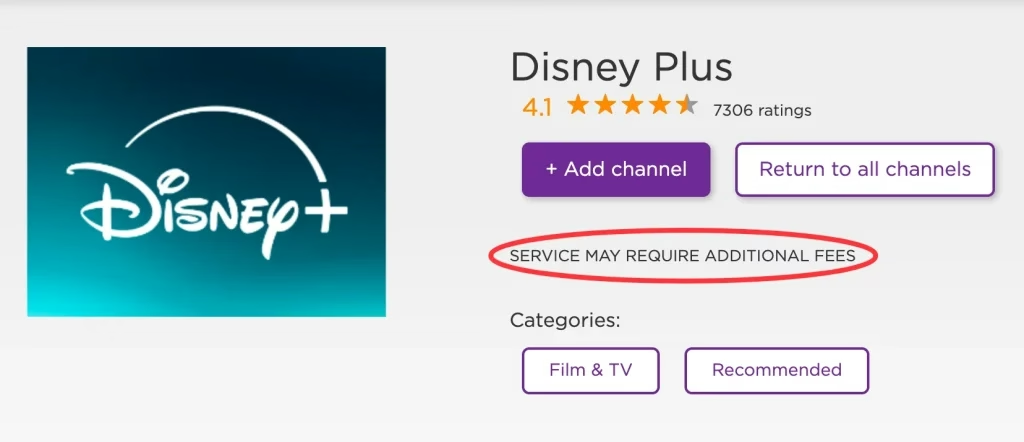
Step 2. If a channel is not free, you will see a slogan like the service may require additional fees. It means you need to sign up for the service separately after adding the channel.
Conclusion
How to add channels to Roku Live TV? Firstly, you can use Roku remotes or a Roku virtual remote app on your Roku devices. Secondly, you can add channels on Roku's official mobile app. While the last one is to add channels on the Roku Website. Don't forget the last two ways you need to sign your Roku account, or you can create a Roku account for free.
How to Add Channels to Roku FAQ
Q: How do you add channels to Roku?
Press the Home button on your remote and click Streaming Channels to look for your needed channels, then select Add Channel and choose OK to confirm.
Q: How to remove channels from Roku?
Press the Home button on your Roku remote and move to the Streaming Channels option to access the Roku Channel Store. Then locate the channel you want to delete and press the OK button on your remote. Select the Remove channel option and confirm the selection when prompted.

![How to Scan for Channels on Roku TV? [With Pictures]](/_next/image?url=https%3A%2F%2Fhelpful-fun-dead826d03.media.strapiapp.com%2Fhow_to_scan_for_channels_on_roku_tv_banner_953b0f8764.avif&w=3840&q=75)
