
If your Apple TV remote has stopped working or been lost, consider attempting an Apple TV remote replacement. In this guide, you'll find 5 reliable alternatives for replacing your Apple TV remote. Whether you prefer an official replacement or a third-party option, you'll be able to choose the one that best suits your needs and preferences.
5 Best Apple TV Replacement Remotes
There are five kinds of Apple TV replacement remotes, including official Apple TV Remotes, compatible TV remotes, and virtual remotes involving the Apple TV Remote feature on iOS mobile devices and the virtual replacement Apple TV remote explored by BoostVision.
Alternative 1. Use Official Apple TV Remote
If you are a loyal Apple fan, the first alternative you think about is to buy another Apple TV Remote on Apple's official website or three-party shops like Amazon, Walmart, and Best Buy. These stores clearly display compatibility details, pricing, and battery charging methods for the Apple TV remote, making it easier to choose the best option for your needs.
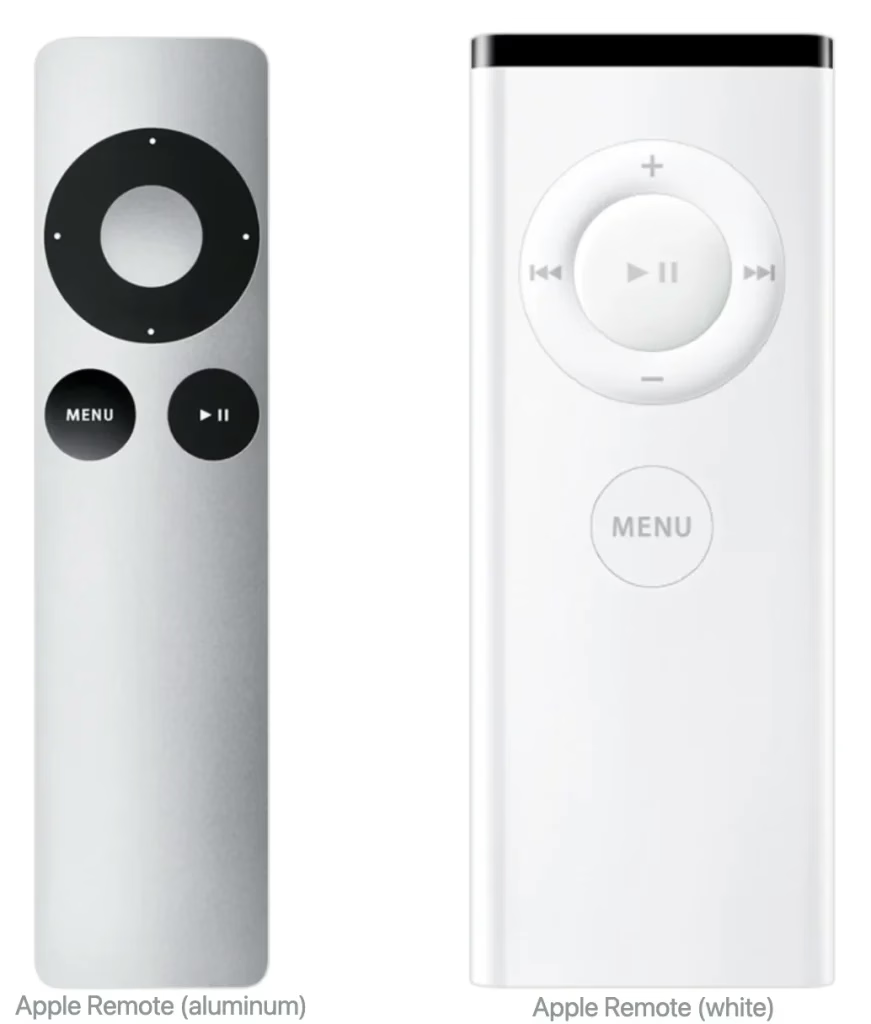
These two original Apple Remotes are compatible with any Apple TV and equipped with the replaceable CR2032 lithium 3V coin battery or BR2032 lithium 3V coin battery (only aluminum). The aluminum remote costs $24.95 on Amazon, while the white one costs about $6 to $15 on eBay.
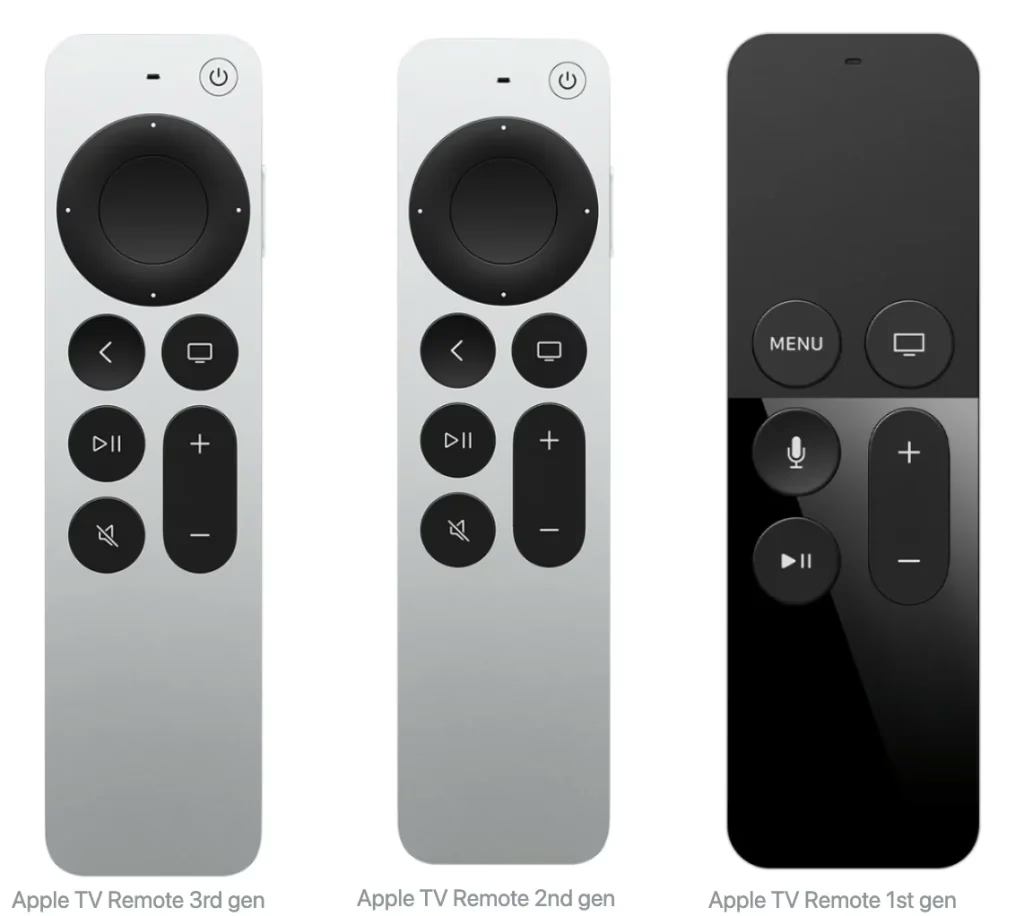
These three Apple TV Remotes are also called Siri Remotes. The 1st Apple TV Remote, compatible with Apple TV 4K and Apple TV HD, owns internal batteries that can be rechargeable with a Lightning charging cable, and it costs $39.99 on eBay.
The 2nd gen and 3rd gen Siri remotes have a similar look, but there are still differences between them. The 2nd gen Siri Remote is compatible with Apple TV 4K and Apple TV HD with tvOS 14.5 or later, and its battery charging way is rechargeable with a Lightning charging cable the same as the 1st gen Siri Remote. It costs $59.99 on Amazon.
The 3rd gen Siri Remote, the newest Apple TV Remote, costs $59 on Apple's official website. It is compatible with Apple TV 4K and Apple TV HD with tvOS 15.4 or later, and it is rechargeable with a USB-C charging cable for the battery.
Replace Apple TV remote with a new Apple remote:
Step 1. Buy suitable Apple TV Remotes according to your Apple TV.
Step 2. Open the new remote and pair it to your Apple TV.
Step 3. After finishing the pairing process, you can enjoy your Apple TV again.
Alternative 2. Use HDMI-CEC Device
If your TV or receiver supports HDMI-CEC (Consumer Electronics Control), you can use your existing remote to control your Apple TV. HDMI-CEC allows you to control multiple HDMI-connected devices with a single remote.
Replace Apple TV remote with a supported TV remote:
Step 1. Check if your TV or receiver supports HDMI-CEC by consulting the user manual or searching online for your device's specifications.
Step 2. Ensure your Apple TV is connected to an HDMI port that supports HDMI-CEC.
Step 3. Navigate to Settings > General > External Device Manager > Anynet+ (or a similar setting with "Link" or "Sync"in the name) on your TV to activate HDMI-CEC feature.
Alternative 3. Use a Universal Remote
There is also a universal Apple TV remote control replacement. But the setup process varies depending on the remote brand, and we'll guide you through the steps for configuring the remote based on its specific brand.
Replace Apple TV remote with a universal remote:
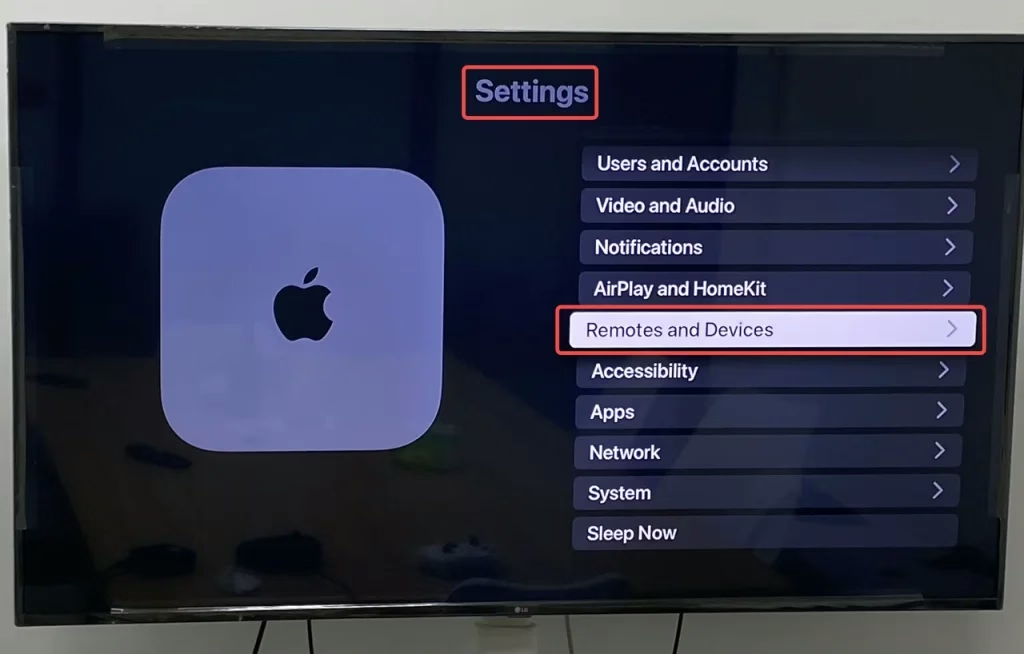
Step 1: Use your current remote to choose the Settings on the Apple TV home screen and go to Remotes and Devices.
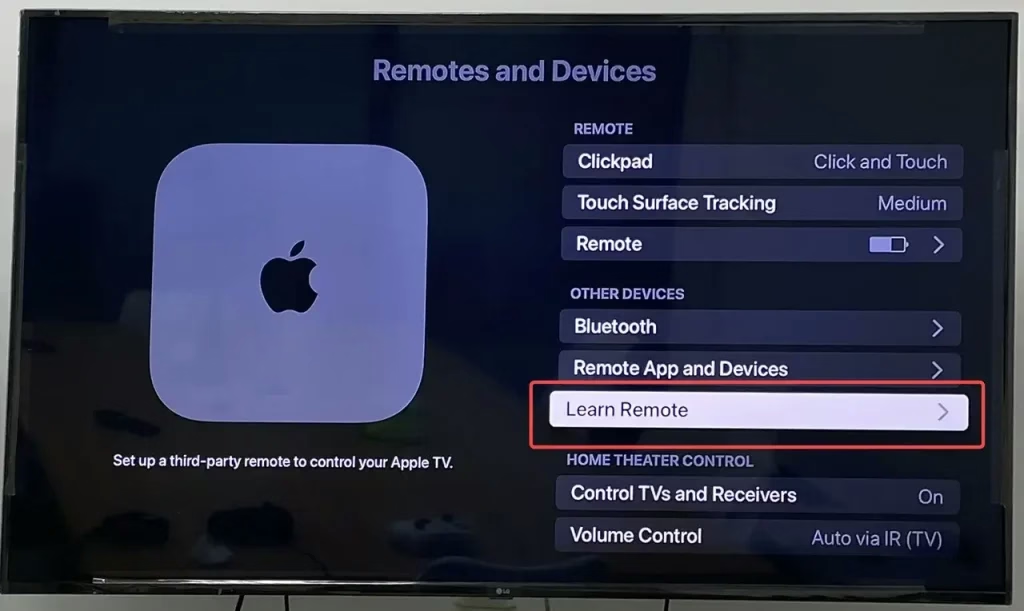
Step 2: Select Learn Remote and use the new universal remote to tap Start.
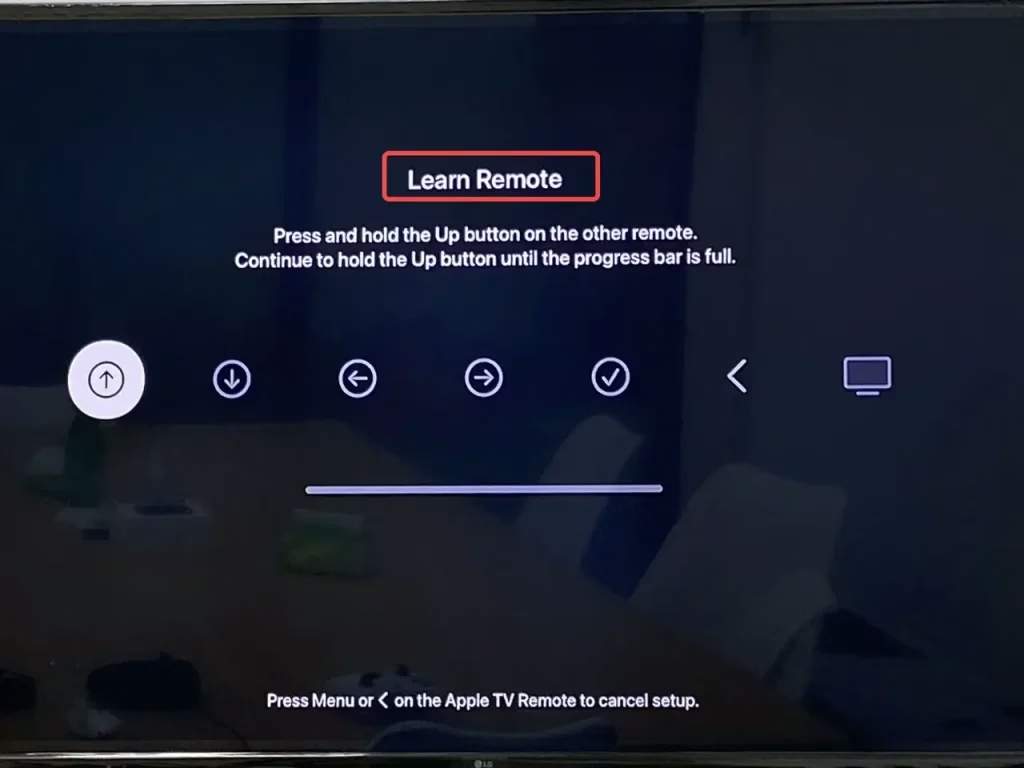
Step 3: Press the corresponding buttons on your universal remote following the screen indication.
Step 4: Enter a name for your universal remote and select Down.
After completing this connection process, you can use your universal remote to control your Apple TV. But what you need to draw attention to is that you are supposed to research whether the universal remote supports Apple TV before you buy it.
Alternative 4. iPhone's Apple TV Remote Feature
Do you have an iPhone or an iPad? You can try this free replacement remote Apple TV if your answer is yes. Moving to the Control Center, you will see a virtual remote waiting for you. If not, please go to Settings to add this feature.
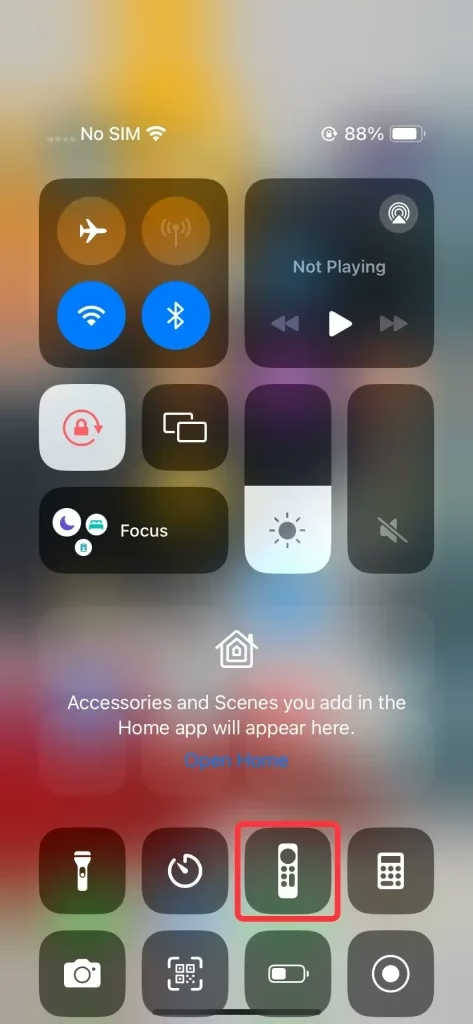
Replace Apple TV remote with Apple TV Remote Feature:
Step 1. Swipe down from the up-right corner or swipe up from the bottom line on your screen to tap the Apple TV Remote icon.
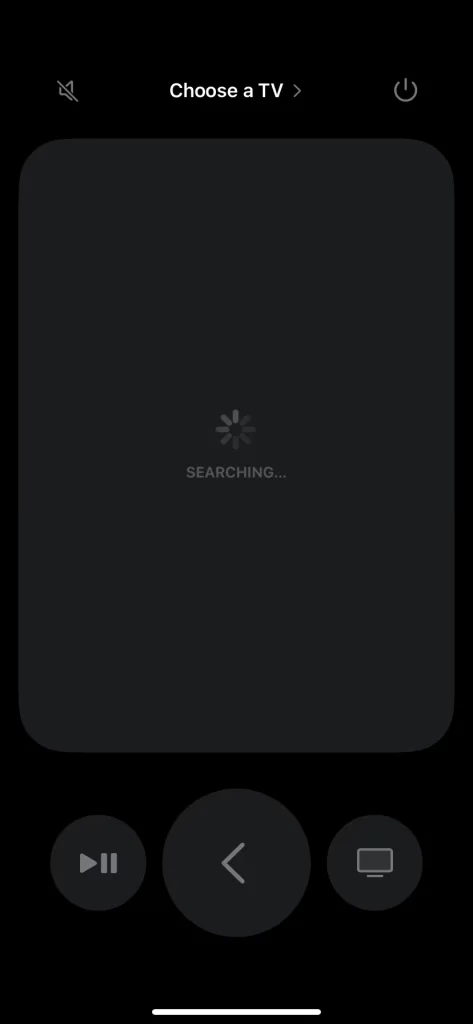
Step 2. Tap the Choose a TV letter to connect your Apple TV from the device list.
Step 3. After the connecting process, you can acquire a simple virtual remote which is very portable for you to control the Apple TV.
Alternative 5. Free Universal Apple TV Remote App
You may ask if you are not an iOS user but an Android user, how to find a free Apple TV 4K remote replacement? Don't worry, I want to introduce another free universal Apple TV remote app running on Android to help continue your remote replacement plan.
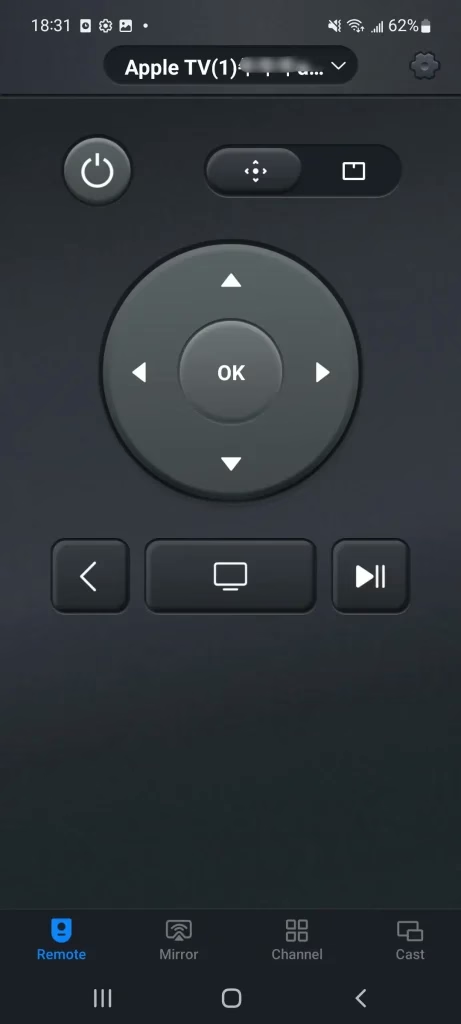
The Apple TV 4K replacement remote designed for Android users, allows you to control different models of Apple TVs effortlessly over a Wi-Fi network. It's an excellent alternative if you need to replace your Apple remote. Now let's learn how to run it on your mobile Android device.
Replace Apple TV remote with an Apple TV APP:
Step 1. Download and install this application from the app store, and allow its permission.


Step 2. Please open it and tap the top of the screen to connect your Apple TV from the device list.
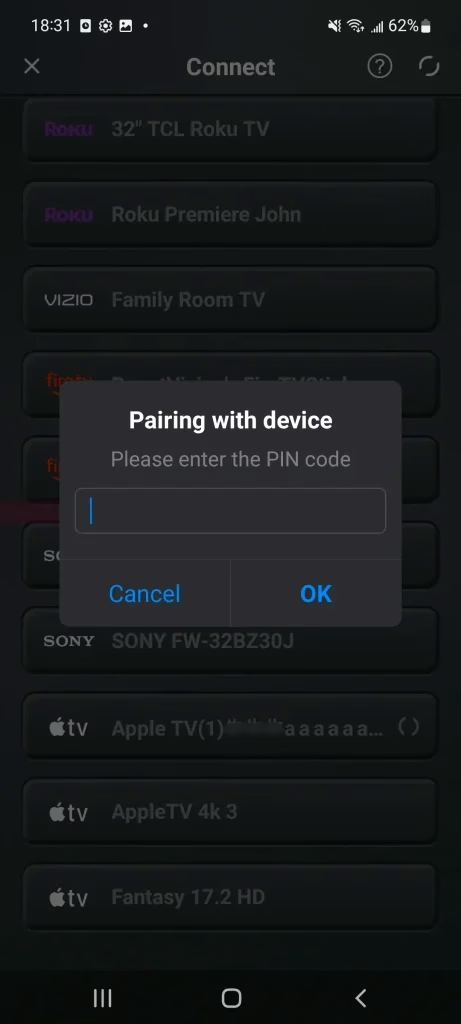
Step 3. Enter the PIN code shown on your Apple TV screen to finish the connection.
Conclusion
After reading these 5 types of replacements for the Apple TV remote, do you have suitable alternatives in mind? Buying a new Apple remote or leveraging the supported TV remote are both good alternatives. For my part, the best Apple TV remote replacement is the virtual remote, because it is simple to operate and has the most success potential here.
Apple TV Remote Replacement FAQ
Q: Can I replace the Apple TV Remote?
Yes, you can. You can use your TV-supported remote via HDMI-CEC. Plus, handling virtual remotes, such as the Apple TV Remote feature for iOS devices and a professional Apple TV remote app of BoostVision for Android devices.
Q: Can I pair a new Apple TV Remote with an old Apple TV?
Apple TV Remotes have many versions and they are compatible with corresponding Apple TVs. So the first thing for you is to identify the version of your Apple TV, and then decide which Apple TV Remote you should buy and pair. Moreover, the newest Siri Remote (3rd generation) will work with Apple TV 4K and Apple TV HD with tvOS 15.4 or later.