

Roku-Probleme fallen meist in fünf Bereiche: Fernbedienungskopplung, Netzwerkzugriff, Erkennung durch die Smartphone-App, Bluetooth- oder Audiogrenzen und Bildausgabeprobleme wie kein Signal. Dieses Hilfezentrum hilft Ihnen, das genaue Roku-Problem schnell zu erkennen, die erste sichere Lösung anzuwenden und nur dann die richtige ausführlichere Anleitung zu öffnen, wenn Sie sie noch brauchen.
Wenn Sie sich nur eine Regel merken, nehmen Sie zuerst den kürzesten Weg: Beheben Sie Stromversorgung und Kopplung vor einem Reset, stellen Sie das Netzwerk vor der App-Steuerung wieder her und prüfen Sie, ob Ihr Roku-Modell die Funktion unterstützt, bevor Sie annehmen, dass ein Menü fehlt.
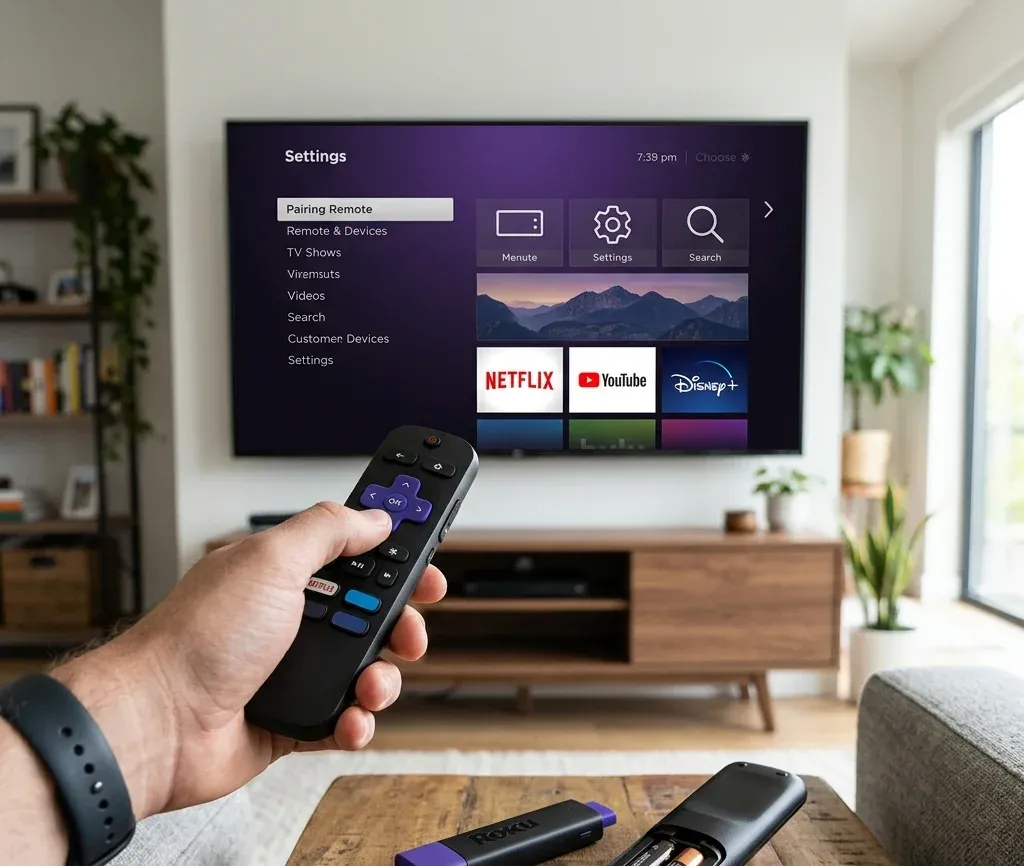
Schnelle Antwort: welche Art von Roku-Problem haben Sie?
Nutzen Sie diese Entscheidungstabelle, bevor Sie zufällig Einstellungen öffnen:
| Situation | Bester erster Schritt | Nächste zu öffnende Seite |
|---|---|---|
| Roku-Fernbedienung reagiert nicht | Batterien ersetzen und Fernbedienung erneut koppeln | [Roku-Fernbedienung koppelt nicht](https://www.boostvision.tv/blog/roku-remote-not-pairing) |
| Smartphone-App findet den Roku nicht | Bestätigen, dass Smartphone und Roku im selben Netzwerk sind | [Roku Fernbedienungs-App mit TV verbinden](https://www.boostvision.tv/blog/how-to-connect-roku-remote-app-to-tv) |
| Roku ist offline und Sie haben keine Fernbedienung | Zuerst WLAN wiederherstellen oder das Gerät online bringen | [Roku ohne Fernbedienung mit WLAN verbinden](https://www.boostvision.tv/blog/connect-roku-to-wifi-without-remote) |
| Sie möchten Bluetooth-Kopfhörer verwenden | Prüfen, ob Ihr Modell direktes Bluetooth oder App-basiertes Hören unterstützt | [Hat Roku Bluetooth](https://www.boostvision.tv/blog/does-roku-have-bluetooth) |
| AirPlay oder Casting schlägt fehl | Prüfen, ob TV und Smartphone im selben WLAN sind und die Funktion aktiviert ist | [AirPlay auf Roku verwenden](https://www.boostvision.tv/blog/how-to-airplay-on-roku) |
| TV zeigt kein Signal von Roku | Eingang, Stromversorgung und HDMI-Pfad vor einem Reset prüfen | [Roku funktioniert nicht mehr: kein Signal](https://www.boostvision.tv/blog/roku-stopped-working-no-signal) |
Häufigste Roku-Hilfeaufgaben
Die meisten Roku-Nutzer suchen nach einer dieser konkreten Aufgaben:
Mit den Roku-Hardwaregrundlagen beginnen
Trennen Sie vor einer tieferen Fehlerbehebung die Gerätetypen:
Diese Unterscheidung ist wichtig, weil ein fehlendes Kopplungsmenü, eine Bluetooth-Option oder das Verhalten der Ein/Aus-Taste zwischen einem Roku TV und einem Roku-Streaming-Stick unterschiedlich sein kann.
Wenn Sie nicht sicher sind, welche Fernbedienung Sie haben, ist der schnellste Hinweis die Frage, ob sie Sichtkontakt braucht. Eine Roku Simple Remote verhält sich eher wie eine klassische IR-Fernbedienung, während eine Voice Remote von drahtloser Kopplung abhängt und Sie zu Anleitungen wie Roku-Fernbedienung Kopplungstaste oder Roku-Fernbedienung für den TV programmieren führen kann.
Hilfe zu Fernbedienung und Kopplung
Fernbedienungsprobleme gehören zu den größten Roku-Traffic-Clustern und sollten der erste Abschnitt sein, den die meisten Nutzer sehen.
Wenn die Roku-Fernbedienung nicht koppelt
Beginnen Sie mit den risikoarmen Prüfungen:
1. Legen Sie ein frisches, zusammenpassendes Batterie-Paar ein.
2. Gehen Sie bis auf wenige Schritte an das Roku-Gerät oder den TV heran.
3. Starten Sie den Roku neu.
4. Versetzen Sie die Fernbedienung wieder in den Kopplungsmodus.
Wenn die Fernbedienung weiterhin nicht koppelt, nutzen Sie die vollständige Symptomaufteilung in Roku-Fernbedienung koppelt nicht.
Wenn die Batterien frisch sind, die Fernbedienung aber weiterhin die Verbindung verliert, prüfen Sie auch, ob beim Streaming-Gerät ein Roku-Niedrigstromproblem vorliegt, weil instabile Stromversorgung wie ein Kopplungsfehler aussehen kann.
Wenn Sie eine Roku-Fernbedienung mit einem Roku Stick koppeln
Viele Nutzer brauchen speziell Hilfe beim Stick-Setup, besonders wenn sie eine Fernbedienung von einem Gerät zu einem anderen wechseln oder mit einer Fernbedienung ohne sichtbare Kopplungstaste arbeiten. Diese Absicht sollte als eigene Cluster-Seite bestehen bleiben, aber dieses Hilfezentrum sollte klar dorthin führen.
Nutzen Sie Roku-Fernbedienung mit Roku Stick koppeln, wenn:
Wenn Sie eine Smartphone-basierte Ersatzfernbedienung brauchen
Wenn die physische Fernbedienung fehlt oder instabil ist, ist eine Smartphone-App oft der schnellste Wiederherstellungspfad. Nutzen Sie Roku Fernbedienungs-App mit TV verbinden oder Roku-Fernbedienung auf dem Smartphone einrichten, wenn:
Wenn die Smartphone-App das Gerät gar nicht findet, behandeln Sie es als Problem der Netzwerkerkennung und nicht als Fernbedienungsproblem.


WLAN und App-Erkennung
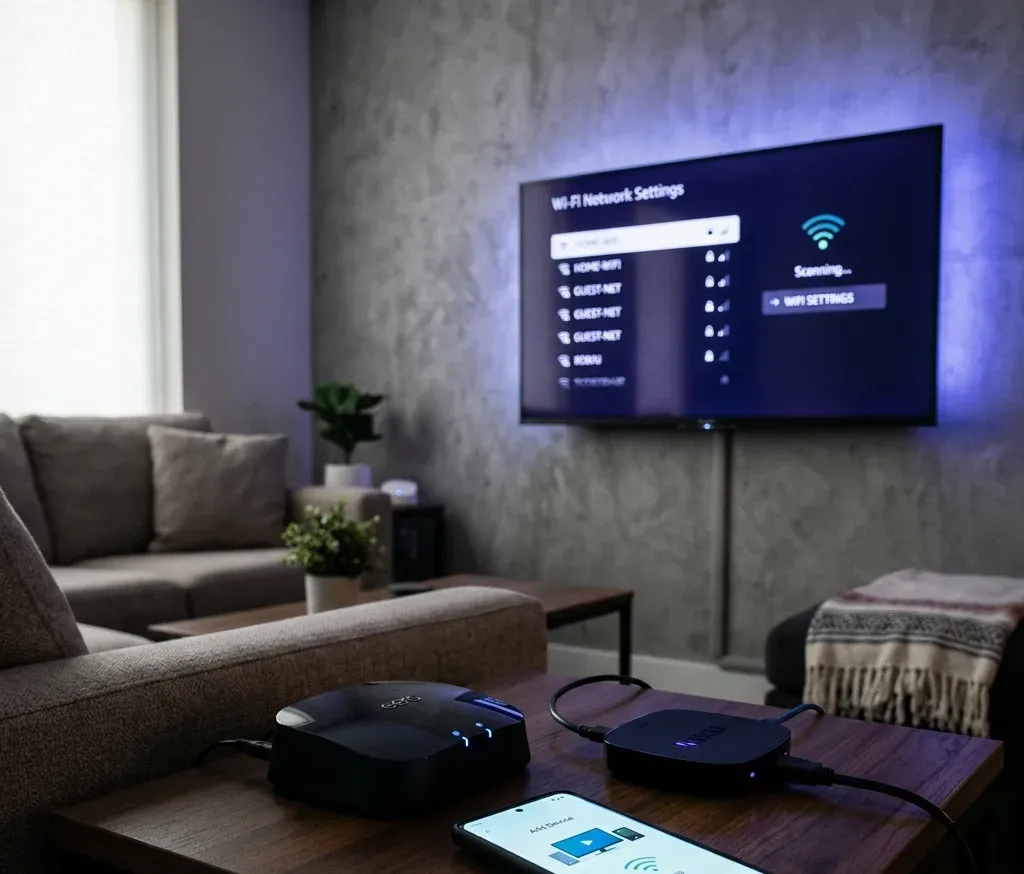
Der zweite große Roku-Support-Cluster ist die Netzwerkwiederherstellung. Ohne Netzwerkzugriff fallen Roku App, AirPlay, privates Hören, Softwareupdates und einige Einrichtungsabläufe aus.
Wenn der Roku nicht im WLAN ist
Beginnen Sie hier, wenn:
Die besten Wiederherstellungspfade werden in Roku ohne Fernbedienung mit WLAN verbinden und Roku-IP-Adresse ohne Fernbedienung finden behandelt.
Wenn der Roku weiterhin Netzwerke sieht, ihnen aber nicht beitritt, ist die genauere Absicht meist Roku TV verbindet sich nicht mit WLAN, nicht allgemeine Fernbedienungswiederherstellung.
Wenn die Roku App keine Verbindung herstellen kann
Prüfen Sie diese Bedingungen der Reihe nach:
Öffnen Sie danach:
Diesen Abschnitt brauchen Nutzer auch, wenn sie nach Roku Fernbedienungs-App funktioniert nicht, Roku App verbindet sich nicht mit TV oder Smartphone-Fernbedienung findet Roku nicht suchen.
Bluetooth- und Kopfhörerhilfe
Dies ist ein starker Roku-spezifischer SEO-Cluster, weil Nutzer oft nach Bluetooth-Unterstützung suchen, bevor sie wissen, wie Roku Audiozubehör behandelt.
Hat Roku Bluetooth?
Die kurze Antwort lautet: Einige Roku-Konfigurationen unterstützen Bluetooth-Audio direkt, andere setzen auf App-basiertes privates Hören oder modellspezifische Funktionen. Deshalb glauben Nutzer oft, Bluetooth fehle, obwohl das Menü nur auf bestimmten Geräten oder Softwarepfaden erscheint.
Nutzen Sie Hat Roku Bluetooth, um zu klären:
Bluetooth-Kopfhörer mit Roku verbinden
Wenn die Nutzerabsicht praktisch und nicht konzeptionell ist, leiten Sie zu Bluetooth-Kopfhörer mit Roku TV mit und ohne App verbinden weiter.
Diese Seite ist das bessere Ziel, wenn der Nutzer fragt:
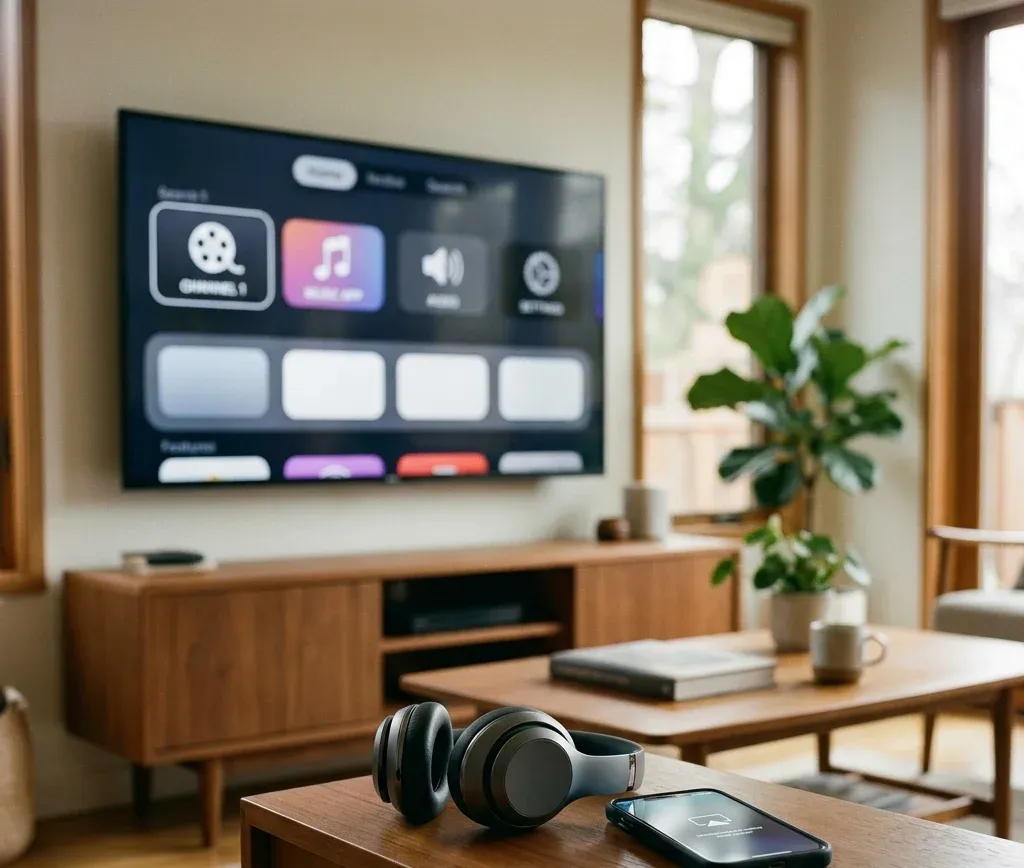
AirPlay und Casting auf Roku
Roku dient auch als Zielgerät für iPhone- und geräteübergreifende Wiedergabeaufgaben, daher sollte dieses Hilfezentrum nicht bei Fernbedienungsproblemen enden.
Nutzen Sie diese Seiten für Apple- und Casting-Abläufe
Nutzen Sie diese, wenn:
Bildausgabe- und Steuerungsprobleme
Einige Roku-Probleme haben nichts mit Kopplung oder WLAN zu tun. Sie betreffen die Ausgabe oder den HDMI-Pfad.
Wenn der Roku kein Signal zeigt
Wenn der TV kein Signal meldet, beginnen Sie mit:
1. Bestätigen Sie, dass der TV auf dem richtigen HDMI-Eingang steht.
2. Stecken Sie den Roku oder das HDMI-Kabel neu ein.
3. Prüfen Sie die Roku-Stromquelle.
4. Starten Sie Roku und TV neu.
Nutzen Sie danach Roku funktioniert nicht mehr: kein Signal für den vollständigen Wiederherstellungspfad.
Wenn der Roku selbst in Ordnung ist, der TV aber auf der falschen Quelle steht, gehen Sie direkt zu Eingang auf Roku TV wechseln.
Wenn die Roku-Fernbedienung den TV einschalten soll
Dies gehört meist zu Gerätesteuerung, HDMI-CEC-Verhalten oder TV-Steuerungsprogrammierung. Leiten Sie Nutzer zu TV mit Roku-Fernbedienung ein- und ausschalten, wenn:
Nützliche Roku-Seiten nach Aufgabe
Öffnen Sie diese Seiten je nachdem, was Sie genau tun möchten:
Wann sollten Sie Roku zurücksetzen?
Ein Reset sollte nicht die erste Empfehlung sein. Nutzen Sie ihn erst, nachdem:
Wenn das Symptom eng begrenzt ist, löst ein Cluster-Artikel das Problem meist schneller als ein vollständiger Werksreset.
Fazit
Die beste Roku-Fehlerbehebungsreihenfolge ist einfach: Erkennen Sie, ob das Problem Fernbedienung, Netzwerk, Bluetooth, Casting oder Bildausgabe betrifft, und nutzen Sie dann den passenden Pfad oben. Dieses Hilfezentrum sollte als Einstiegspunkt in das Roku-Ökosystem der Website dienen, während die Cluster-Seiten die genaue Long-Tail-Aufgabe lösen.
Roku Hilfezentrum FAQ
F: Was ist der schnellste Weg, eine Roku-Fernbedienung zu beheben?
Ersetzen Sie die Batterien, gehen Sie näher an den Roku heran, starten Sie das Gerät neu und versuchen Sie die Kopplung erneut. Wenn die Fernbedienung weiterhin ausfällt, nutzen Sie die spezielle Anleitung Roku-Fernbedienung koppelt nicht.
F: Warum kann die Roku App meinen TV nicht finden?
Smartphone und Roku befinden sich oft in verschiedenen Netzwerken, Gastisolation ist aktiviert oder der Roku ist offline. Beginnen Sie mit der WLAN-Wiederherstellung und versuchen Sie danach die App-Erkennung erneut.
F: Kann jeder Roku Bluetooth-Kopfhörer verbinden?
Nein. Die Unterstützung hängt vom Roku-Modell ab und davon, ob Sie direkte Bluetooth-Kopplung oder App-basiertes Hören verwenden. Prüfen Sie zuerst Hat Roku Bluetooth.