
If your Roku TV is freezing, lagging, showing a black screen, or crashing inside channels, a simple reboot is usually the first fix worth trying. In most cases, you can reboot a Roku TV with the remote by going to Settings > System > Power > System restart, which refreshes the system without deleting installed channels, account details, or normal settings.
You may search how to reboot Roku TV with remote when the TV still responds just enough to navigate menus, but not well enough to trust normal playback. You may see delayed button response, audio that falls out of sync, or apps that keep closing. The good news is that a reboot is quick, safe, and much lighter than a factory reset.
A normal reboot is also the right first move when you are not sure whether the issue comes from the TV, one streaming app, or a short-term memory glitch. It clears temporary system strain without forcing you to sign in again or rebuild your setup. That makes it the best low-risk fix before you try bigger changes.
How to Restart Roku TV With Remote
When the TV is still accepting remote input, use the built-in restart path first. It is cleaner than unplugging the TV because it closes background processes in the normal order before the system boots again.
Where Do You Find the Restart Option on Roku TV?
Step 1. Press the Home button on your Roku remote.
This takes you to the main Roku home screen, where the settings menu is easiest to reach. If the TV takes a few extra seconds to respond, wait instead of pressing the button repeatedly.
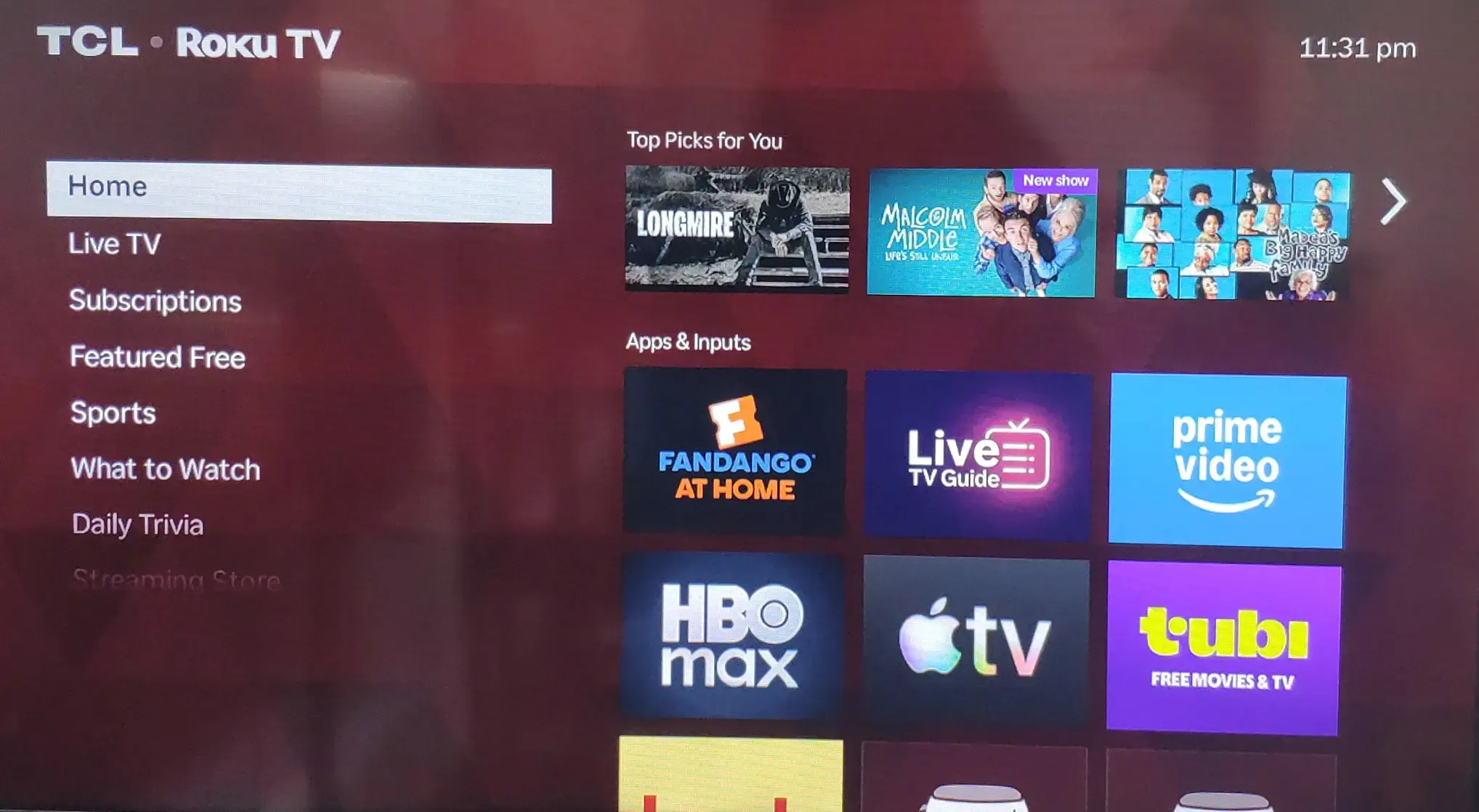
Step 2. Go to Settings.
Use the directional pad to move down the menu and open Settings. On a slow TV, give each button press a moment to register.
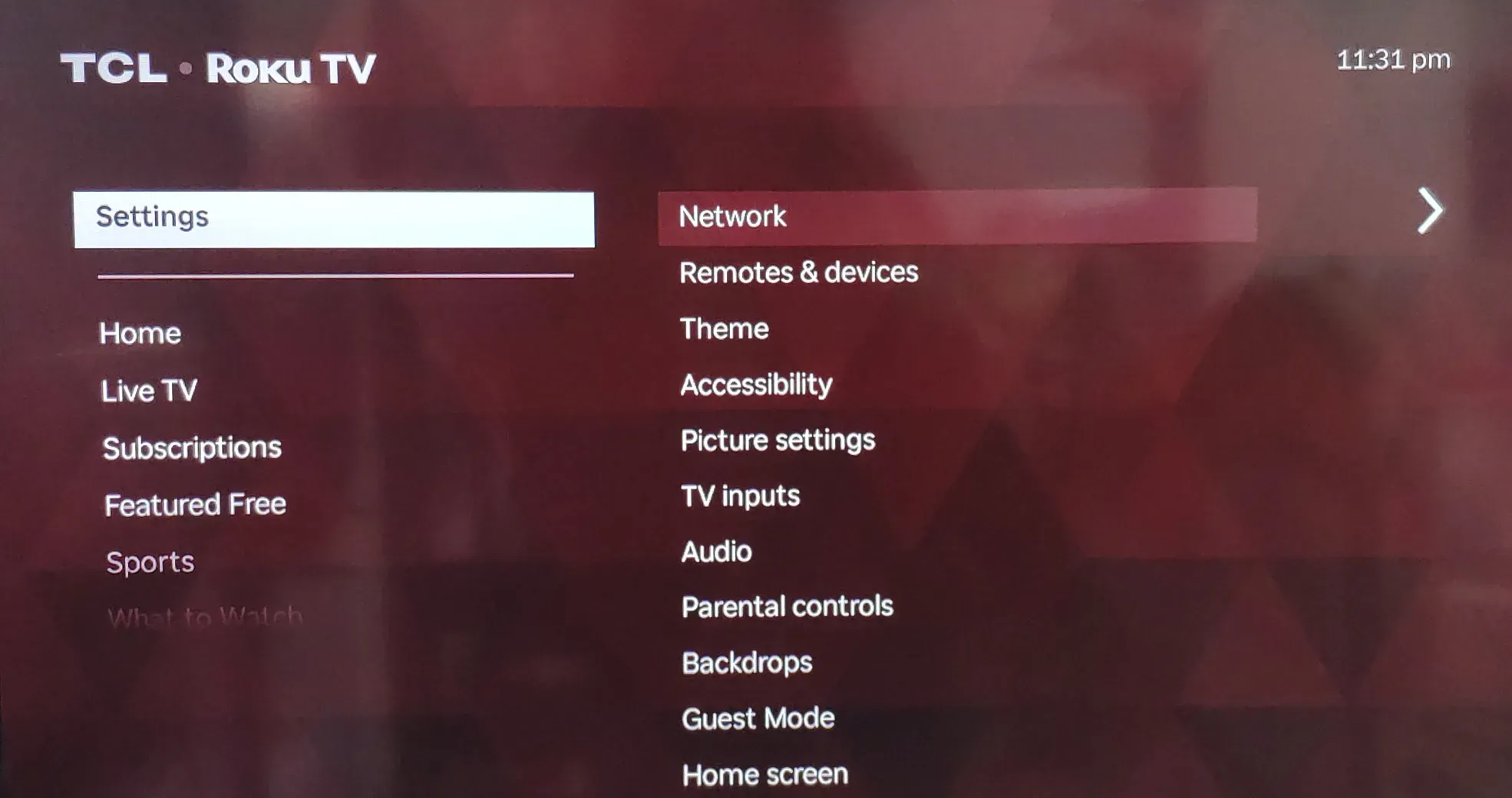
Step 3. Select System.
The System menu is where Roku keeps restart and device-management options. If you do not see it right away, scroll slowly because the list can lag when the system is under load.
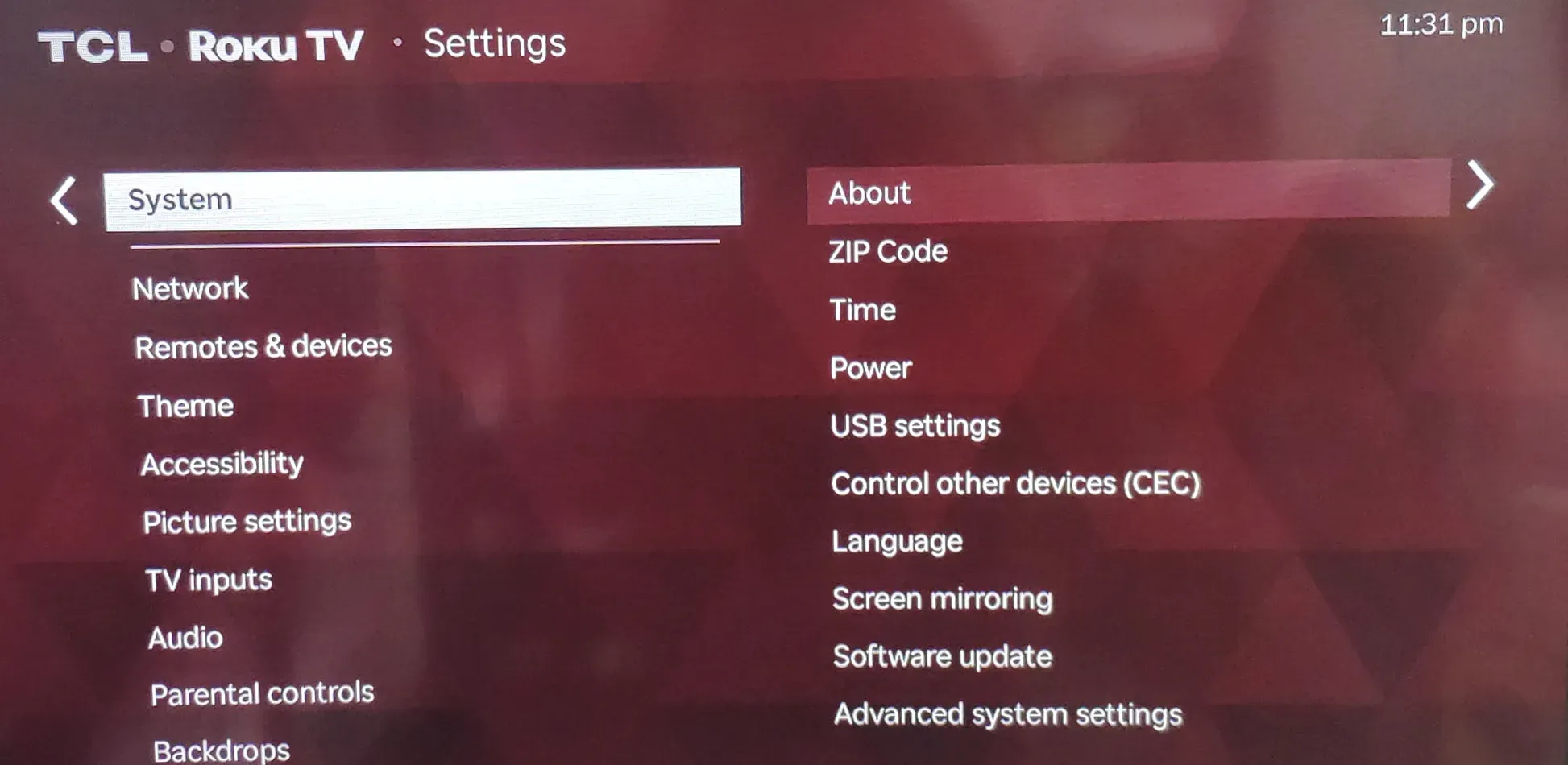
Step 4. Choose Power.
On many Roku TVs, the restart option sits inside Power. If your model does not show Power, look for a similar restart path under System because menu wording can vary slightly by brand or software version.
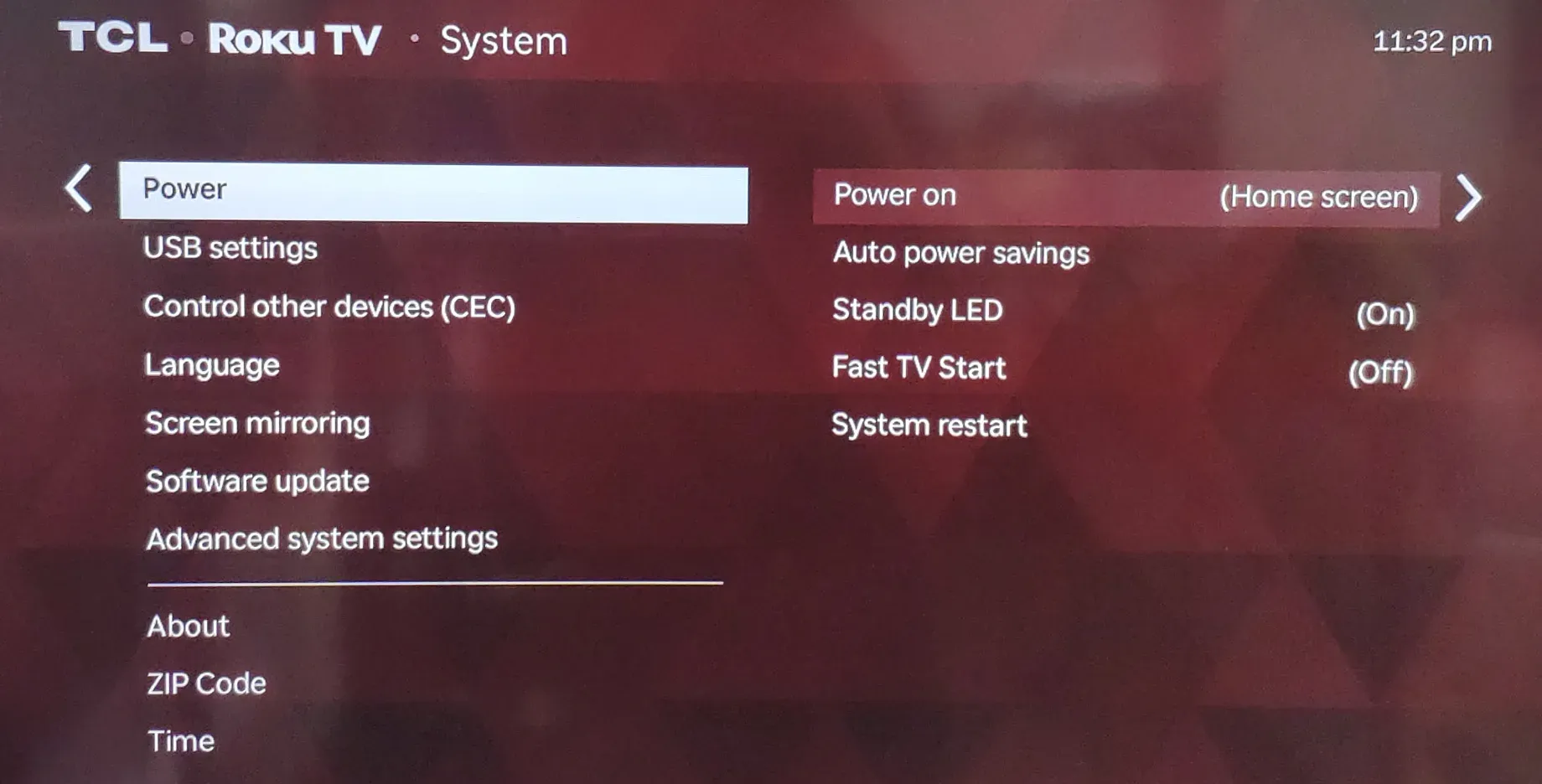
Step 5. Select System restart.
This is the option that reboots the TV without wiping the system. It is different from Factory reset, so pause and confirm you picked the restart option only.
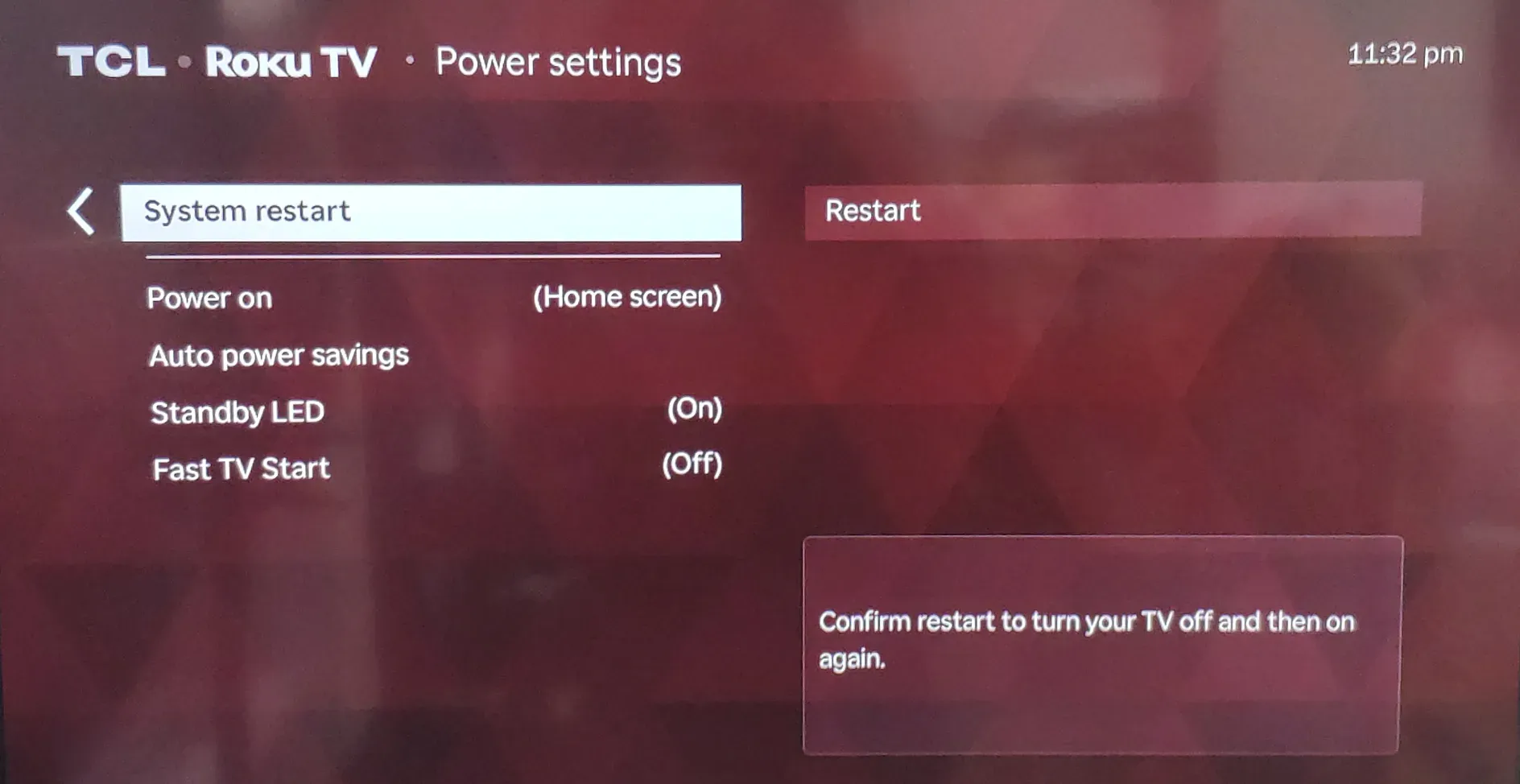
Step 6. Confirm the restart and wait for the TV to reboot.
The screen may go dark for a short time, then the Roku logo or startup animation should appear. Once the TV returns to the home screen and responds normally again, the reboot is complete.
If nothing happens right away, do not assume the command failed in the first second. Some Roku TVs pause briefly before the shutdown sequence begins, especially when the system is already slow. Give the TV a little time to process the command before pressing more buttons.
What If the Roku TV Screen Is Black or the Menus Will Not Open?
When your Roku TV is stuck on a black screen, frozen on one channel, or too unstable to navigate normally, the Roku secret code is often the faster reboot path. It sends a restart command without requiring you to open the system menu first.
Step 1. Press the Home button 5 times.
Step 2. Press the Up button 1 time.
Step 3. Press the Rewind button 2 times.
Step 4. Press the Fast Forward button 2 times.
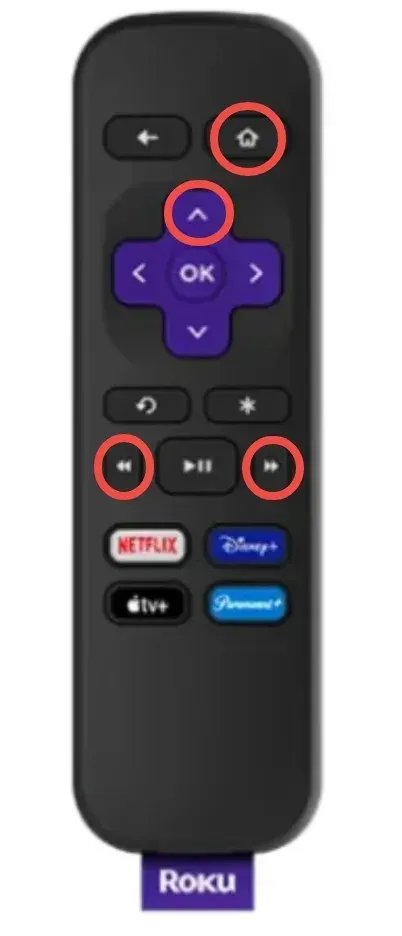
After the full sequence, wait and watch the TV for a moment. The screen may stay dark briefly before the Roku system restarts. Enter the buttons in order and at a steady pace. If you rush through them or add extra presses, the command may not register correctly.
How to Restart Roku Without Remote
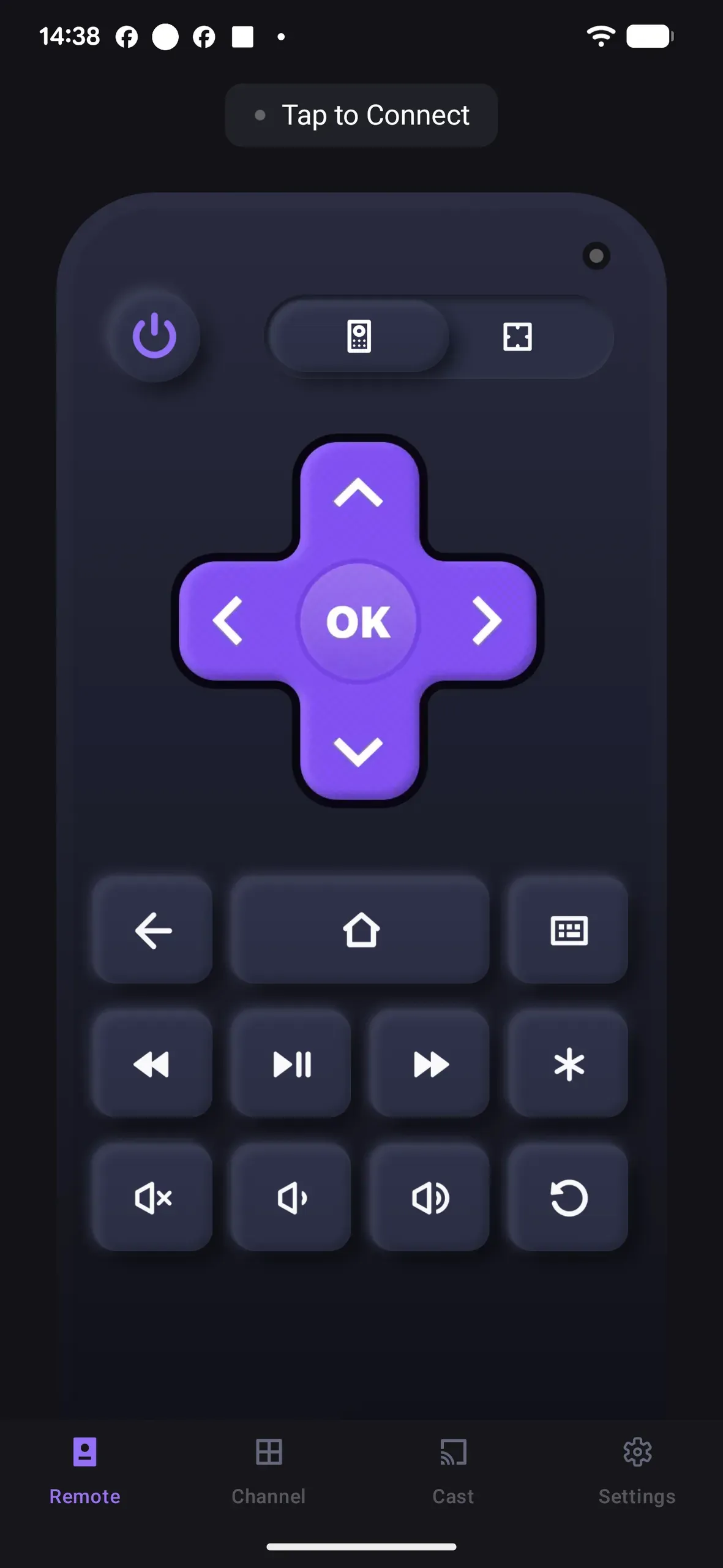
If your Roku physical remote doesn't work, a phone-based Roku remote app can be the cleanest backup control path. That is especially useful when some buttons stop working, the remote lags, or you simply want an easier way to reach the settings menu without fighting inconsistent input.
Can You Reboot Roku TV with a Remote App Instead?
Yes, as long as your phone and Roku TV are on the same Wi-Fi network. Open a Roku-compatible remote app such as BoostVision's Roku remote app, connect to the TV, and use the on-screen controls to go to Settings > System > Power > System restart just as you would with the physical remote.
How to connect the Roku remote app to your TV:
Step 1. Download the Roku remote app from Google Play.
Step 2. Open the app and give it permissions and esnure your phone connected to the Wi-Fi network your Roku device is on.
Step 3. Tap the top bar on the app and select your Roku device from the list.
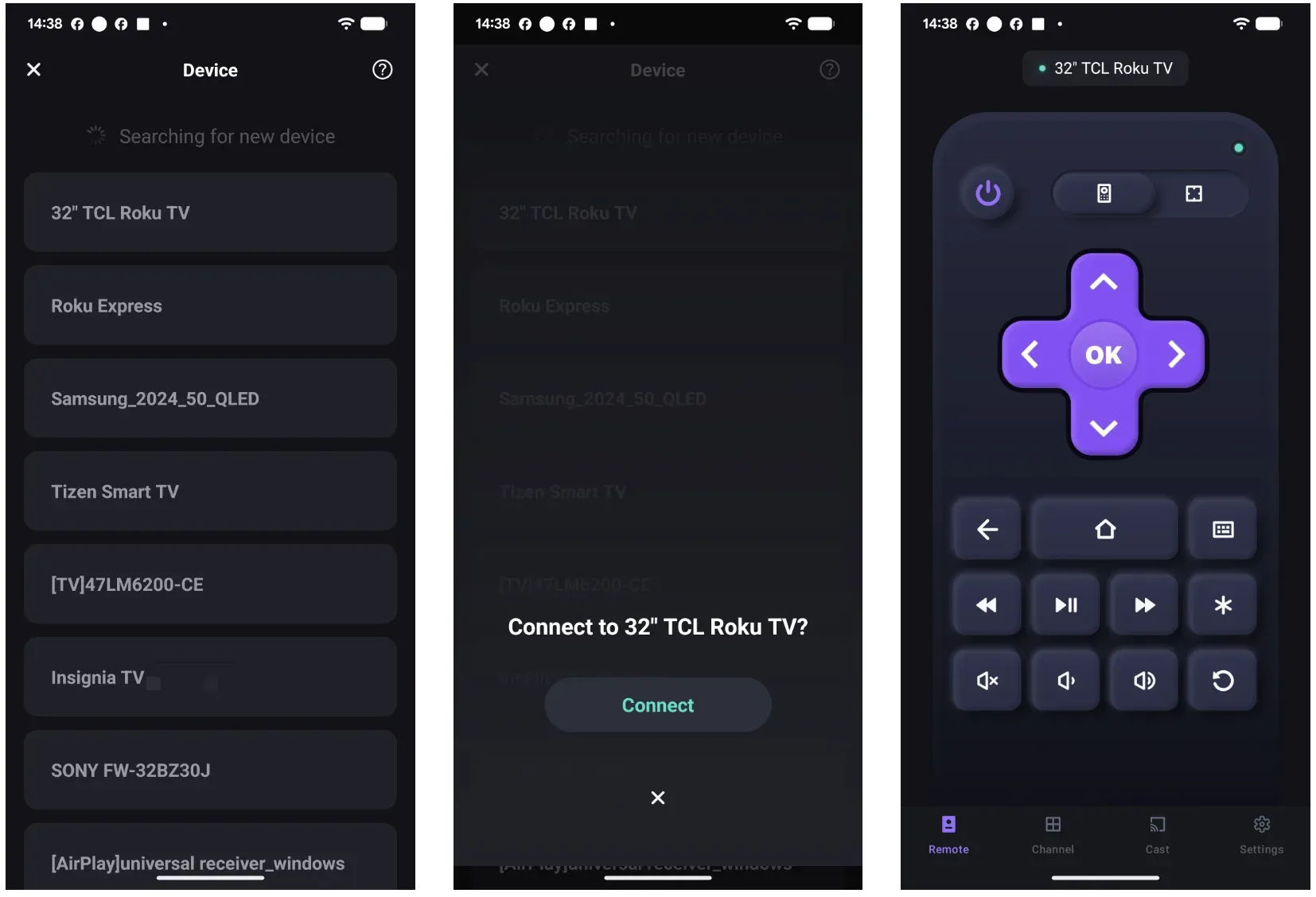
Step 4. Once connected, you can go to Settings > System > Power > System restart with the app.
This alternative works best when the TV is still online and visible on the local network. If the app cannot find the TV, do not keep retrying the same scan on loop. First confirm both devices are on the same Wi-Fi, then retry once.
This option is especially practical when the physical remote still powers the TV on but directional buttons are inconsistent. In that situation, the phone often becomes the faster way to reach the system menu, complete the restart, and confirm whether the TV itself is improving or whether the real issue is the hardware remote.
What to Do After Restarting Roku TV
After the reboot, the goal is to check whether the original problem is gone or whether you are dealing with something deeper such as a network issue, a bad app session, or a remote problem. A clean restart often fixes temporary slowdowns, but it will not solve every root cause.
What Should You Check Once the TV Turns Back On?
Start by testing the same thing that was failing before. Open the app that kept crashing on your Roku, replay the video that was stuttering, or move through the home screen again and see whether remote response feels normal.
If the TV is still slow after one full reboot, use this order:
Step 1. Test the home screen navigation again.
If menu movement is now smooth, the problem may have been limited to one overloaded app session rather than the whole TV.
Step 2. Reopen the app that was causing trouble.
An app crash or playback issue may clear after restart. If only one app still misbehaves, the issue is narrower than a full TV system problem.
Step 3. Check the network if streaming is still unstable.
If the interface feels fine but video buffers or drops, the reboot probably fixed the TV side and exposed a Wi-Fi problem instead.
Step 4. Watch the remote response for another minute.
If button lag continues even after the TV restarts, the remote itself may need fresh batteries or a different control path such as the phone app.
One clean reboot should improve temporary software slowdown, but it should not be treated as an endless repeat fix. If the TV behaves the same way after one proper restart, repeating the same step three or four times usually adds no value. That is the point where you shift from rebooting to checking Wi-Fi stability, app-specific problems, or remote input hardware.
Another useful check is whether the slowdown happens only after the TV wakes from standby. If performance is normal after a reboot but gets worse again later in the day, the issue may be tied to one background app session or a temporary network stall rather than permanent hardware failure.
Conclusion
The best way to reboot a Roku TV with the remote is to use the system menu path: Settings > System > Power > System restart. If the TV is stuck on a black screen or the menus will not open, use the remote button sequence instead: Home 5x, Up 1x, Rewind 2x, Fast Forward 2x. Both methods are designed to refresh the TV without erasing installed channels or saved settings.
If the physical remote is unreliable, switch to a phone-based controller on the same Wi-Fi and run the same restart path from your phone. If the TV is still slow after rebooting, move on to power, network, or channel-specific troubleshooting.
How to Reboot Roku TV with Remote FAQ
How do I reboot Roku TV with remote if the screen is frozen?
If the TV still reacts to some button presses, wait a moment and try to reach Settings > System > Power > System restart. If the menus will not open but the remote is still sending commands, try the restart sequence Home 5x, Up 1x, Rewind 2x, Fast Forward 2x. If the screen is fully frozen and neither method works, a power cycle becomes the next practical step.
Does rebooting a Roku TV delete apps or settings?
No. A normal system restart does not remove installed apps, unlink your Roku account, or wipe everyday settings. It simply refreshes the operating system and clears temporary glitches.
Is system restart the same as factory reset on Roku TV?
No. System restart only reboots the TV. Factory reset removes your settings and account data and makes you set the TV up again from scratch. If you only want to refresh performance, use restart instead of reset.
Can I reboot Roku TV from my phone instead of the physical remote?
Yes, if the TV is online and your phone is on the same Wi-Fi network. A compatible phone controller can open the same settings path and trigger System restart without needing the physical remote.
What should I do if Roku TV is still slow after restarting?
Check whether the lag happens everywhere or only in one app. If the whole interface is still slow, look at power and remote behavior next. If only streaming is unstable, test your network connection before assuming the TV needs a deeper reset.
 Sep 13, 2023