
VLC is one of the most versatile media players, allowing you to play almost any video or audio format. However, many people wonder if they can use VLC AirPlay to stream content from their Mac or PC to an Apple TV. While VLC does not have a built-in AirPlay function, there are ways to mirror VLC content to an Apple TV using AirPlay.
Can You AirPlay VLC
VLC (VideoLAN Client) is a powerful open-source media player that supports multiple formats, including MP4, MKV, AVI, and more. It's widely used for playing local files, streaming online content, and converting media formats. However, VLC does not have a direct AirPlay button like some other media apps. This means you cannot simply click a button to stream VLC content to an Apple TV.
That being said, you can still use macOS's built-in AirPlay mirroring or third-party apps to display VLC content on your Apple TV. The process involves mirroring your Mac's screen while playing a video in VLC or changing the audio output to stream sound separately. Now keep reading step-by-step instructions to VLC player AirPlay.
How to AirPlay VLC
Although VLC does not have a built-in AirPlay feature, you can still mirror VLC content to an Apple TV using Mac's built-in AirPlay feature. This allows you to wirelessly share your Mac's screen and audio to an Apple TV. Here are the steps to VLC Mac AirPlay:
Step 1. Ensure your Mac/iPad/iPhone and Apple TV are connected to the same Wi-Fi network.
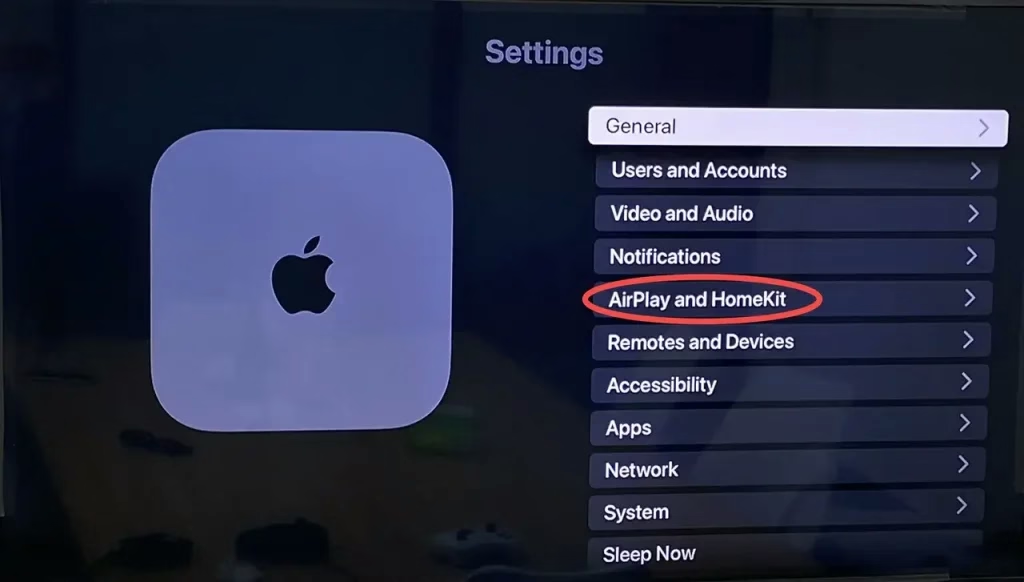
Step 2. Enable AirPlay on your Apple TV from Settings > AirPlay & HomeKit > AirPlay and turn it ON.
Step 3. Open VLC on your Mac/iPad/iPhone and start playing a video.
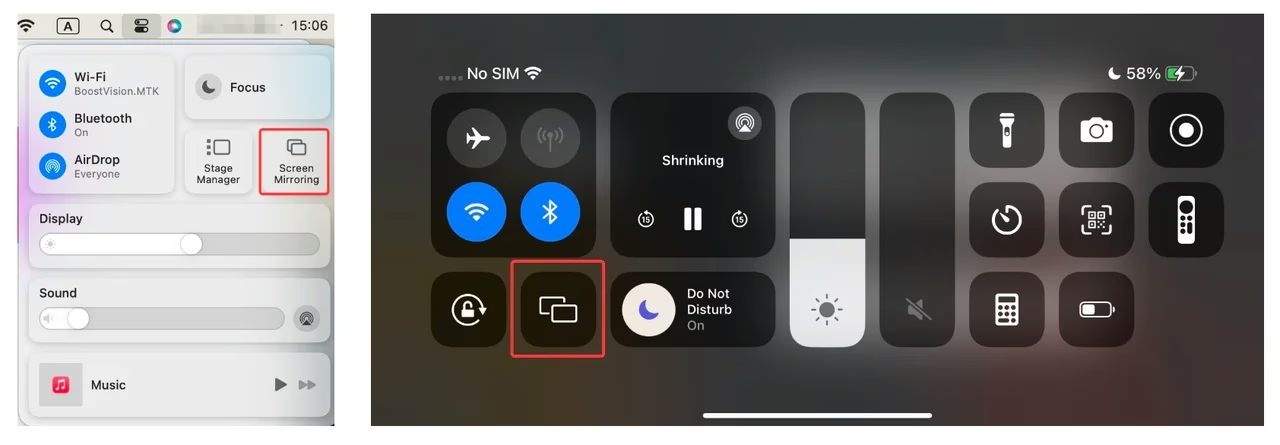
Step 4. Click the Control Center icon in the top-right corner of your Mac/iPad/iPhone screen, and select Screen Mirroring, then choose your Apple TV from the device list.
Step 5. If needed, click the Speaker icon in the menu bar to adjust the audio output, and select Apple TV as the audio output device.
This method works well for streaming movies or videos from VLC, but it mirrors the entire screen, which may not be ideal for everyone. If you're looking for alternative ways to AirPlay VLC to Apple TV, keep reading.
Alternatives to AirPlay From VLC
If AirPlay mirroring doesn't work for your needs, there are three alternative methods to stream VLC content to an Apple TV or another screen. Each method provides a different way to stream VLC content, and the best option depends on your setup and preferences.
Use a Third-Party Streaming AppConnect Mac to TV with an HDMI Cable
Use a Third-Party Streaming App
Some third-party apps, such as the TV Cast app, allow you to stream content from VLC directly to an Apple TV or other AirPlay-compatible devices, even if you're not using an Apple device. These apps act as a bridge, enabling seamless wireless streaming from Android phones to Apple's ecosystem.
Download Smart TV Cast
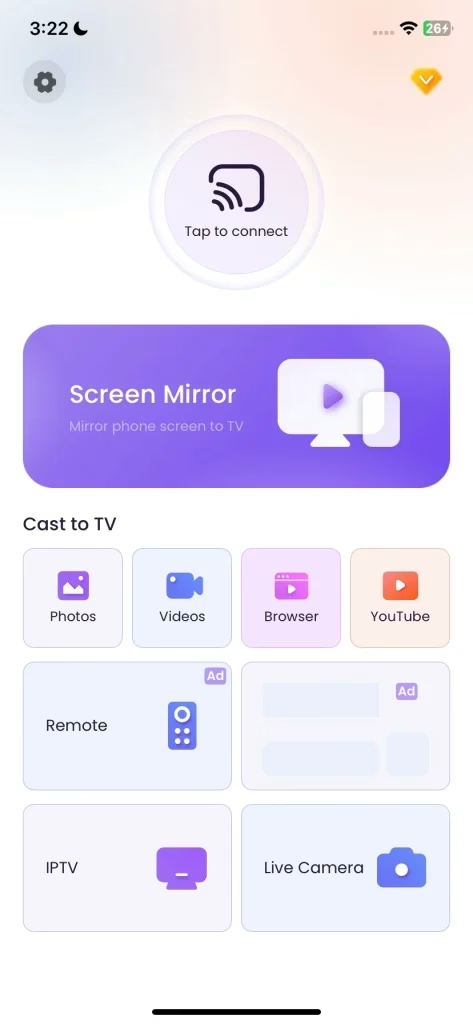
Step 1. Install the screen mirroring application on your mobile device, then ensure your mobile device and Apple TV are under the same wireless network.
Step 2. Open the app and click "Tap to connect"to choose your Apple TV from the device list.
Step 3. Once you finish the connection, you can tap Screen Mirror to share your mobile device screen on your Apple TV.
It's worth trying the browser casting feature, which lets you stream web content to your TV while still using your phone for other tasks. This way, you can enjoy a larger display without any interruptions to your phone's functionality.
Connect Mac to TV with an HDMI Cable
For a lag-free and high-quality streaming experience, using an HDMI cable is the best option. This method ensures smooth playback without wireless interruptions, making it ideal for high-resolution video streaming.
Step 1. Get a compatible HDMI adapter (USB-C to HDMI for newer Macs, Mini DisplayPort to HDMI for older models).
Step 2. Connect one end of the HDMI cable to your Mac and the other to your TV, and switch your TV input to the correct HDMI port.
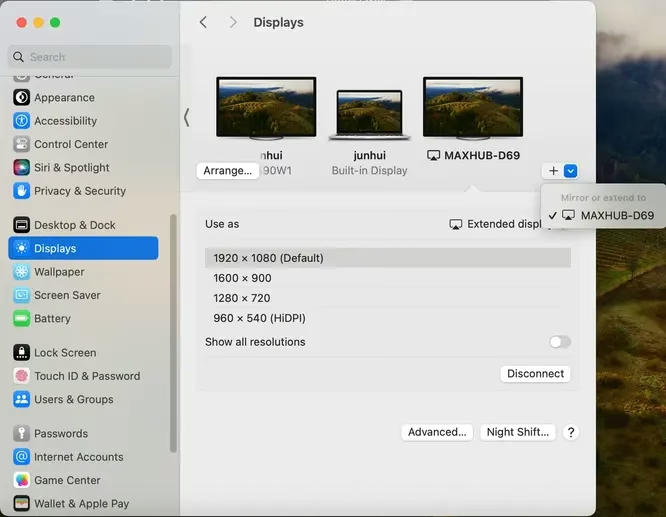
Step 3. On your Mac, go to Settings > Displays > Mirror Display or Extend Display, depending on your preference. Once the connection succeeds, you can enjoy the VLC AirPlay Mac.
Closing Words
Can you AirPlay VLC Mac? While VLC does not have built-in AirPlay support, there are still ways to stream VLC content to an Apple TV. We covered three main solutions: AirPlay mirroring, third-party apps, and HDMI cables provide additional ways for VLC to AirPlay.
VLC AirPlay FAQ
Q: Can I AirPlay from VLC?
VLC does not have a built-in AirPlay feature, but you can still stream content using AirPlay Mirroring, third-party streaming apps, or alternative methods like HDMI cables.
Q: Does VLC have screen mirroring?
VLC itself does not support screen mirroring, but you can use macOS's built-in AirPlay feature to mirror your entire screen while playing a video in VLC. Alternatively, third-party apps like TV Cast app to start screen mirroring or casting.