
Vizio is an American TV manufacturer that produces high-quality smart TVs. As a smart TV, it needs to connect to Wi-Fi networks to make it fully functioning. With Wi-Fi networks, you can easily watch movies and shows online without downloading them.
For some online videos, it doesn't come with app, so now you might ask, where the internet browser on Vizio smart TV is? Since you have to watch it directly by visiting the website, this guide is here to help you to find out how to watch web videos through browser on Vizio TV.
Does Vizio TV have Internet Browsers?
A quick answer, NO. Vizio do have models that come with streaming services, especially the newer models, but there isn't a browser that can directly visit any links. All streaming services are organized into different streaming apps, and you can just select the TV show or movies on their preset list. Therefore, if you want to watch something directly from a link, you have to find another way.
How to Watch Web Videos on Vizio TV?
There are two methods to watch web videos on Vizio TV that doesn't come with streaming services, one is purchasing a streaming device, and the other one is use an app on smart phone.
Method 1. Purchasing a Streaming Device
A streaming device is designed to turn a normal TV into a smart TV, which is capable of streaming service, screen mirroring and media casting functions. Nowadays, lots of leading technology companies have developed streaming devices, such as Google Chromecast or Amazon Fire Stick, and you can use their browsers, such as Google Chrome on Google Chromecast, or Silk Browser on Amazon Fire Stick, to browse the content you demand.
Most streaming devices need two cables to hook on, one is the HDMI signal transmission cable and the other one is the power cord that keeps the device running.
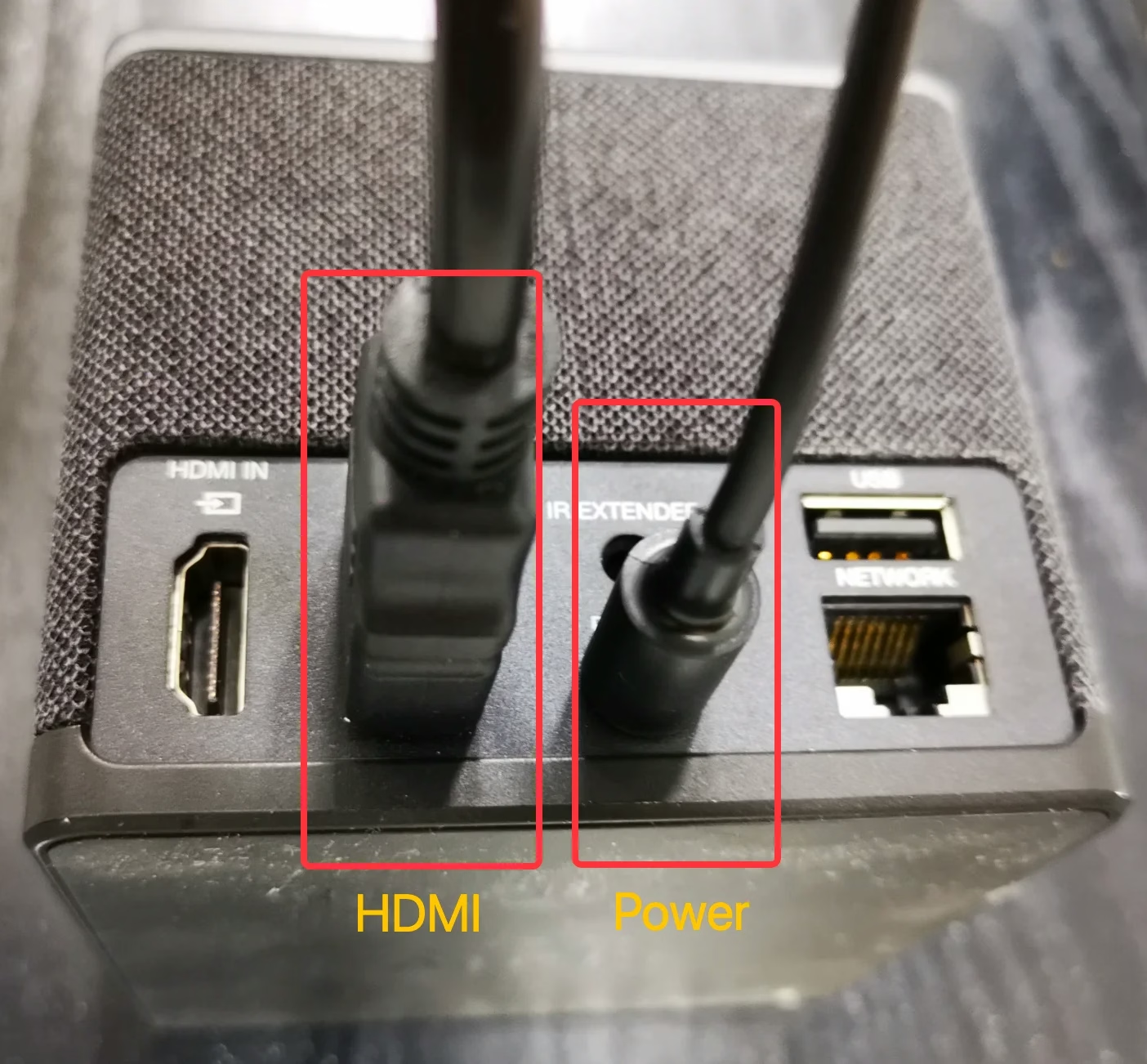
Once you have connected these two cables, you can use the remote of your Vizio TV and switch the input to the linked HDMI port, and then the interface of the streaming device will show and you can download a browser on the streaming device. After you get a browser, you are able to browse the internet and watch the online video as you wish.
Method 2. Use a Phone App to Cast Web Videos
Even though your TV couldn't browse the internet, your phone can still do so, therefore if you can display the browsed video on your phone on TV, you can still regard you are browsing internet with the TV, but in separated steps.
The app on the top of the list of my recommendations is Universal TV Remote by BoostVision. As its name describes, it can control most mainstream TVs. Furthermore, it possesses the ability to mirror screen and cast media from multiple sources, including local album and webpage links.


After you have downloaded the app, you need to pair it with your Vizio TV to make it work properly.
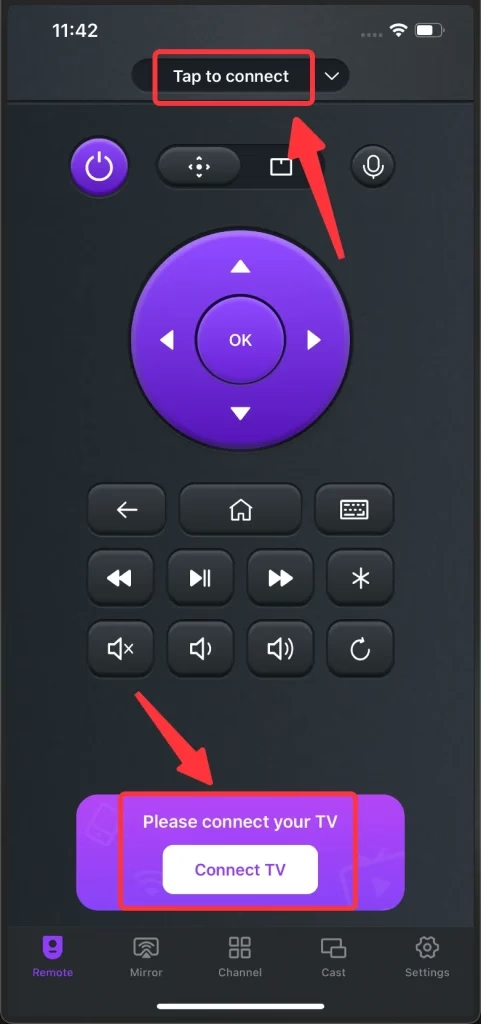
Step 1. Make sure your smart phone and Vizio TV are connecting to the same Wi-Fi network, then click the Tap to Connect area or the Connect TV button.
Step 2. Choose your Vizio TV on the devices list and click the Connect button. If you want it to automatically connect to your Vizio TV when using, turn on the Auto-Connect switch.
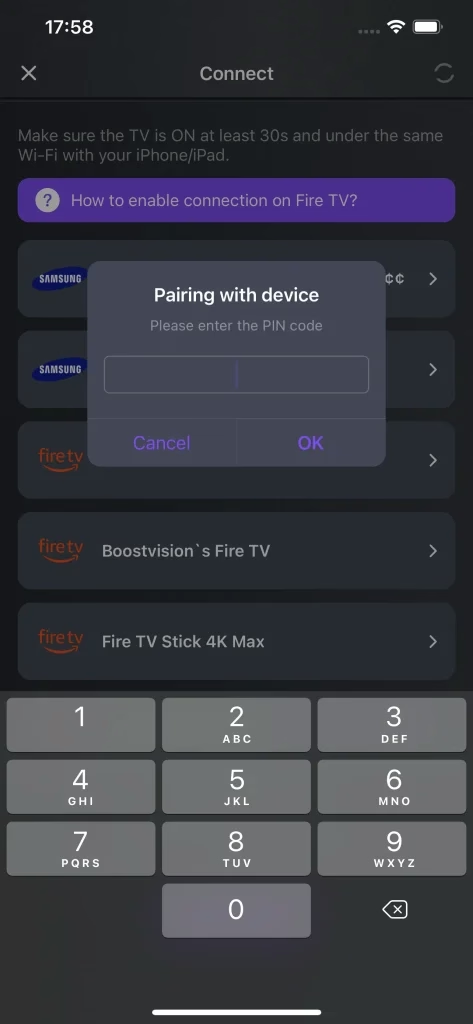
Step 3. Enter the PIN Code that appears on the upper part of the TV screen, and then the connection will be automatically established.
When you hear a beep, the connection between your smart phone and Vizio TV has been established successfully. After the connection has been built, you can now start to browse the internet and find content you want to play on your TV.
Step 1. Go to the Cast tab and Click Browser.
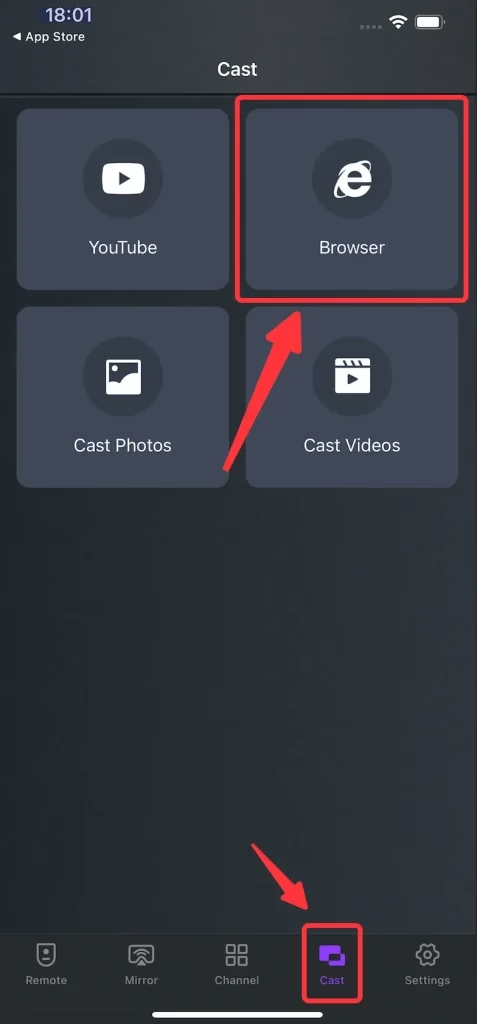
Step 2. Into the webpage that contains video and click cast button, and the video will then display on your Vizio TV.
Conclusion
Have Vizio TV internet browser? Unfortunately, Vizio TV doesn't come with an internet browser. However, Vizio TVs do have streaming services available depending on the model of Vizio TV you have. If you want to play media directly from a link, you can either purchase a streaming device and connect it to your Vizio TV, or use an app to browse the internet, and cast the online media to the Vizio TV.
Vizio TV Internet Browser FAQ
Q: Can I browse the Internet on my Vizio Smart TV?
Yes, but not directly. Vizio TV doesn't come with a browser, so you need an expanded method to browse the internet:
Q: How do I download the Internet app on my Vizio TV?
Unfortunately, Vizio TV isn't capable of downloading an internet browser. However, you can purchase a streaming device and hook it on the Vizio TV, then you can download apps on the streaming device and use the Vizio TV as the monitor of the streaming device. On the other hand, you can download a Universal TV Remote app, and use the browser on your phone to visit the website and cast its content to Vizio TV.

 Sep 13, 2023