
In today's digital age, Smart TVs are no longer just for watching traditional TV shows and movies. With the ability to access the internet, browse websites, and stream content from apps, Smart TVs are becoming essential home entertainment hubs. In this blog, we'll explore Smart TV web browsers and other ways to watch your favorite shows and videos on the big screen.
Which Smart TVs Have a Web Browser
Many modern Smart TVs with web browsers allow you to access websites directly from your TV, but not all Smart TVs come with this feature. The availability of a TV web browser largely depends on the operating system your TV runs on.
Well, which smart TVs have a web browser? Let's check out the popular TV brands one by one:
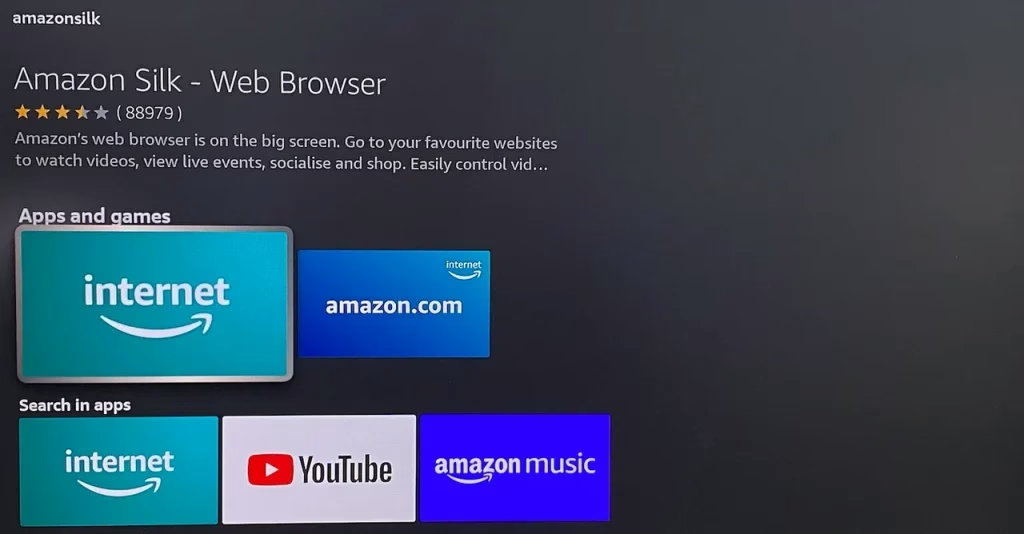
Sony TVs:Sony TVs, particularly those with Google TV or Android TV, do not typically come with a built-in web browser. However, downloading and installing third-party Sony TV web browsers from the Google Play Store is allowed, and recommended browsers for Sony TV include Vewd (previously Opera), TV Web Browser, and others like Browser and Open TV Browser.LG TVs:LG offers a range of models that come with a built-in LG TV web browser. These browsers are usually integrated into the webOS platform, offering basic browsing functions to surf the web, visit social media sites, or watch videos from websites like YouTube.Samsung TVs:While Samsung's Tizen OS doesn't include a traditional browser on every model, higher-end models come with a browser that supports full HTML5 websites. Samsung Smart TVs with web browsers are often capable of performing basic browsing tasks.Roku TVs:Is there aninternet browser on Roku? Roku devices do not have a native web browser. Instead, Roku devices are specifically designed to serve as media streaming platforms, offering easy access to a wide range of streaming services and apps such as Netflix, Disney+, Hulu, Amazon Prime Video, YouTube, and others.Vizio TVs:Vizio Smart TVs do not support installing a full-fledged web browser, limiting users to the pre-installed streaming apps available on the device. While they offer access to popular services like Netflix, Hulu, and YouTube, there is no native browser for web browsing. This design prioritizes simplicity and ease of use for streaming content.Fire TVs:Fire TV devices, including FireStick, support web browsing through apps like Amazon Silk and Firefox, offering the ability to access websites directly on TV. These browsers are optimized for a big-screen experience, with an interface designed for easier navigation using the Fire TV remote. While not as full-featured as desktop browsers, they provide basic browsing capabilities for those who want to surf the web on their TVs.
Hisense TVs:Certain Hisense Smart TVs, especially those powered by the Vidaa platform, are equipped with a built-in web browser, such as Opera. However, this feature is not available on all models, particularly those running Roku TV or Android TV, which may lack a pre-installed browser.TCL TVs:TCL TVs typically do not come with a built-in web browser, regardless of whether they run Roku TV, Google TV, or Android TV. However, Google TV and Android TV models allow the installation of third-party web browsers from the Google Play Store.Toshiba TVs:Older Toshiba Smart TV models, like those in the L6200U and L7200U series, included an open browser for internet access. However, newer models may not explicitly highlight this feature.
Do you have a smart TV with internet browser? If your TV brand is not listed here, you can start by checking the TV's settings or user manual. Most Smart TVs display available apps in their main menu, so you can look for a web browser icon. If you can't find one, check the app store or marketplace for your TV's operating system (e.g., Google Play Store for Android TV or the LG Content Store for webOS) to see if you can download a browser.
What Is the Best Browser for Smart TV
As mentioned above, models with Android TV or Google TV allow the installation of a web browser from the Google Play Store, so which web browser is worth trying? The best browser for Android TV or Google TV depends on the browsing experience you're looking for. Here are some options:
Google Chrome:For users with Android TV or Google TV, Google Chrome is often the best option. It's the most widely used browser and offers excellent performance for a smooth browsing experience. Chrome supports various websites, streaming platforms, and apps, making it a reliable choice. It also syncs seamlessly with your Google account, providing easy access to your bookmarks and passwords.Vewd (formerly Opera): Vewd is commonly used in many Smart TVs, including some Sony and Hisense models. It's optimized for large screens and has a simple interface, making it a great choice for those who want basic web browsing.Firefox: Firefox is available for devices like Fire TV and some Android TV models. It provides a fast browsing experience, is privacy-focused, and offers good compatibility with most websites.TV Web Browser: This browser is designed specifically for TV viewing, making it a solid choice for those using third-party browsers on Android TVs or other compatible Smart TV platforms.Opera TV Browser: Opera's TV version is another good option, known for its easy-to-use interface and large-screen optimization, making it a user-friendly browser for Smart TVs that support it.
The best Android TV or Google TV browser will vary based on the specific TV and personal preferences, but these browsers are all well-suited to enhancing your browsing experience on the big screen.
How to Get Internet Browser on TV
If your Smart TV doesn't come with a built-in browser or you want to use a different one, there are several ways to get access to the internet on your TV. From downloading apps to using external devices, you have various options to browse the web, stream content, and explore websites on your TV. Let's walk through the available methods, starting with installing or sideloading a browser.
Method 1. Download or Sideload the Browser App
If your Smart TV doesn't come with a built-in browser or if you want to use a different one, you can download or sideload a browser app directly onto your TV. To download a browser app on your TV, just go to the app store and type in the name of a popular browser. Once you find the browser, install it. The browser will appear in your apps menu after installation.
If your TV platform doesn't support a browser app natively, you can sideload a browser. This process involves manually installing the APK (Android installation file) or using a third-party installer:
Step 1. On your TV (typically Android TV), enable developer options in the settings. For example, you can go to the Settings menu, find and select the Android TV OS build, and press the OK button on your TV remote to enable developer options.
Step 2. Search for the Downloader app on your TV app store and download and install it.
Step 3. Use the Downloader app to find the APK file for the browser you want to install.
Step 4. Once installed, you can open the browser on your TV and begin browsing.
If you feel confused about these steps, you can watch the YouTube video where the YouTuber details the process.
Method 2. Using a Streaming Device
If your TV doesn't have a built-in browser or you want an enhanced streaming experience, you can consider using a streaming device. These devices offer a wide range of online content, apps, and browsing capabilities, such as Amazon Fire TV Stick, Roku, or Apple TV.
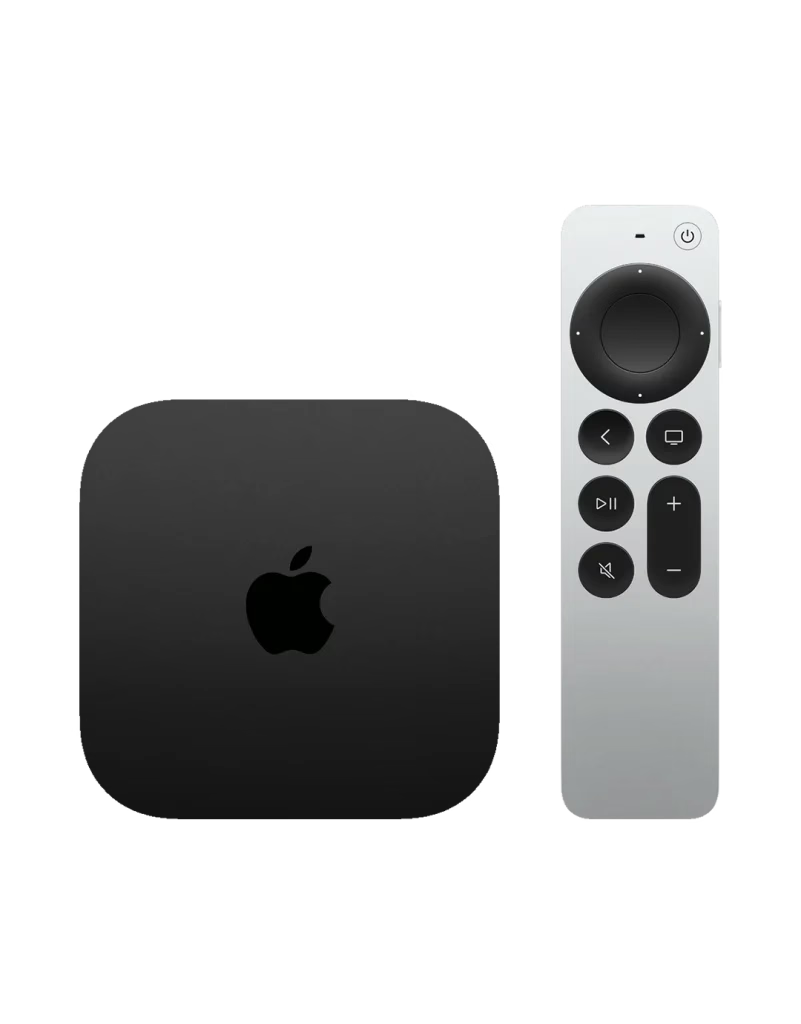
These devices plug into your TV's HDMI port, transforming any standard TV into a smart TV with easy access to services like Netflix, Hulu, Amazon Prime Video, and more. In particular, the Fire TV Stick includes a built-in browser for web access, making it a great alternative if your TV lacks a smart TV web browser.
Read more: How to Set Up a Roku Device on LG TV?
How to Watch Without a TV Browser
While using a TV web browser is one way to browse internet on TV, there are other convenient methods to stream or cast content to your TV. These methods can offer a smoother, more tailored experience, especially for streaming video content or browsing your favorite sites from your phone or tablet. Here are a few popular alternatives:
Method 1. Casting with Third-Party Apps
If you want more flexibility, there are third-party apps available for both Android and iOS that allow you to cast content to any Smart TV with web browser. Apps like the easy-to-use Screen Mirror app give you the ability to cast photos, videos, and the entire screen from your phone to your TV.
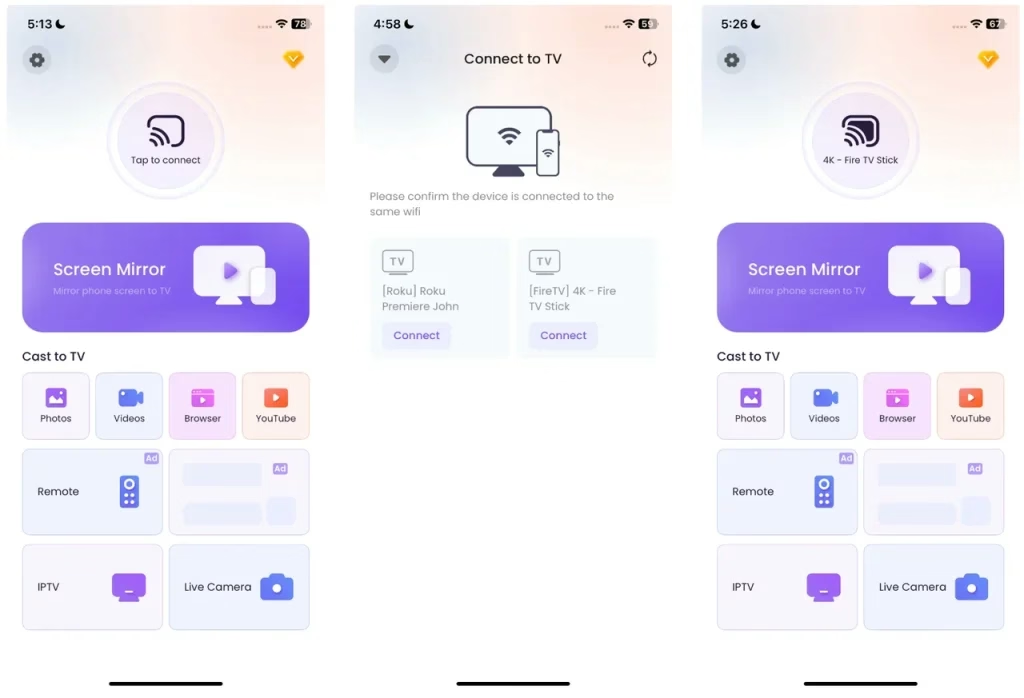
These apps are compatible with many TV brands, including Sony TV web browser, LG TV web browser, and others mentioned above, providing a versatile solution for users with a wide variety of devices.
Here's how to watch online content on your TV screen with the app:
Step 1. Download and install the Screen Mirroring app on your mobile device.
Download Screen Mirroring: TV Cast App
Step 2. When your mobile device and smart TV are on the same Wi-Fi network, open the app and connect it to your TV.
Step 3. Once connected, you can tap the Browser feature and follow the on-screen instructions to stream content from your mobile device's browser app to your TV.
Method 2. Using Apps and Streaming Services
Most Smart TVs come preloaded with popular streaming services like Netflix, YouTube, Amazon Prime Video, and Hulu. These apps allow you to directly access and stream a wide variety of content without needing to open a browser or cast anything.
Conclusion
If you're looking for ways to browse the internet on TV or access online content, using a Smart TV web browser is one option, but there are many alternatives. Casting apps like the 3rd-party Screen Mirror app, Chromecast, or Apple AirPlay offer a simple, effective way to stream content from your phone or tablet. Streaming devices like Amazon Fire TV Stick and Roku also provide a hassle-free way to enjoy online content. Whatever method you choose, it's easier than ever to get online content on your TV without being confined to a computer screen.
Smart TV with Web Browser FAQ
Q: Can I use a browser in a Smart TV?
Yes, you can use a browser on many Smart TVs, but the experience can vary significantly between different devices. The browsing capabilities on Smart TVs may not be as smooth or advanced as on a desktop or mobile device, primarily due to limitations in the TV's interface and processing power.
Q: Can I access the internet on my Smart TV?
If your Smart TV is connected to a Wi-Fi network, you can access the internet through its built-in browser or apps. You can use the remote control to type URLs and navigate the internet, though a wireless mouse or keyboard will improve the experience if your TV supports them.
![How to Access a Web Browser on Apple TV [2025]](/_next/image?url=https%3A%2F%2Fhelpful-fun-dead826d03.media.strapiapp.com%2Fapple_tv_web_browser_banner_cb939e4811.avif&w=3840&q=80)

![[3 Effective Ways] How to Cast Chrome to Roku](/_next/image?url=https%3A%2F%2Fhelpful-fun-dead826d03.media.strapiapp.com%2Fcast_to_roku_from_chrome_banner_d6e90fde5d.avif&w=3840&q=80)