
A universal remote app can work without Wi-Fi only when the phone and the controlled device support another compatible communication method. For offline infrared control on Android, the phone must have a built-in consumer IR emitter and the app must support it. Installing an app cannot add missing infrared hardware.
First distinguish “no internet” from “no Wi-Fi”
These are different situations:
Check the remote app's documentation and the TV's manual for their required connection method. Do not assume that every app supports both network and infrared control.
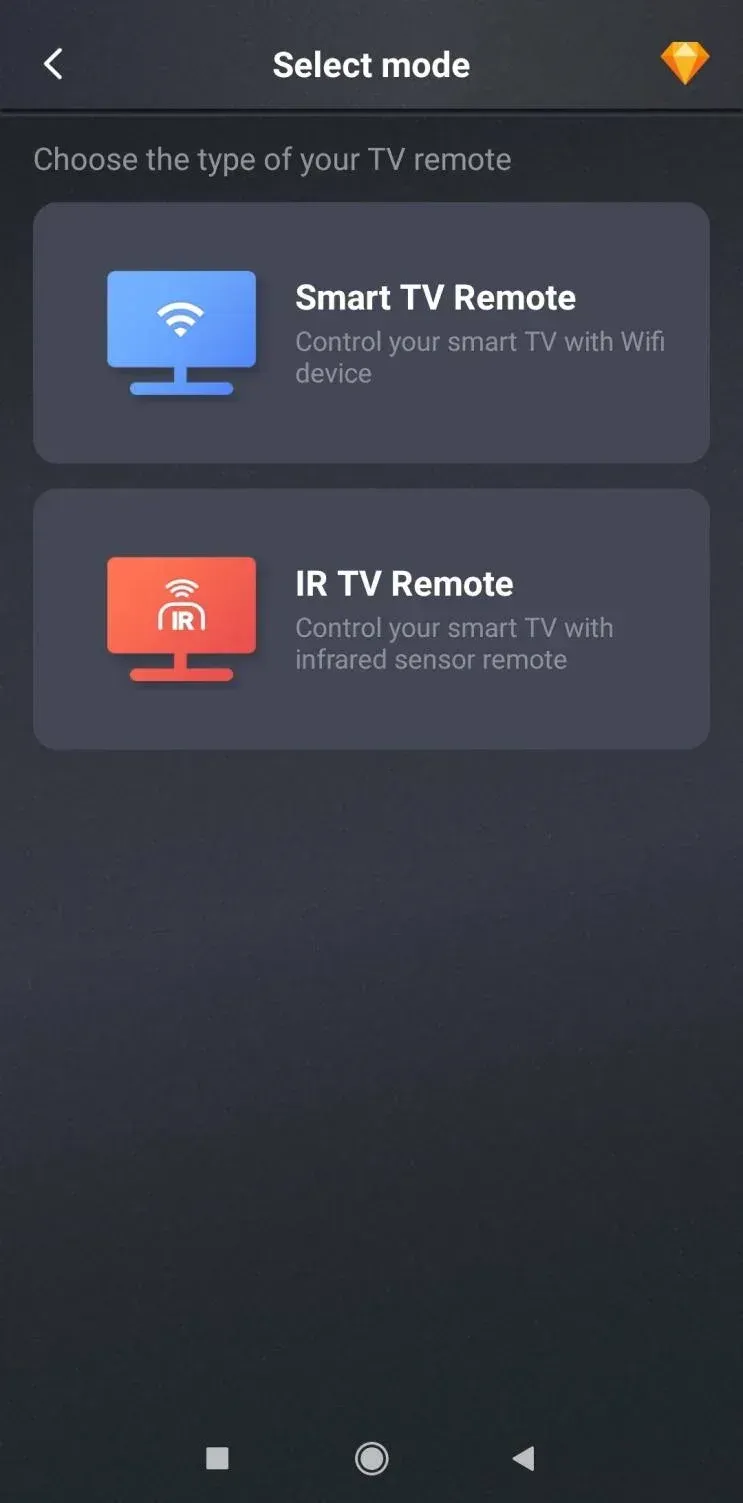
Example only: available modes depend on the app, the phone's hardware and the controlled device.
When infrared control works offline
Android exposes consumer infrared through `ConsumerIrManager`. Google's Android documentation says the device must report the `FEATURE_CONSUMER_IR` hardware feature, and apps can check for an IR emitter before transmitting commands.
Offline IR control therefore requires all of the following:
1. The phone has a consumer IR emitter.
2. The remote app supports that emitter.
3. The app has a compatible command profile for the TV or device.
4. The device accepts infrared remote commands.
If any one of these conditions is missing, the IR setup will not work.
How to verify the phone before installing an app
Use the phone manufacturer's official specifications or support documentation and look for infrared, IR blaster, or consumer IR. Do not rely only on an app-store description. An app can detect or use supported hardware, but it cannot create an emitter that is not physically present.
Android developers and technical users can also check whether the device exposes `PackageManager.FEATURE_CONSUMER_IR` or whether `hasIrEmitter()` returns true.
Set up an IR remote app
1. Confirm the phone has an IR emitter.
2. Install a remote app that explicitly supports the phone's IR hardware and the target device.
3. Select the correct device type and manufacturer inside the app.
4. Point the phone's IR emitter toward the device's remote sensor.
5. Test basic commands such as power, volume and navigation before relying on the setup.
If none of the available profiles controls the device, use the original or a compatible physical remote. Do not infer that the TV is defective from an unmatched app profile.
If the app uses the local network
Follow the app and TV instructions for network discovery and pairing. Both devices normally need access to the same local network for this control method. If the router is available but internet service is down, test the app before changing TV settings; whether it works locally depends on the specific app and TV.
If the TV is not connected to the network and the phone has no compatible IR emitter, use a physical remote or the TV's own buttons to reconnect it.
What not to do
Official Android reference
Universal Remote App Without Wi-Fi FAQ
Q: Can a remote app work when internet service is down?
Possibly. If it communicates over the local network and both devices remain connected to that network, test it using the app and TV instructions. This is different from having no Wi-Fi network.
Q: Can an app turn a phone without infrared hardware into an IR remote?
No. The phone needs a physical consumer IR emitter that the operating system and app can use.
Q: Should I reset the TV if the app cannot find it?
Not as a first step. Verify the app's connection method, phone hardware, local network and TV compatibility first. A factory reset can remove settings and app sign-ins without resolving a compatibility problem.
 May 12, 2026
