
Where is the Menu button on Vizio remote, and why can’t you find it?
Many users run into this issue because newer Vizio remotes have removed the Menu button entirely, replacing it with different navigation methods.
In this guide, you’ll discover the Menu button location, why it may be missing, and how to access the Vizio menu without the Menu button.
Let’s walk through the easiest solutions step by step.
Where Is the Menu Button on My Vizio Remote?
On many Vizio remotes, the Menu button is used to access settings, change input sources, and adjust system preferences.
However, its location — or even its existence — depends on your remote model.
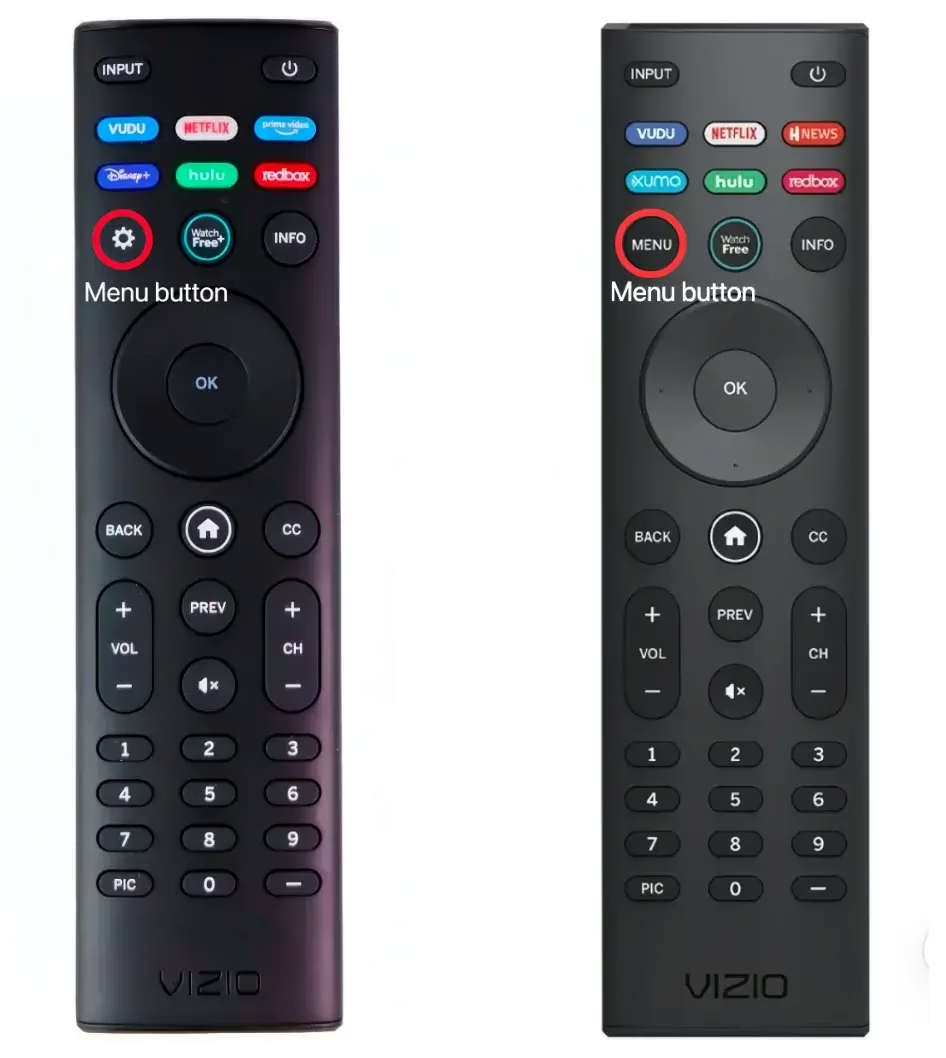
On Traditional Vizio Remotes
Older Vizio remotes typically include a dedicated Menu button, which:
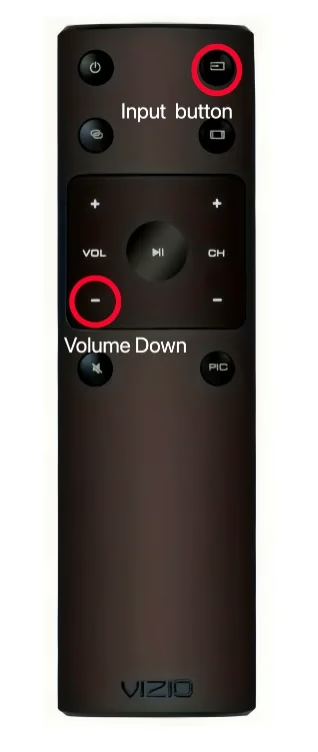
On New Vizio Remotes
If you can’t find the Menu button, you’re likely using a newer Vizio Smart TV remote.
Many newer models (especially SmartCast remotes):
This design simplifies the remote but can make it harder to access settings if you're used to traditional layouts.
How to Access Vizio Menu without Menu Button
There are other measures prepared for you to reach the menu page on Vizio smart TV, including the physical TV buttons, Quick Menu button, and a virtual menu button on the Vizio remote app.
Harness the Vizio TV Buttons
The first alternative is to leverage the physical button on the edge of your Vizio TV. You can find some small buttons, such as the Power, Volume, and Menu button. Hold down the Menu button, the Vizio menu appears.
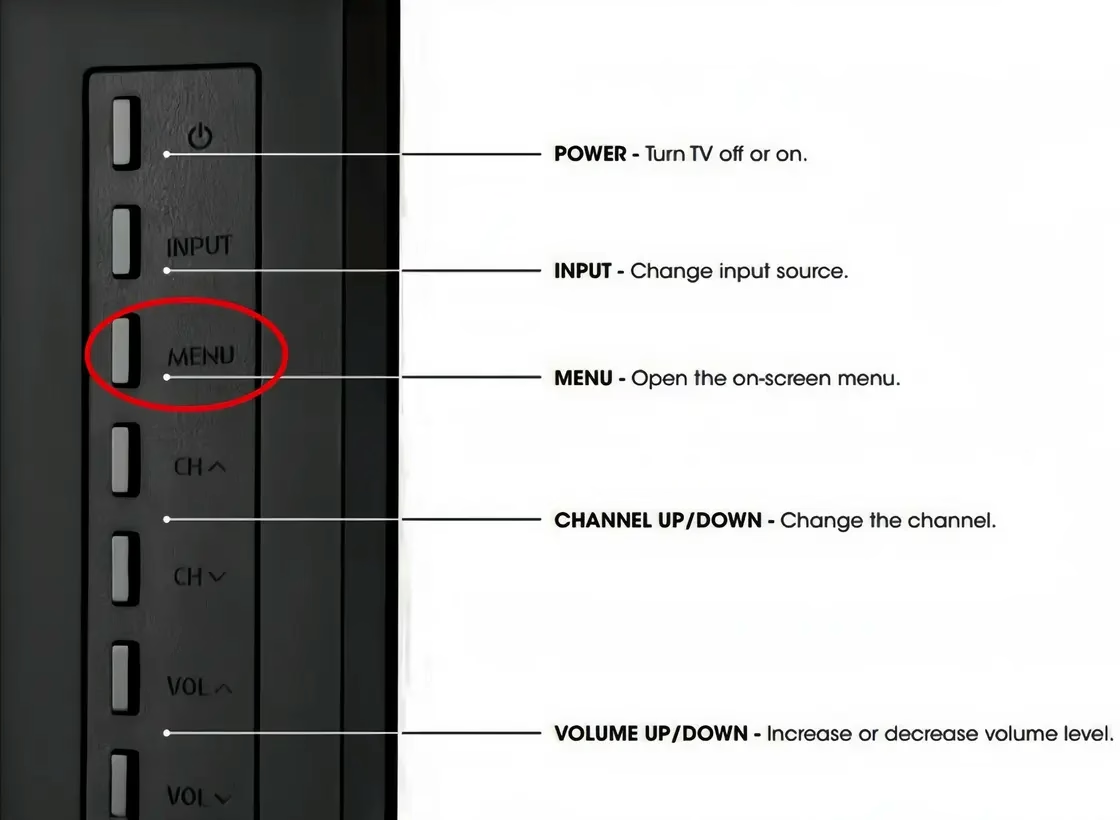
If there is no Menu button, you are allowed to press other available keys (Volume, Channel buttons) to navigate to the menu page.
Launch the Quick Menu on Vizio TV
In response, Vizio unlocks a new level of convenience with Quick Menu this year. You are empowered to launch this page by pressing the OK button or the Star button only. This shortcut lets you save content to your Vizio Watchlist for later viewing, quickly launch entertainment, and access an easy menu of options.
Tap the Menu Button on Vizio Remote App
If your Vizio TV connects to WiFi, there is another Vizio remote app you can adopt then. This virtual remote is also compatible with other popular brands such as Roku, Firestick, Samsung, LG, Sony, Philips, and more. Hence, it's also a mighty backup if you have other streaming devices.
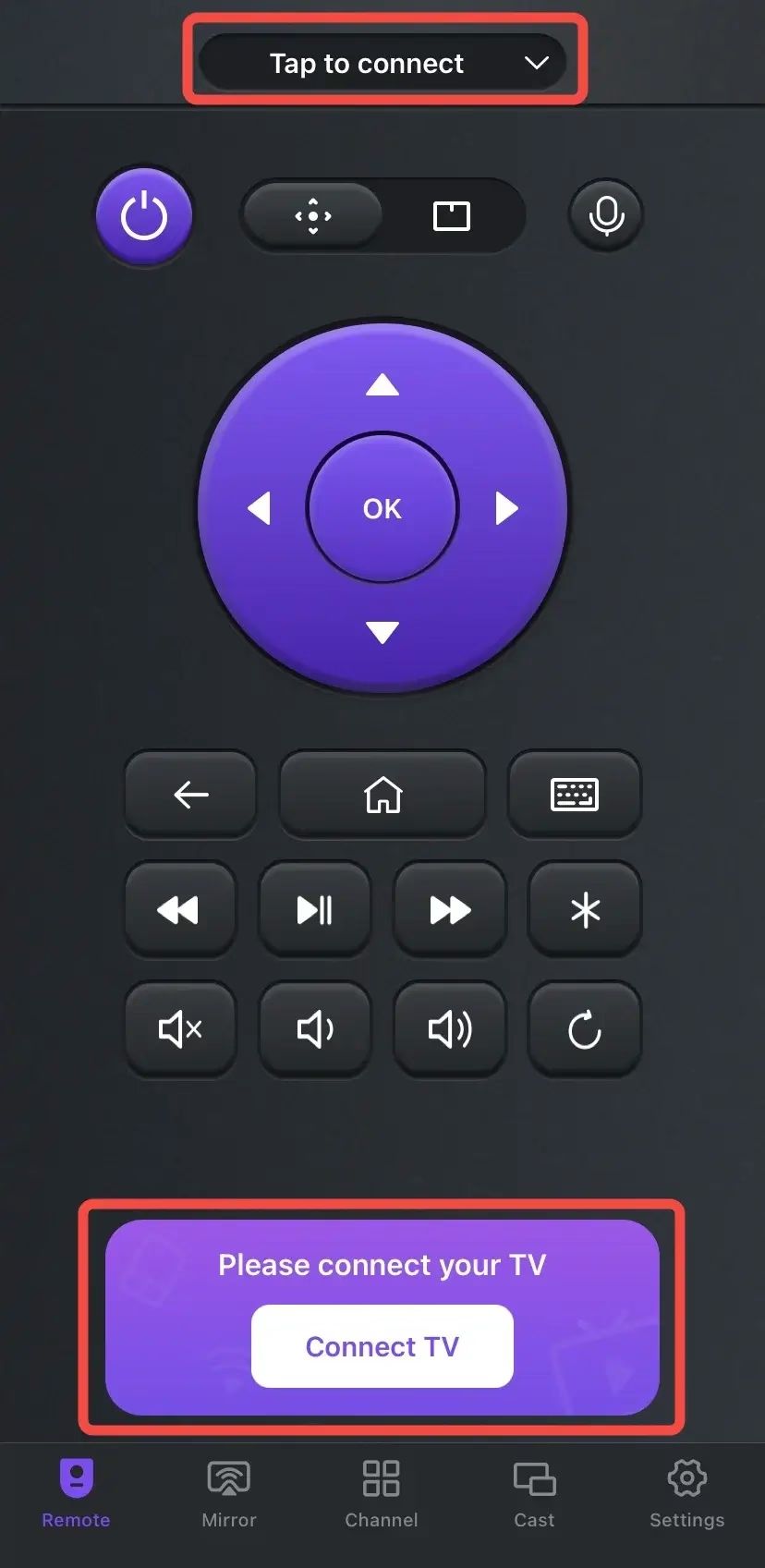
Thanks to BoostVision's development, you are empowered to install the universal remote application and use it to control the compatible smart TV. Plus, the virtual remote can also help to mirror or cast content from your mobile device to your streaming device via a simple connection. Now let's explore how to pair the remote to your Vizio TV and access the menu interface.


Step 1. Install the universal remote app on your mobile device, such as a smartphone or tablet.
Step 2. Ensure your mobile device and Vizio TV are connected to the same wireless network.
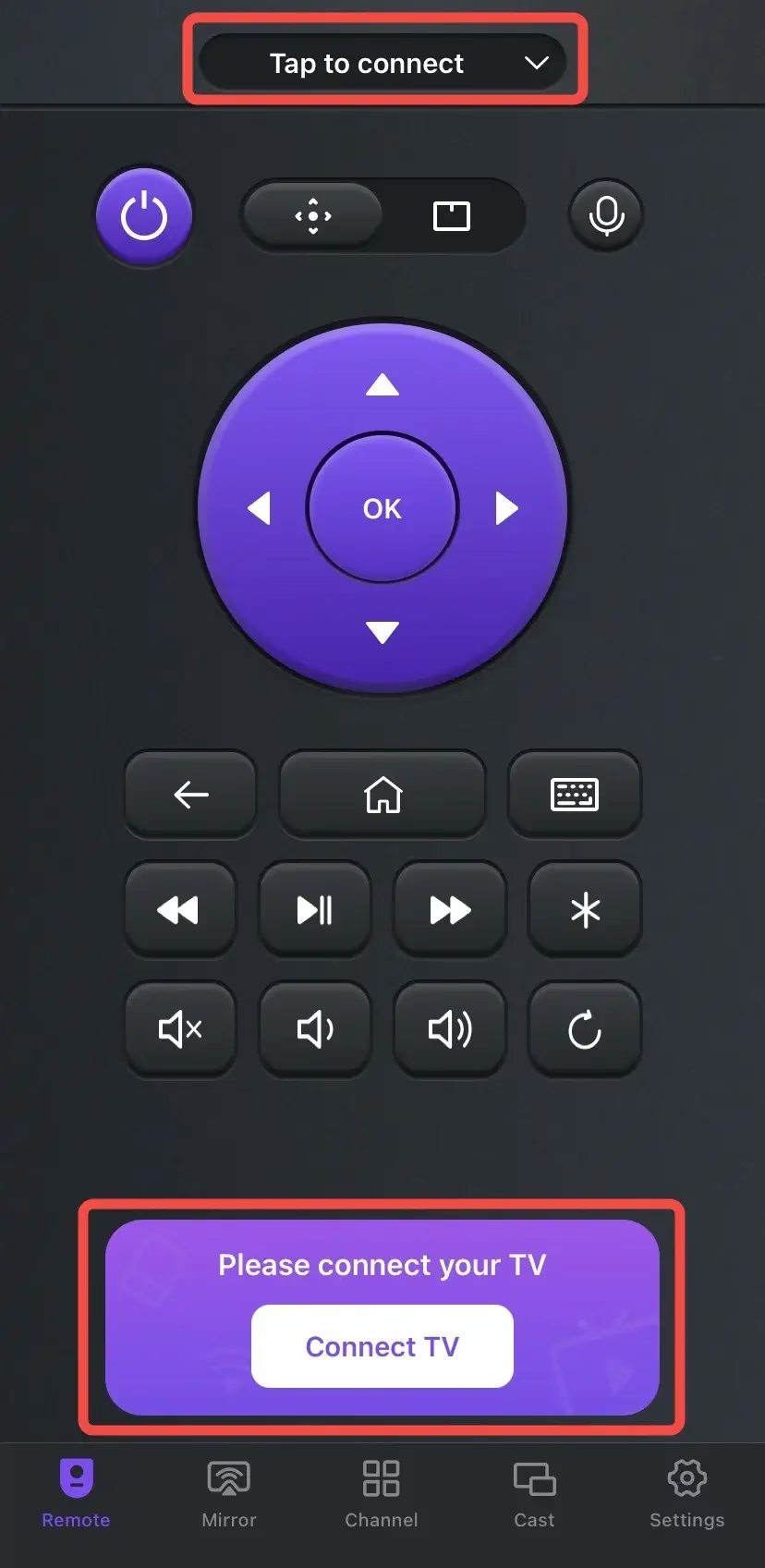
Step 3. Launch the app on your smartphone or tablet and tap the connection entry to choose your TV to pair with.
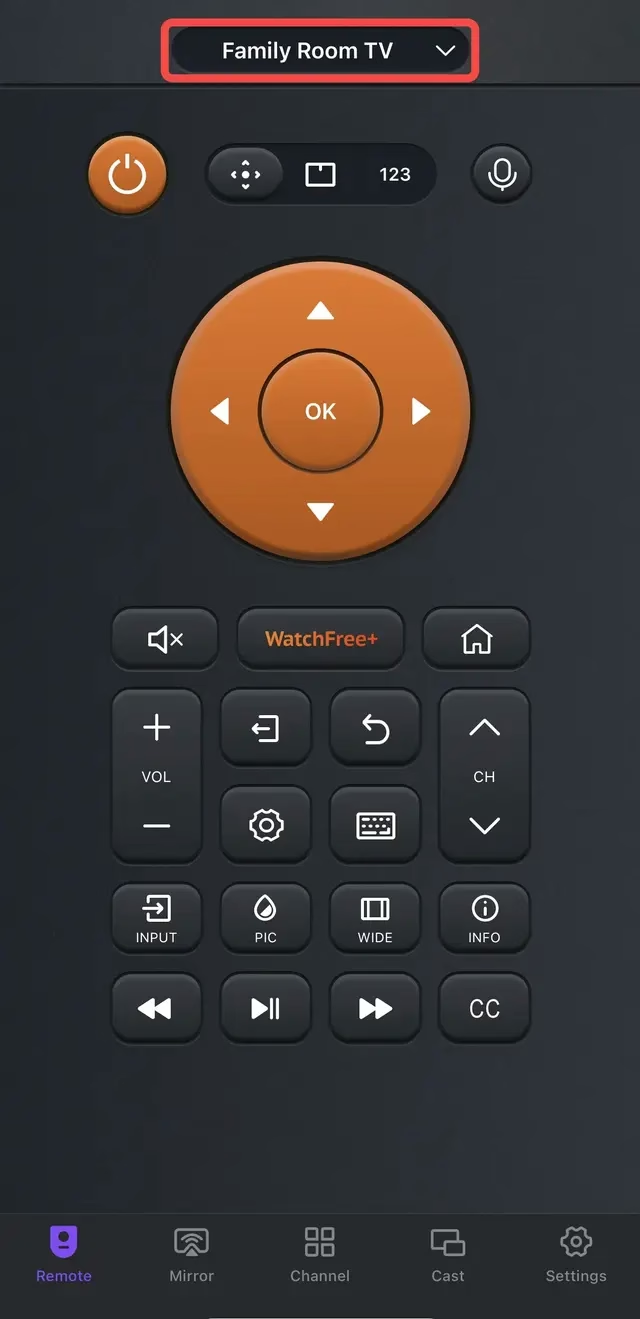
Step 4. Once you pair the devices successfully, you can see the name of your Vizio TV on the remote app. Then tap the Menu button (gear icon) to reach the menu page.
Wrapping Up
Where is the Menu button on Vizio remote? It is often on the upper left of the OK button on the Vizio remote with the gear icon or the imprinted "MENU" letters. However, if you purchased the remote ten years ago, you may find there is no Menu button.
Please keep an optimistic attitude! You are allowed to use the physical buttons on Vizio TV, open the Quick Menu on Vizio TV, or ask the universal remote app for help. No matter which alternative you are about to handle, hoping this blog can offer you the real assistance!
Menu Button on Vizio Remote FAQ
Q: Where is the menu on my Vizio remote?
The Menu button is always on the upper left of the OK button on the Vizio remote, which looks like the gear icon or the imprinted "MENU" letters on the latest Vizio remote.
Q: How do I access my Vizio menu without the remote?
Q: What if my Vizio remote has no clearly labeled Menu key?
Use the settings gear or Home navigation path on the TV interface; many recent models hide menu access behind on-screen navigation.
Q: Can a universal remote open Vizio picture settings?
Yes, if the programmed profile supports full directional and OK keys. Some low-cost profiles only map power and volume.
Q: How do I open the menu without any remote?
Use the TV side/back buttons to navigate to settings. You can also pair a compatible phone app if your TV supports network control.
Q: Why does the Menu key stop working randomly?
Most commonly from low battery voltage, worn membrane contacts, or intermittent IR signal blockage near the receiver.

 Jul 31, 2024